

I love my Steam Deck, but it accumulates dust and other gross things over time! In this tutorial guide, I’ll show you exactky how to clean your Steam Deck speakers and ports so that your controls don’t lock up over time or things stop working.
One small purchase made all the best difference!
Why Should You Clean Your Steam Deck Ports?
Keeping the ports on your Steam Deck clean is more important than most users realize, especially if you use your device frequently or on the go. Over time, dust, lint, and debris accumulate in ports, jacks, and speaker grills, interfering with connections and audio. Buildup in grooves makes it harder to maintain optimal performance.
A clogged USB-C port may cause slow or inconsistent charging, while blocked speaker openings can muffle sound and reduce clarity. Regular cleaning helps maintain functionality and ensures your Steam Deck performs as intended.
Besides performance, keeping your ports clean plays a key role in long-term durability. Built-up debris can trap moisture or cause internal wear, potentially leading to costly repairs or permanent damage. Since the Steam Deck is portable and used in various environments, it picks up pocket lint, dust, and particles from many surfaces. Establishing a cleaning routine is crucial for device longevity. Taking a few minutes to clean your ports is a simple preventative step that can extend your device’s lifespan.
Regular cleaning, such as wiping down the device weekly, helps prevent dust buildup and maintain the device in top condition for consistent performance.
Best Steam Deck Port Cleaners
Cleaning Pen
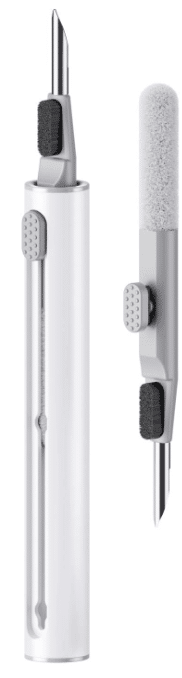
The Multi-Function Cleaning Pen is a simple tool that cleans your Steam Deck’s ports, speakers, and hard-to-reach areas without damaging the device. It has a soft brush, a thin metal tip, and a sponge for picking up dust and dirt from ports and speaker openings, where junk can affect how your device works.
For Steam Deck LCD and Steam Deck OLED models, this pen is especially useful because it applies very little pressure while still reaching deep into ports and around buttons, controls, and fan vents. The brush is ideal for loosening dust in heatsink and fan vents, while the tip helps clean debris from charging ports and remove dirt from hard-to-reach grooves. Pair it with a microfiber cloth, a dry microfiber cloth, or a cleaning cloth to safely clean external plastic surfaces and the screen.
The main thing to avoid is applying too much pressure or inserting the tip into ports too aggressively, as this can damage internal components. Also, avoid any liquids inside the ports or speakers. This tool is best used dry, alongside a dry cloth or microfiber cloth, to clean safely without needing repair or disassembly. For stubborn grime, you can lightly spray a gentle cleaner onto a microfiber cloth (never directly onto the device) to help clean your Steam Deck.
[aawp box=”B09QRPDQWR”]
Cleaning Gel
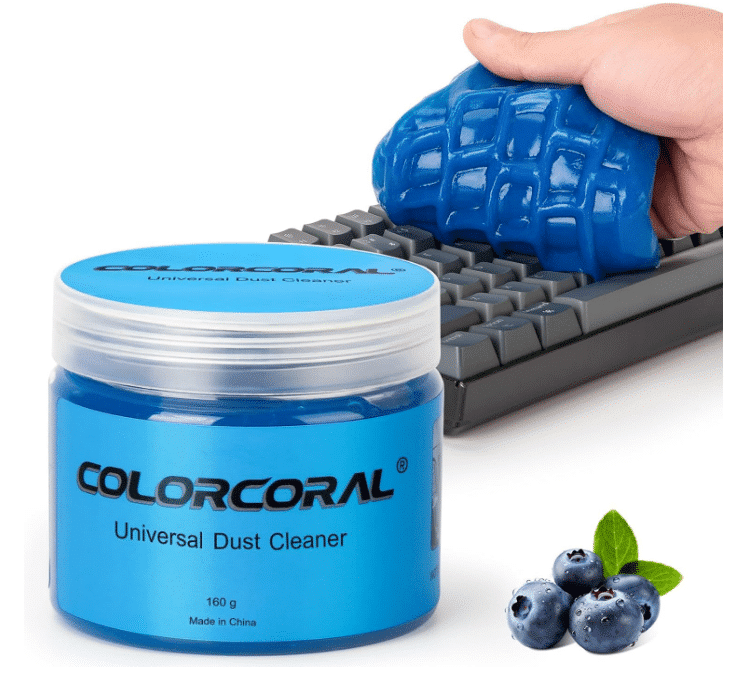
The ColorCoral cleaning gel, also known as adhesive cleaning putty, is another popular option for cleaning Steam Deck ports, speakers, and other tight areas because it molds into small spaces and lifts out dust without tools or pressure. You simply press the gel gently into ports, speakers, and input wells, and it pulls out debris that could otherwise interfere with audio, charging, or overall performance.
Adhesive cleaning putty can be used to lift grime from the Steam Deck speaker grill without the need for liquids. For both the Steam Deck LCD and Steam Deck OLED, this is an easy way to clean hard-to-reach areas like the fan vents, heatsink, and other components. Unlike compressed air devices, it doesn’t push dust further into internal components; instead, it removes it completely. It’s especially useful for maintaining clear sound from the speakers and preventing port buildup.
There are a few important warnings to note. Always use light pressure when pressing the gel into the ports, as excessive pressure can push residue into the device. Avoid using it on wet surfaces or mixing it with liquids. It should never replace proper screen-cleaning methods (like using a micro fiber cloth with a small amount of isopropyl alcohol). However, I prefer the gell pad over micro fiber near ports and the joystick.
[aawp box=”B0F37SM64S”]
Air Duster
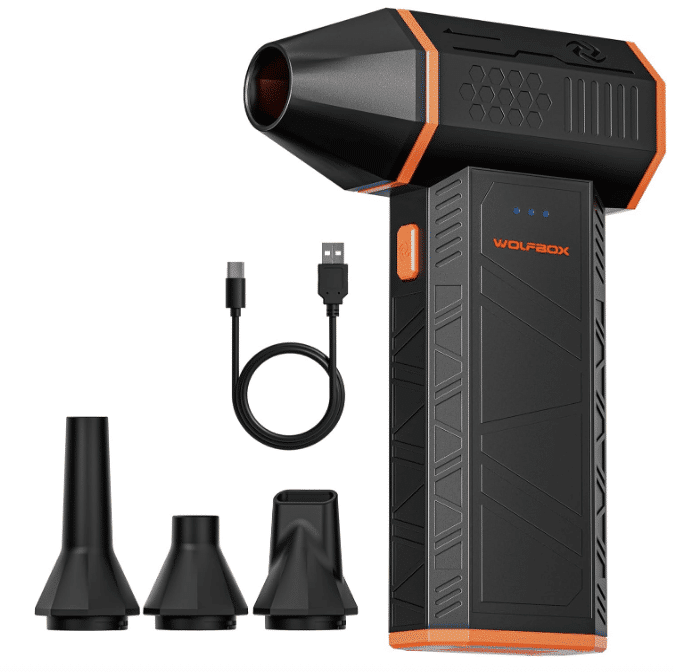
The WOLFBOX MF50 Electric Air Duster is one of the most powerful ways to clean Steam Deck ports, speakers, and internal airflow areas, thanks to its high-speed, adjustable compressed-air output. Instead of physically touching the device, it uses controlled air pressure to blow dust out of ports, fan vents, and heatsink and fan vents, making it ideal for maintaining performance without direct contact.
For both the Steam Deck LCD and Steam Deck OLED, this tool is especially effective for cleaning areas you shouldn’t touch, like internal components, speakers, and deep ports. It helps prevent buildup that can interfere with audio, charging, and overall device performance. After using compressed air, follow up with a dry microfiber cloth or a cleaning cloth to safely clean external plastic surfaces and the screen.
However, there are a few important warnings. Always use low to medium pressure when cleaning ports, as excessive pressure can push dust deeper into the ports or even damage sensitive electronics. Avoid holding the air stream too close to the device, and never shake or tilt the unit aggressively while in use. Unlike traditional compressed air cans, this reusable option avoids liquid discharge, but you should still avoid directing airflow at one spot for too long.
[aawp box=”B0DSW7R4VN”]
Tips for Cleaning Your Steam Deck Speakers & Ports
- Power Off Device: Always turn off the Steam Deck and unplug it before cleaning any ports or speakers to avoid damaging internal components.
- Start with the Least Aggressive Method: Use a microfiber cloth, a dry cloth, or a cleaning cloth to clean external plastic surfaces before moving to ports or speakers.
- Use Gentle Tools: A soft brush or cleaning pen is the best way to clean ports and input wells without applying too much pressure or causing damage.
- Be Careful With Compressed Air: Compressed air or compressed air devices can help clean fan vents and heatsink areas, but use short bursts and avoid high pressure so you don’t force dust deeper into the device.
- Clean Speakers Gently: Speaker grilles can be delicate, so use a soft brush or light air to remove dust that may interfere with sound quality.
- Clean Regularly, Not Aggressively: Light, consistent cleaning over long periods is better than deep cleaning with too much pressure, which can lead to repair or permanent damage.
- Finish with a Screen Wipe: Use a dry microfiber cloth or cleaning cloth to remove fingerprints and keep the display clean for the best gaming experience.
What Not to Do
- Don’t Use Household Cleaners: Avoid ammonia or harsh cleaning products, as they can damage the screen, glass, and sensitive electronics.
- Avoid Liquid Inside Ports: Never spray liquid, including alcohol, directly into ports. If needed, use a small amount of isopropyl alcohol on a microfiber cloth to clean the screen or external plastic surfaces only.
- Don’t Insert Metal Objects: Sharp or conductive tools can scratch ports or harm internal components if used improperly.
- Don’t Attempt Full Disassembly: Opening the device without proper knowledge can void warranties and increase the risk of permanent damage.