Lethal Company doesn’t have official VR support, but a free mod called LCVR adds full 6DOF motion controls to the game, and you don’t need any programming knowledge to install it. In this guide, I’ll walk you through installing Lethal Company in VR, setting up your headset, and fixing the most common problems people run into.
If you run into a mismatch between your game version and the mod, check the compatibility notes in the troubleshooting section below.
If you get stuck anywhere, let me know in the comments.
What Is LCVR?
LCVR (short for Lethal Company VR) is a community mod built by a developer known as DaXcess. It adds full 6DOF (six degrees of freedom) motion controls and hand tracking to Lethal Company, running on top of Unity’s OpenXR plugin. That means it isn’t tied to one VR platform. It works with Oculus, SteamVR, Virtual Desktop, and most other OpenXR-compatible runtimes.
The mod is free and open source under the GPL-3.0 license, and it’s hosted on GitHub and distributed through Thunderstore, the main mod database for Lethal Company.
Does Lethal Company Officially Support VR?
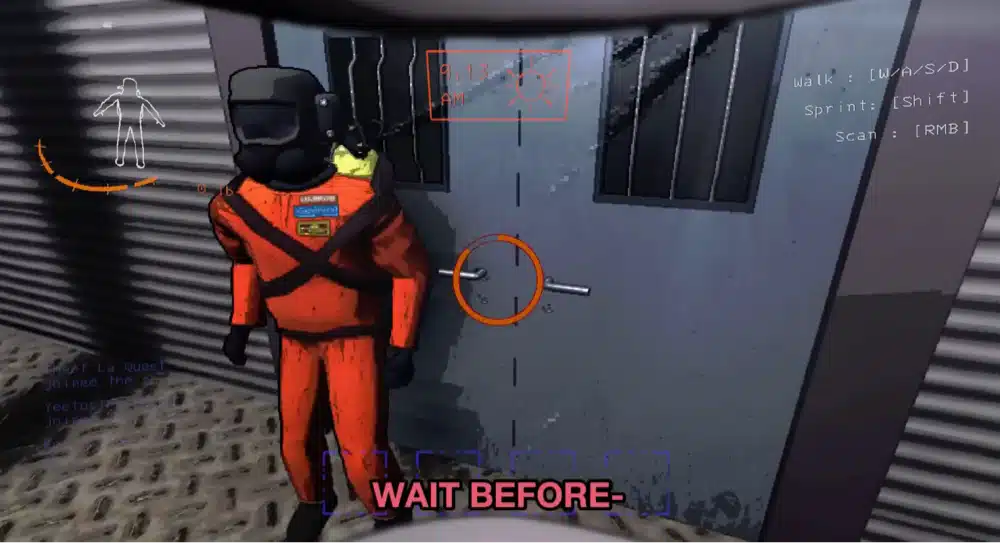
No. Lethal Company ships as a flat-screen game with no built-in VR mode. Everything covered in this guide comes from LCVR, a third-party mod, not from the game’s developer.
That’s normal for VR mods on games like this (the same is true for most UEVR-style VR mods for other PC games), but it’s worth knowing going in, since it means VR support depends on the mod staying updated alongside the base game.
What You Need to Play Lethal Company in VR
Before you install anything, make sure you have the following:
- Lethal Company purchased and installed on Steam
- A VR headset and runtime that supports OpenXR
- A PC that meets Lethal Company’s system requirements (VR needs some headroom above these, more on that below)
- The Gale mod manager (or r2modman as an alternative), covered in the installation steps below
Compatible VR Headsets and Runtimes
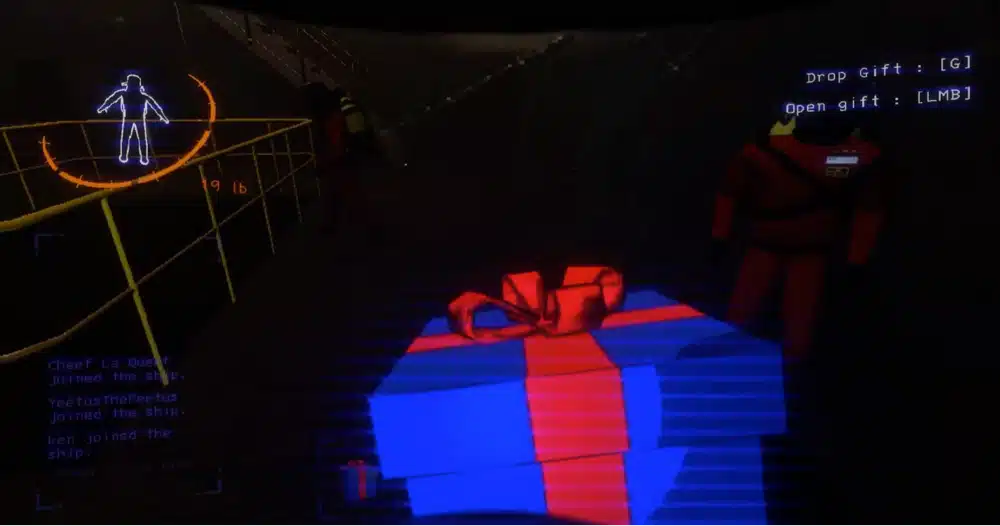
LCVR runs through Unity’s OpenXR plugin, so it isn’t locked to a single headset brand. According to the mod’s own documentation, it’s compatible with Oculus and Meta headsets, SteamVR-supported headsets like the Valve Index and HTC Vive, and Virtual Desktop for streaming from a Quest headset, along with other OpenXR runtimes.
If you’re playing on a Quest headset over Virtual Desktop or Air Link, your Wi-Fi matters a lot for a smooth connection. If you’re getting stutter over wireless streaming, a dedicated router built for Meta Quest streaming makes a noticeable difference.
PC System Requirements
Lethal Company itself has very light minimum requirements on Steam:
- 64-bit version of Windows 10, an Intel Core i5-7400 (or equivalent) with Shader Model 5 support
- NVIDIA GeForce GTX 1050 GPU
- DirectX 11
- broadband internet connection
- 4GB of free storage.
The developer hasn’t published a separate “recommended” spec, since the game is graphically simple.
Those numbers are for the flat-screen game, though.
VR rendering means your PC is drawing two images at once (one for each eye) instead of one, so you’ll want some real headroom above that GTX 1050 minimum to keep frame rates comfortable in VR, especially if you’re also running SteamVR or streaming to a Quest over Wi-Fi.
Mod Requirements (BepInEx and Mono)
LCVR is built on BepInEx 5.4.22 and requires Lethal Company’s Mono scripting backend (not Il2Cpp). You don’t need to install BepInEx yourself: the mod manager handles that as a dependency automatically. I’m calling this out mainly so you know why LCVR could theoretically break if Lethal Company’s developer ever switches the game over to Il2Cpp in a future update.
If that happens, check the mod’s GitHub page for an update before assuming your install is broken.
How to Install the Lethal Company VR Mod (LCVR)
Here’s the full step-by-step process to get LCVR up and running.
Launch Lethal Company Once First
If you haven’t already, install Lethal Company through Steam and launch it once in flat mode before installing any mods. This lets the game generate its normal config files, which gives the mod manager a clean install to work with.
While you’re at it, put your headset on and confirm SteamVR (or your runtime of choice) can see it and track properly outside the game first. Ruling out a basic headset or tracking problem now saves you from misdiagnosing it as an LCVR issue later.
Install the Gale Mod Manager
LCVR’s own documentation recommends using Gale as the mod manager. Download and install Gale, then open it and select Lethal Company from your list of games.
Install LethalCompanyVR Through Gale
Inside Gale, search for “LethalCompanyVR” by DaXcess and install it. Gale will automatically pull in the required dependencies for you, including BepInExPack and the OpenXR support libraries, so you don’t need to track those down or copy any files manually.
Using r2modman Instead
If you already use r2modman for other Lethal Company mods, that works too. Search for “LethalCompanyVR” in r2modman’s online mod browser the same way, install it with its dependencies, and launch through r2modman’s modded launch button instead of Steam. Either mod manager gets you the same result.
Launch Lethal Company With the Mod
Put on your headset and make sure SteamVR (or your runtime of choice) is running, then launch Lethal Company through Gale’s or r2modman’s launch button, not directly from Steam. Launching directly from Steam skips the mod loader entirely, which is the single most common reason people end up in flat mode instead of VR.
Setting Up Your Headset and Controls
What Happens on First Launch
The first time you launch Lethal Company with LCVR installed, don’t be surprised if you see a warning message and need to restart the game once. This is expected behavior while LCVR finishes setting itself up.
Once you relaunch, the game should boot straight into VR with your headset active.
Movement, Interaction, and Recentering
Once you’re in, movement works through your joysticks like most other VR games: one stick handles locomotion and the other handles turning. Grip and trigger buttons handle picking up and using items, and interacting with the ship’s terminal works by physically reaching out and typing or clicking with your controller, rather than using a keyboard.
If your view ever feels off-center, use your headset or runtime’s standard recenter command (this varies slightly by headset) to reset your position.
Configuring Controller Bindings
LCVR’s controller bindings need to be configured while you’re actually in VR, since the game needs to detect your specific controllers to map them correctly. If a button doesn’t seem to do anything the first time you try it, give the game a minute to fully initialize your controllers before assuming something’s broken.
Playing Multiplayer With VR and Non-VR Players
One of the best things about LCVR is that it doesn’t split your friend group into separate lobbies. It’s fully compatible with multiplayer, and VR players and flat-screen players can play together in the same lobby without any issues.
If you install LCVR but don’t actually own a headset, the mod still works. You’ll play on your monitor as normal, but you’ll be able to see your VR friends’ arm and head movement reflected in-game, which is a nice touch if only part of your group has headsets.
Recommended Companion Mods
A popular pairing with LCVR is MoreCompany, which raises Lethal Company’s default lobby size so bigger friend groups can play together.
Not every mod plays nicely with LCVR, though. Because LCVR changes so much of the game’s core interaction and camera systems, mods involving custom emotes, custom UI, or new keybindings that don’t have dedicated VR support can conflict with it. If a mod you add stops LCVR from working correctly, that’s the first thing I’d suspect.
LCVR Troubleshooting
The Game Launches in Flat Mode Instead of VR
This almost always means the game was launched directly from Steam instead of through Gale or r2modman. Close the game, make sure your headset and VR runtime are running first, then launch again from your mod manager’s launch button specifically.
Hand Tracking or Controller Issues
If your hands or controllers aren’t tracking correctly, confirm your headset is fully set up and tracking properly outside the game first (in SteamVR’s dashboard, for example).
If tracking is fine elsewhere but breaks in Lethal Company specifically, check that you’re on the current version of LCVR that matches your installed game version, since a mismatch here is a common cause of control issues.
Performance, Lag, or Stutter
Since VR rendering is more demanding than flat-screen play, stutter is usually a hardware headroom issue rather than a bug in the mod. Lowering in-game graphics settings helps, and if you’re streaming to a Quest headset over Wi-Fi, a stronger router or switching to a wired Link cable connection can resolve a lot of stutter that looks like a performance problem but is really a connection problem.
Resetting Your LCVR Settings
If your LCVR settings get into a bad state, you can reset them back to default by deleting the config file at BepInEx/config/io.daxcess.lcvr.cfg in your Lethal Company install folder. LCVR will regenerate a fresh copy of this file the next time you launch the game.
Frequently Asked Questions About Lethal Company VR (FAQs)
Is LCVR free for Lethal Company in VR?
Yes. LCVR is a free, open source mod released under the GPL-3.0 license. There’s no cost to download or use it.
Do I need a VR headset to play with someone who has one?
No. LCVR supports mixed lobbies, so friends without a headset can join on a regular monitor and still play alongside VR players in the same game.
Which VR headsets work with LCVR?
Any headset that works through OpenXR, which covers most modern headsets: Oculus and Meta headsets, SteamVR headsets like the Valve Index and HTC Vive, and Quest headsets connected via Virtual Desktop or Link.
Is using LCVR against Lethal Company’s rules?
Lethal Company doesn’t use anti-cheat software, and LCVR’s own documentation doesn’t mention any restriction on using it. That said, it’s still a third-party mod rather than an officially supported feature, so as with any mod, use it at your own discretion.
Does LCVR work with other Lethal Company mods?
Most mods are compatible, and popular additions like MoreCompany work well alongside LCVR. Mods that add custom emotes, custom UI, or new keybindings without dedicated VR support are the most likely to cause conflicts.
What if LCVR stops working after a Lethal Company update?
LCVR is built for a specific game version (V81 as of this guide), so a game update can temporarily break compatibility until the mod is updated to match. Check LCVR’s GitHub or Thunderstore page for the latest version before assuming your install is broken.
Final Thoughts
LCVR is a genuinely well-built mod for a game that never officially planned to support VR, and being able to mix VR and non-VR players in the same lobby makes it easy to try out with a group without everyone needing a headset. If you run into anything this guide didn’t cover, drop a comment and I’ll help you sort it out.