VRChat is built almost entirely around how you look and who you are in the game, so getting VRChat custom avatars is one of the first things new players want to figure out.
The good news: you don’t need to learn Unity or 3D modeling to wear one. There are four real ways to get a custom avatar in VRChat, ranging from a couple of taps in the in-game menu to building something completely from scratch.
This guide walks through all four: browsing VRChat’s own in-game Avatar Marketplace, finding free avatars in community “avatar worlds,” buying a model from an outside creator and uploading it yourself, and building a fully custom avatar from the ground up. I’ll also cover the account requirements you need to know about, what changes between PC and Quest, and how to fix the problems people run into most.
If you get stuck anywhere, jump down to the troubleshooting section near the end.
What Are Custom Avatars in VRChat?
A custom avatar in VRChat is any 3D character model you use instead of the game’s small set of built-in default avatars. VRChat has tens of millions of avatars in circulation, created and shared by its community, and almost everyone you run into in a public world is wearing one.
Custom avatars can be anime characters, furries, robots, original designs, or replicas of characters from other games and media, and switching between avatars you already own takes seconds through the in-game Avatars menu.
4 Ways to Get a Custom Avatar in VRChat
You don’t need to build anything to get a custom avatar in VRChat. According to VRChat’s own official guidance, there are four ways to get one: browse and buy from the in-game Avatar Marketplace, grab a free avatar in an avatar world, buy a model from an outside creator and upload it yourself, or build something entirely custom. The first two need nothing but the game itself. The last two involve Unity and a bit of a learning curve. Pick whichever matches how much time and technical effort you actually want to put in.
- Avatar Marketplace – browse and buy avatars in-game with VRChat Credits, no Unity required
- Avatar worlds – free, pedestal-based avatars you can try on instantly inside specific VRChat worlds
- Buy externally and upload – purchase a model from sites like Booth.pm or Gumroad, then publish it yourself through Unity and the VRChat SDK
- Build from scratch – model, texture, and rig a fully original avatar using tools like VRoid Studio or Blender
Method 1: Browse the VRChat Avatar Marketplace (Easiest, No Unity)
The Avatar Marketplace is VRChat’s own official storefront, built directly into the game, and it’s the easiest way to get VRChat custom avatars without touching Unity. Open the Main Menu, click the Avatars tab, and you’ll land on the Explore tab, where avatars are organized by category (anime, furry, robot, and plenty more).
You can try on any avatar before buying it, including checking how it fits your proportions if you’re in VR, and each listing shows its price, file size, and performance ranking upfront.
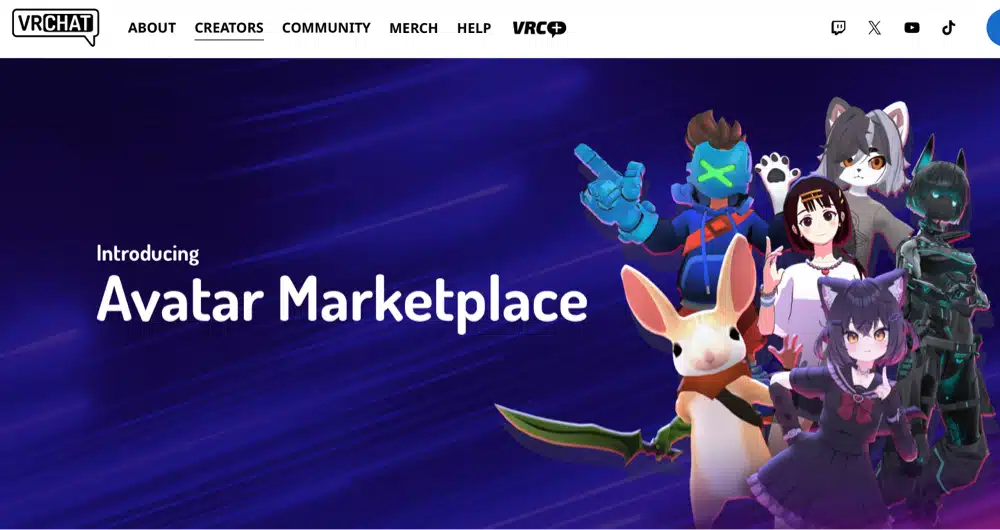
Once you find something you like, you buy it with VRChat Credits, an in-game currency purchased through the Steam Store, Meta Store, or Google Play Store. Credits are sold in packs, starting around $4 for 600 credits, with the price per credit dropping as you buy bigger packs. Individual avatar prices vary a lot by creator and detail level, so expect anywhere from a couple of dollars for something simple up to $20 or more for a highly detailed avatar.
The other advantage of buying through the Marketplace: sellers publish both PC and Quest versions themselves, so you don’t have to think about build targets or performance optimization at all. It just works on whichever headset you’re using.
Method 2: Find Free Avatars in Avatar Worlds
Avatar worlds are community-made VRChat worlds built specifically to hand out free avatars. Inside them, you’ll find “avatar pedestals,” which display a preview image of an avatar that transforms you into it the moment you click on it. It costs nothing, doesn’t require any account upgrade, and never touches Unity. Some avatar worlds sort their pedestals by style or theme, so browsing one can turn up dozens of options in a few minutes.
To find one, open the Main Menu, go to Worlds, and use the search icon at the top. Type “avatar” plus a style you’re after, like “anime avatar,” “furry avatar,” or “robot avatar,” and you’ll usually get several results worth exploring.
There’s a second free option worth knowing about, too: if you see someone wearing an avatar you like and they’ve made it public, you can select them through the Quick Menu and press Favorite Avatar to add it straight to your own list without hunting down the world it came from. This only works if the original uploader set that specific avatar to public, so it won’t work on everyone.
Method 3: Buy an Avatar Outside VRChat and Upload It
If the Marketplace and avatar worlds don’t have what you’re after, sites like Booth.pm, Gumroad, and VRCMods sell (or in some cases give away) a much wider selection of avatars as downloadable files. The tradeoff is that using one requires a short detour through Unity, since VRChat itself can’t install a file you didn’t buy through its own Marketplace.
What You Need Before You Start
- A VRChat account with “New User” trust rank or higher (see the requirements section below)
- The VRChat Creator Companion (VCC), which installs Unity and the VRChat SDK for you
- Your avatar’s files, typically an .fbx model or a Unity package, plus any required shader package (Poiyomi is the most common one avatar sellers use)
PC: Importing and Uploading Your Avatar
- Open the Creator Companion and create a new Avatar Project, then open it in Unity
- Drag your avatar’s files, and any required shader package, into the Assets folder and let Unity import them
- Select the avatar in your Hierarchy, add a VRC Avatar Descriptor component, and set the view position between its eyes
- Open VRChat SDK > Show Control Panel, sign in, and go to the Builder tab
- Name your avatar, set its visibility, run Build & Test to check it locally, then Build & Publish when you’re happy with it
Once it’s published, launch VRChat, open the Avatars menu, and you’ll find it under your own uploaded avatars, ready to wear.
Quest: What’s Different When Uploading
There’s no version of Unity that runs on a Quest headset itself, so all of the steps above still happen on a PC or Mac. The difference is that once your avatar works on PC, you switch Unity’s build target to Android and publish it a second time to create the standalone Quest version.
Quest also enforces stricter avatar Performance Ranks than PC, so an avatar that runs fine on PC can come back rated Poor or Very Poor on Quest and get hidden by default from other Quest users who have strict avatar-safety settings turned on.
Method 4: Build a Fully Custom Avatar From Scratch
If you want an avatar nobody else has, you can build one yourself. There are two realistic paths depending on your experience level.
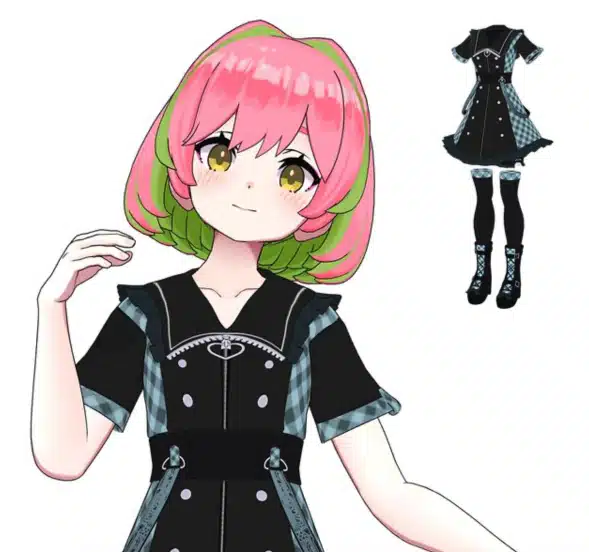
For beginners, VRoid Studio is a free, anime-style character creator with hundreds of sliders for hair, face, and outfit details, and it’s available on Steam. It’s closer to a character creator in a video game than real 3D modeling. The catch is that VRoid Studio exports in the .vrm format, which Unity doesn’t read natively, so you’ll need a community-made VRM-to-VRChat converter plugin before you can import it and upload it the same way described in Method 3 above. I’ve covered this exact workflow in more depth in our guide to making a VTuber avatar, which uses the same tools.
For a fully original model, you’re looking at software like Blender for modeling and rigging, and Substance Painter for texturing, then exporting to .fbx and rigging it to VRChat’s standard humanoid bone structure. This is a complex skill to learn, closer to a hobby than a weekend project, but it’s also the path that lets you eventually sell your own avatars through the Marketplace or on sites like Booth.pm.
VRChat Avatar Trust Rank and Upload Requirements Explained
Browsing the Avatar Marketplace or wearing an avatar from an avatar world doesn’t require anything special. Uploading your own VRChat custom avatars, whether bought externally or built from scratch, is a different story: your account needs “New User” trust rank or higher. If you’re playing through Steam, Meta, or another platform account, you’ll also need to link it to a proper vrchat.com account first.
VRChat doesn’t publish an exact hour count for reaching New User, and estimates from the community commonly land somewhere between half a day and a couple of days of normal play, as long as you’re not violating any community guidelines. You’ll get an in-game notification once you’re upgraded. In the meantime, you can still build and locally test avatars in Unity, you just can’t publish them for others to see yet.
On the file side, .fbx is the standard format Unity imports directly. If your model comes as a .vrm file (from VRoid Studio, for example), it needs to go through a conversion plugin first, since Unity and the VRChat SDK don’t read .vrm natively.
VRChat Custom Avatars on Quest vs PC: What’s Different
If you’re getting your avatar from the Avatar Marketplace or an avatar world, there’s no practical difference between Quest and PC. Both versions are published by the creator ahead of time, so the avatar just works on whichever headset you launch VRChat from.
The difference only shows up if you’re uploading your own avatar. Quest needs its own Android build pass in Unity, done on a PC or Mac since there’s no Unity Editor for the headset itself, and Quest’s performance ranking system is noticeably stricter than PC’s. A model that looks and runs great on PC can land in a lower performance tier on Quest, which means some other Quest users, depending on their own safety settings, might not see it at full detail (or at all) by default.
Troubleshooting Common VRChat Avatar Problems
Avatar Won’t Load or Shows a Gray Fallback Model
VRChat streams avatars on the fly as you encounter them, so a gray placeholder model usually just means it’s still downloading, give it a few more seconds in a busy world. If avatars generally aren’t showing up for you at all, check your own Avatar Performance and Safety settings in the Quick Menu, since a strict setting can be hiding avatars above a certain performance tier by design, not by error.
Stuck in a Broken Avatar
If an avatar breaks, glitches, or leaves you stuck, open the Avatars menu and switch to any other avatar you own, including VRChat’s own default avatars, to reset out of it. If the menu itself is unresponsive, VRChat’s safety tools include a reset option for exactly this situation, and as a last resort, relaunching the game clears it out completely.
Upload Fails in the SDK Control Panel
A failed upload is almost always explained by the validation messages in the Builder tab itself, so read those first rather than guessing. The most common causes are a missing or misconfigured VRC Avatar Descriptor, a polygon count or file size over VRChat’s limits, or simply not being signed into the SDK Control Panel. A shaky internet connection can also cause an upload to fail partway through, so if everything checks out and it still fails, try again on a more stable connection before assuming the avatar itself is broken.
Frequently Asked Questions About VRChat Custom Avatars
How do you get custom avatars in VRChat?
There are four ways: browse and buy from VRChat’s in-game Avatar Marketplace, grab a free one in an avatar world, buy a model from an outside creator like Booth.pm and upload it yourself through Unity, or build a fully original avatar from scratch.
How much does a custom VRChat avatar cost?
It depends on where you get it. Avatar worlds are free, while Marketplace and externally purchased avatars typically run from a couple of dollars for something simple up to $20 or more for a highly detailed model, priced in VRChat Credits on the Marketplace or real currency elsewhere.
Can you get VRChat avatars for free?
Yes. Avatar worlds hand out free avatars through pedestals you can click to wear instantly, and you can also favorite another player’s avatar for free through the Quick Menu if they’ve set it to public.
Do you need Unity to use a custom avatar in VRChat?
No, not if you’re using the Avatar Marketplace or an avatar world. Unity is only required if you’re uploading an avatar you bought externally or built yourself.
Can you use custom avatars on VRChat for Quest?
Yes. Marketplace and avatar-world avatars work on Quest exactly like on PC, since the creator publishes both versions. If you’re uploading your own, you’ll need to build a separate Android version in Unity to get it working on Quest.
Avatar Marketplace vs. avatar worlds: which should I use?
Use the Marketplace if you want a specific, polished look and don’t mind paying for it. Use avatar worlds if you’re happy browsing what’s available for free, or just want to try out different styles before committing to a purchase.
Is it hard to make your own VRChat avatar?
Using a beginner tool like VRoid Studio is easy and closer to a character creator than real 3D modeling. Building a fully original avatar in Blender, with proper rigging and texturing, is a real skill that takes real time to learn.
Final Thoughts
Most people should start with the Avatar Marketplace or a free avatar world, since neither one touches Unity and both get you into a good-looking avatar in minutes. Save buying-and-uploading or building from scratch for once you already know exactly the look you’re after, or you want more control than what’s available in-game.
Whichever path you pick, getting your VRChat custom avatars set up right from the start makes the rest of your time in the game a lot more fun.