If you’re wondering how to play Gran Turismo 2 in VR on Meta Quest, the timing could not be better. A fan developer just released GT2 VR, a free, open-source mod that runs Gran Turismo 2 natively on a standalone Meta Quest, in full stereo VR, with no PC or game streaming required. It went live this week, and this guide walks through exactly what you need and how to install it.
This isn’t an emulator core loaded into RetroArch. GT2 VR is a from-scratch C++ port of the game’s simulation code, rebuilt with Vulkan rendering so it runs directly on the Quest 3’s own hardware. Below, we cover what the mod actually is, what you need before starting, the exact install steps, controls, recommended settings, and the problems people are already running into.
What Is GT2 VR?
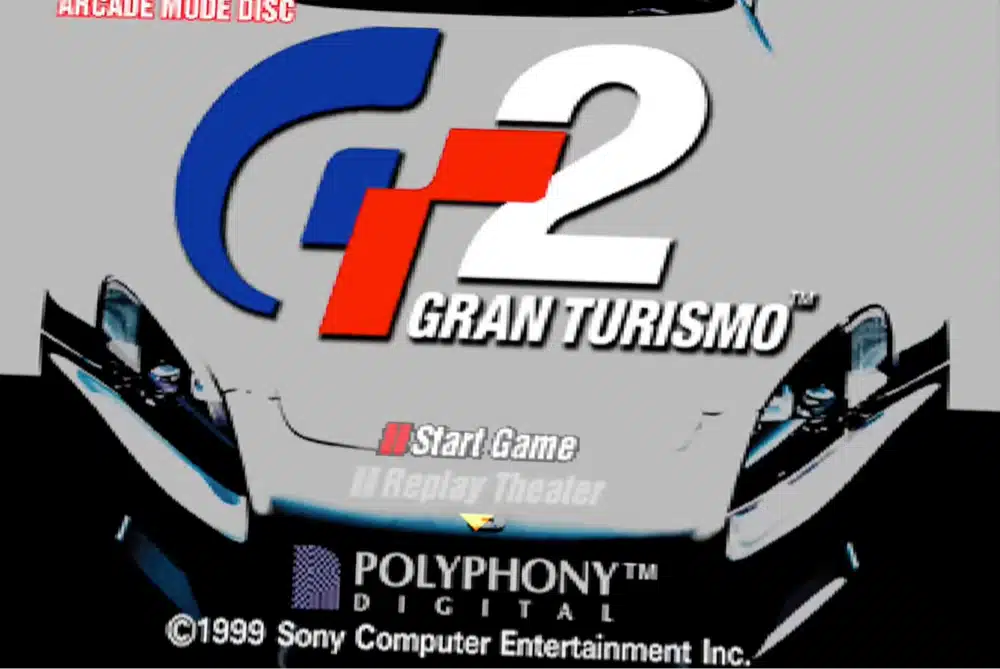
GT2 VR is built from an open-source project called gt-2-pc, created by developer dubrovskiy-yevhen-stakelogic and published on GitHub. It’s a native Vulkan port of Gran Turismo 2’s simulation code for Windows PC and Quest 3 standalone VR, not a PS1 emulator. The project ships alongside a separate PS1 interpreter, but that’s used purely as a development and validation reference; the actual gameplay runs on rebuilt native code instead of emulated PS1 hardware.
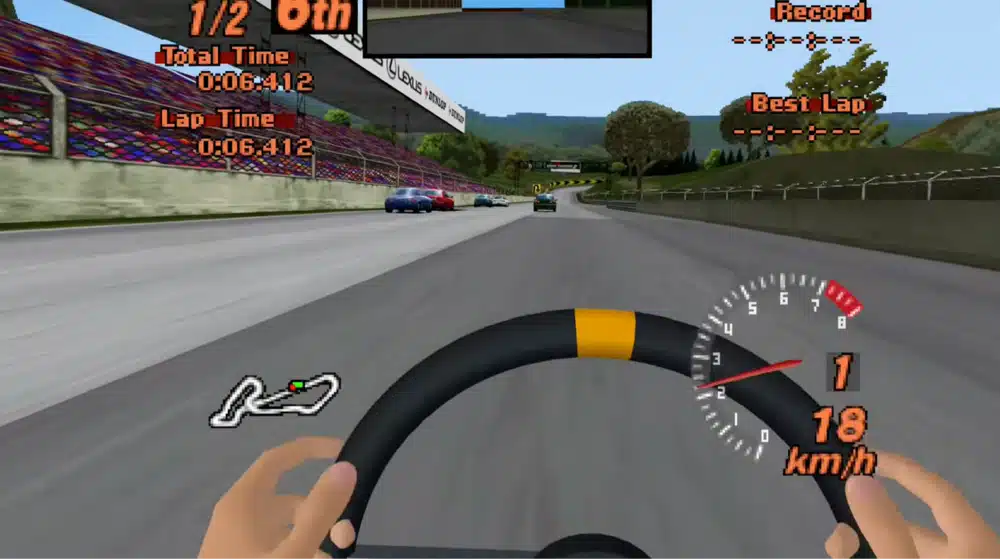
That distinction matters for performance. Because it’s a native port rather than an emulator, GT2 VR can render the game in full stereo VR with head tracking and hit far higher, steadier frame rates on Quest 3 hardware than a PS1 emulator core realistically could. This is the project’s first public release, version 0.1.0, and it’s being actively developed.
Does Meta Quest Officially Support Gran Turismo 2?
No. GT2 VR isn’t a Meta Horizon Store title, and Sony has never released an official VR version of Gran Turismo 2. This is an unofficial, community-built mod that has to be sideloaded onto your headset outside the normal app store, similar to how tools like SideQuest work for other unofficial Quest content. That means no Horizon Store listing, no automatic updates, and no official support from Meta or Sony if something goes wrong.
Can You Play Gran Turismo 2 in VR on Meta Quest 2?
Not the standalone version, at least not yet. The current GT2 VR release (v0.1.0) is built and tested specifically for Meta Quest, and the project requires Vulkan 1.3 support, which the Quest 2’s older chipset doesn’t handle the same way the Quest 3’s does. There’s no official Quest 2 build or timeline from the developer as of this release.
If you only own a Quest 2, the workaround is the separate Windows PC build. Early community reports suggest the flat PC version can be viewed through a PC VR headset over OpenXR, using a gamepad for input, since the tracked motion controls are built specifically for the Quest 3’s standalone code. That gets you the game in a headset, but with gamepad steering rather than the Quest 3’s tracked virtual wheel or motion steering.
What You’ll Need Before You Start
Before you install anything, make sure you have:
- A Meta Quest for the standalone method (a Windows PC with a Vulkan 1.3-capable GPU for the PC-only method)
- A Windows PC to run the installer, even if you’re only setting up the Quest 3 version
- The official GT2 VR release from the project’s GitHub page
- A Gran Turismo 2 disc image or ROM (Arcade and/or Simulation): one or the other is required for the installer to work, and you’ll need to supply it yourself
- Quest 3 developer mode enabled, plus a USB cable to connect it to your PC
- A few GB of free storage per disc you install, for raw disc data, extracted assets, and staging files
Next, I’ll help you setup Gran Turismo 2 in VR!
Which Gran Turismo 2 Disc Version Do You Need?
The installer verifies your disc image or ROM against an exact executable hash before it will proceed, so it has to match one of these four supported versions:
| Region | Mode | Executable | SHA-1 |
|---|---|---|---|
| US | Arcade v1.1 | SCUS_944.55 | 231f9dba7191b9ef915621662afdc40a7c66df95 |
| US | Simulation v1.2 | SCUS_944.88 | 3030aa271c0a4022fc69ce09d76a6bc75e69a32a |
| Europe | Arcade | SCES_023.80 | 2b59ad844a4dbb934fc1d8ef955c63038f54e932 |
| Europe | Simulation | SCES_123.80 | 5172a19c1d0fe07a2a61966653b755afe26d9e69 |
Other regions and revisions, including Japanese releases, aren’t supported yet. The installer accepts BIN/CUE, raw 2352-byte ISO, ZIP, or 7z formats, but it checks the exact hash before proceeding, so a slightly different dump of the same game won’t pass verification.
How to Install Gran Turismo 2 in VR on Meta Quest (Step-by-Step)
The whole process runs from a Windows PC, which builds the app and pushes it to your headset over USB. Here’s the full sequence.
Step 1: Enable Developer Mode on Your Quest 3
Turn on developer mode through the Meta Horizon mobile app (this needs a registered Meta developer account, which is free), then connect your Quest 3 to your PC with a USB cable and accept the USB debugging prompt inside the headset.
Step 2: Download the GT2 VR Release
Grab the latest release package from the project’s GitHub page and extract it into a writable folder on your PC (not a protected system folder like Program Files).
Step 3: Run the Installer and Select Your Disc Images
Run INSTALL.bat from the extracted folder. When prompted, point it at your Arcade and/or Simulation disc image, choosing either the BIN or CUE file for each disc, not both.
Step 4: Let the Installer Verify and Sideload
From here, the installer handles the rest automatically: it locates or downloads ADB if you don’t already have it, extracts your disc data, verifies the executable hash, builds the signed APK, and pushes it to your headset. This step is where the several-GB storage requirement mentioned above actually gets used, so make sure you have room to spare.
Step 5: Launch and Play
Put your headset on and open GT2 VR from your Unknown Sources / App Library section. Use the stick and A button to pick a disc from the in-game disc picker, and A or B to skip the intro movies. Arcade and Simulation modes keep separate settings and saves, so switching between them won’t overwrite your progress.
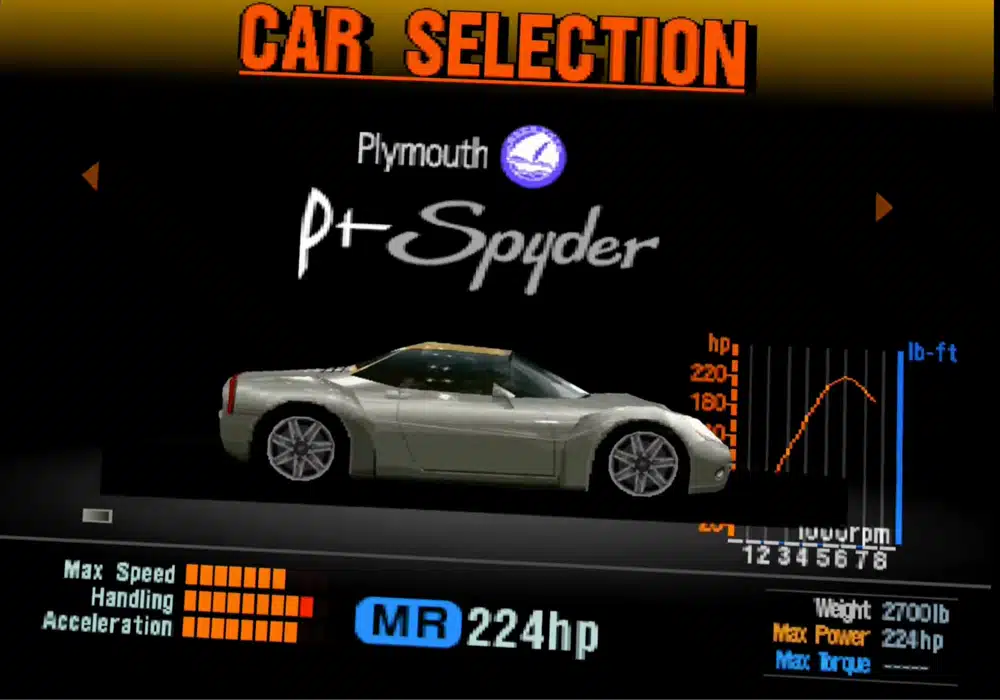
How to Play Gran Turismo 2 in PCVR (Alternate Method)
If you’d rather run it on a gaming PC instead of (or alongside) your Quest 3, run INSTALL-PC.bat with the same disc images. That generates PLAY-arcade.bat and PLAY-simulation.bat shortcuts in your install folder, and requires a graphics driver that supports Vulkan 1.3.
On PC, you can play with a keyboard, any XInput controller, or a native DualSense/DualSense Edge over USB or Bluetooth, complete with adaptive trigger support and no Steam Input layer required. As mentioned above, this PC build is also the route to viewing the game in a headset that isn’t a Quest 3, streamed over OpenXR with gamepad controls.
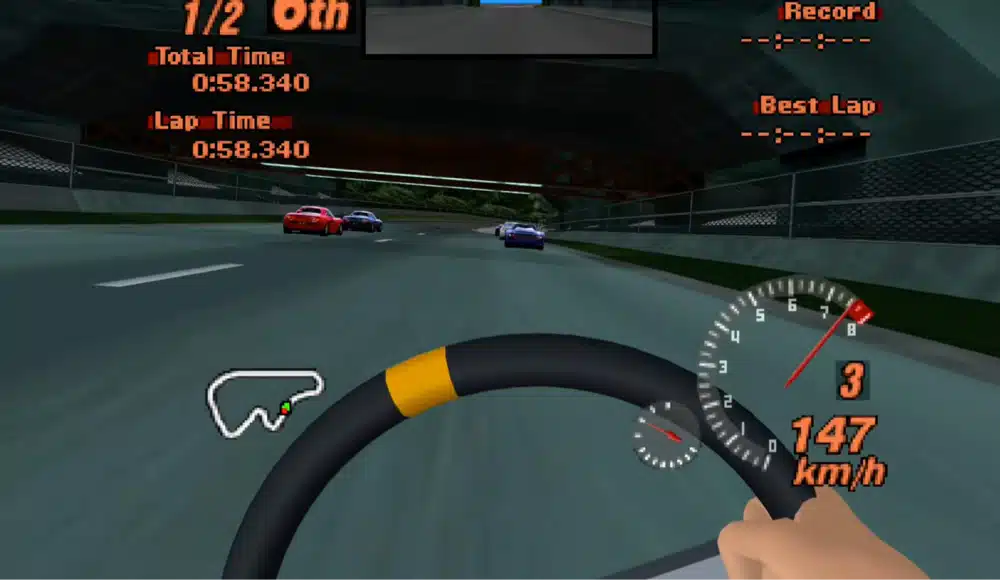
Gran Turismo 2 VR Controls: Stick, Virtual Wheel, and Motion Steering
The standalone Quest 3 build gives you three steering options, switchable in the settings menu:
- Stick: steer with the left thumbstick, the simplest option and the easiest to jump into
- Virtual wheel: grab near the sides of an on-screen wheel with your controller grips and turn it, with an 80-degree lock and a small 3% dead zone
- Motion steering: twist your controller like you’re turning a real wheel, tracked around your forearm’s axis
Across all three modes, the right trigger accelerates and the left trigger brakes, then shifts into reverse once you’ve come to a stop. If you’re new to VR racing or prone to motion sickness, start with Stick or Virtual Wheel before trying Motion, since the latter asks your body to track a steering motion your eyes aren’t seeing a physical wheel to match.
Best GT2 VR Settings for Quest (Performance and Comfort)
Hold both grips and press the left Menu button to open the VR settings menu. From there, the stick and X/Y buttons move between rows, the triggers adjust values, A opens submenus or confirms, and B backs out. You can adjust eye resolution (50-200%), refresh rate, MSAA, texture filtering, draw distance, foveation, vibration, and HUD elements.
New Quest profiles start at 150% resolution, 80Hz, MSAA 2x, a 500m draw distance, and medium foveation.
Worth knowing before you push those numbers higher: 175% eye resolution renders roughly 3 times as many pixels as 100%, and the developer’s own notes say a sustained 175% at 90 FPS isn’t achieved across every race in this release. If you notice loading or start-of-race hitches, drop resolution, MSAA, or draw distance first and raise foveation before assuming something’s broken.
Gran Turismo 2 VR vs. Gran Turismo 7 on PSVR2: What’s the Difference?
These aren’t really competing for the same buyer, but the comparison comes up often enough to answer directly. Gran Turismo 7 on PSVR2 is an official Sony and Polyphony Digital product: modern graphics, a native VR mode built by the studio that made the game, and full support, but it requires a PS5 and a PSVR2 headset, both of which cost real money if you don’t already own them.
GT2 VR is a free fan-made mod of a 1999 PS1 game, with no official support and rougher edges (flat-artwork billboards, a theatre-only two-player mode, occasional performance hitches). What it offers instead is nostalgia, a $0 price beyond the hardware and game you may already own, and the novelty of a 27-year-old racer running standalone in stereo VR on a headset you probably already have.
If you’re choosing between the two for graphics or polish, GT7 on PSVR2 wins easily. If you already own a Quest 3 and a copy of Gran Turismo 2, GT2 VR is the more accessible way to actually try it in VR.
Troubleshooting Common GT2 VR Issues
- Loading or start-of-race hitches: lower resolution, MSAA, or draw distance, and raise foveation, before assuming the install is broken
- Disc verification fails during install: your disc image or ROM doesn’t match one of the four supported SHA-1 hashes above; a different dump of the same game (wrong revision, wrong region, or a bad rip) won’t pass
- Switching between public and development builds: the two use different app signing, so export your saves first rather than uninstalling one build to work around a signature mismatch, or you’ll lose your progress
- Sideload or install step won’t complete: re-run the installer’s verify-only mode to isolate the problem, or pull debug logs directly from the headset with
adb shell run-as io.github.gt2pc.questif you need to dig further
Is the GT2 VR Mod Worth Playing? (Verdict)
Yes, if you already own a copy of Gran Turismo 2 and a Quest 3 that isn’t seeing much use. It’s a genuinely impressive early build: a free, standalone, stereo VR port of a PS1 classic that most people assumed would never exist outside of flat emulation.
Go in expecting a handful of rough edges (theatre-only split-screen, occasional performance hitches at higher settings, no PSVR2-style tracked wheel accessory) rather than a finished commercial product. If you’re sensitive to motion sickness, start with Stick or Virtual Wheel mode and lower your resolution settings before judging comfort. Given how actively this project is being developed, expect these limitations to shrink with future updates.
Frequently Asked Questions
Can I Play Gran Turismo 2 VR on Meta Quest 2?
Not the standalone build. GT2 VR v0.1.0 requires Vulkan 1.3 and is built specifically for Meta Quest. Quest 2 owners can instead run the Windows PC build and view it through a PC VR headset using a gamepad for controls.
Is GT2 VR Free?
Yes. GT2 VR is a free, open-source project. You do need to supply your own Gran Turismo 2 disc image or ROM, since the mod doesn’t include one.
Do I Need a PS1 BIOS to Play GT2 VR?
No. Unlike a RetroArch PS1 core, GT2 VR doesn’t require a separate BIOS file. You only need a supported Gran Turismo 2 disc image or ROM.
What Do I Need to Run GT2 VR?
A Meta Quest (or a Vulkan 1.3-capable Windows PC), a Windows PC to run the installer, and a Gran Turismo 2 disc image or ROM matching one of the supported Arcade or Simulation versions.
Does GT2 VR Support Multiplayer or Split-Screen?
A two-player mode exists, but in this release it only displays on the flat theatre screen inside VR rather than in stereo for both players.
Which Gran Turismo 2 Disc Do I Need?
GT2 VR currently supports four versions: US Arcade v1.1, US Simulation v1.2, and the European Arcade and Simulation discs. Other regions and revisions aren’t supported yet.
Can I Use a PS4 or PS5 Controller Instead of Quest Controllers?
On the PC build, yes. DualSense and DualSense Edge controllers work natively over USB or Bluetooth, including adaptive triggers. The standalone Quest 3 build uses the Quest controllers themselves for its Stick, Virtual Wheel, and Motion steering modes.
Final Thoughts
GT2 VR is a fast-moving, unofficial fan project, not something Sony or Meta has endorsed, so expect it to keep changing. If you’ve been wondering how to play Gran Turismo 2 on Meta Quest, right now is genuinely the first time it’s been possible, and the install process above is the fastest working path. Check the project’s GitHub page before you start in case a newer release has changed a step since this guide was written.
If you’re into retro gaming on Quest more broadly, our Meta Quest VR emulator guide covers other ways to play classic games in VR, and our Steam Deck emulation guide is a good next stop if you’d rather run retro titles on a handheld instead.