
DOOM Eternal has no official VR support, but there are now two free community mods that put it in your headset with real 6DOF head tracking and motion controls: KHARVOX: ARGENT and EternalVR. Either DOOM Eternal VR mod plays the full campaign and both DLC on a Windows PC, and you don’t need any modding experience to install one.
In this guide, I’ll help you pick the best DOOM Eternal VR Mod, go through the requirements, and walk through the install for each mod step by step. I’ll also cover running the game on a Quest 3 through Virtual Desktop or Meta Link, how to play on Steam Frame and other headsets, the controls, and the problems people are most likely to hit.
If you get stuck anywhere, let me know in the comments.
Can You Play DOOM Eternal in VR? Does DOOM Eternal Support VR?
Not officially. id Software never added a VR mode to DOOM Eternal, and there is no VR version of it on consoles. DOOM VFR was a separate VR spin-off released years earlier, and it is a different game. Playing DOOM Eternal in VR today means using a community mod on a Windows PC, and the base game has to be a legitimate copy: you can buy DOOM Eternal on Steam or play it through Game Pass or the Microsoft Store.
That also answers the console question: a PS4, PS5, Xbox or Switch can’t run these mods, and neither can a standalone Quest by itself. A Quest 3 works as the display, with the game running on your PC. If you want Doom on a headset with no PC at all, the older Doom ports QuestZDoom and Doom 3 Quest run natively on Quest, and I cover both in my list of the best SideQuest VR games.
Which DOOM Eternal VR Mod Should You Pick? EternalVR vs KHARVOX: ARGENT
Both mods do the same core job: true stereo VR, 6DOF head tracking, motion controllers with hand aiming, physical punches for melee and glory kills, and support for both campaign DLC. Both launch the game through their own launcher and live in their own folder, so you don’t copy anything into the game’s install folder. The differences are in maturity, how they handle runtimes, and the extras.
What Is KHARVOX: ARGENT?
KHARVOX: ARGENT is a DOOM Eternal VR conversion mod from Cactus VR Studios. It shipped as a numbered 1.0 release and the current version is 1.01a. You extract the ZIP, run ArgentLauncher.exe, point it at the game executable and press Play.
KHARVOX supports the Steam and Microsoft Store versions, and the developers are upfront that it is a small project with limited resources, so performance varies between PCs.

What Is EternalVR?
EternalVR is an open-source (MIT-licensed) alpha from ArcadaLabs that works through OpenXR. It comes with a launcher that checks your game version, sets everything up for the session, and puts your game settings back afterward. It is labeled alpha and has been getting new versions very quickly, so expect rough edges and frequent updates. The launcher can update itself.
EternalVR vs KHARVOX: ARGENT Comparison Table
| KHARVOX: ARGENT | EternalVR | |
|---|---|---|
| Developer | Cactus VR Studios | ArcadaLabs (fan project) |
| Release status | 1.0 release, now at 1.01a | Alpha, updated very often |
| Price | Free (source on GitHub, MIT license) | Free (MIT license, optional Ko-fi donations) |
| Game versions | Steam and Microsoft Store | Steam (build 25216728) and Game Pass or Microsoft Store (version 1.0.56.0) |
| Runtimes tested | VDXR, SteamVR and Meta OpenXR | Quest 3 through Virtual Desktop and SteamVR, plus one PSVR2 tester. Any OpenXR runtime should work |
| Launcher | ArgentLauncher.exe | EternalVR.Launcher.exe, with built-in update check |
| Motion controls | Full 6DOF room-scale, two-handed weapon support, shoulder chainsaw | Hand aiming, real punches, room-scale, weapon wheel on the stick |
| Left-handed play | Yes, two swap layouts | Yes, two swap layouts |
| Upscaling | FSR, plus experimental stereo DLSS | DLSS in both eyes, TAA, sharpening |
| Haptics | bHaptics, PSVR2 adaptive triggers (experimental) | Controller rumble, bHaptics vest and sleeves (experimental) |
| AMD graphics cards | Known rendering issues | Soft picture on RX 5000 and 6000, with a workaround |
| DLC (The Ancient Gods) | Both parts | Both parts |
My pick: I’d try ARGENT first. It ships as numbered 1.0 releases rather than an alpha-labeled build, the install is a single launcher that asks for one executable, and its README names a recommended runtime for both Quest and Index.
Go with EternalVR if you want an open-source project with a very active developer, you like having every setting laid out in a launcher, or you need to run on a runtime or headset ARGENT hasn’t validated. Both are free and live in their own folders, so trying the second one if the first doesn’t suit your PC costs you nothing but a download.
DOOM Eternal VR Mod Requirements
Before you download anything, check these. The requirements are almost identical for both mods, and the game itself has to be installed first: buy and install DOOM Eternal on Steam (or the Game Pass or Microsoft Store version) and make sure it’s installed and ready.
PC and GPU Requirements: What Graphics Card Do You Need?
Neither README sets a minimum graphics card, so the best guide is what the developers actually tested. Stereo VR renders every frame twice, so a card that runs flat DOOM Eternal at a high frame rate can still struggle in a headset.
- Windows 10 or 11 on a 64-bit PC.
- ARGENT’s example configuration: Ryzen 9 5900X, 32GB DDR4 and an RTX 4080 Super, running 70% render scale with FSR on, DLSS off and high details.
- EternalVR was tested on an RTX 4080 and an RTX 3080 Ti (12GB), with a tester on an RTX 4060 using a PlayStation VR2. A player with an RTX 3070 reports good results with DLSS on Performance.
- AMD and Intel graphics cards are the weak spot for both mods: ARGENT lists known rendering issues on AMD, and EternalVR has only been tested on NVIDIA.
In practice that means an RTX 3070 class card is where you start trading resolution for frame rate, and anything much slower than that will need aggressive render scale and DLSS or FSR settings. I’d also close everything else on the PC before a session, because the headset runtime, the launcher and the game are all running at the same time.
Supported DOOM Eternal Versions: Steam, Game Pass, and Microsoft Store
Both mods support the Steam version and the Microsoft Store version. EternalVR is picky about the exact game build: it currently supports Steam build 25216728 and Game Pass or Microsoft Store version 1.0.56.0, and its launcher shows whether your copy is supported before you launch. If you own both versions, EternalVR uses the Steam copy unless you pick the other game folder on its Advanced tab.
If DOOM Eternal updates, EternalVR turns VR off and the game runs flat until the mod catches up. That’s by design, not a broken install.
OpenXR Runtimes and Headsets That Work
Both mods talk to your headset through OpenXR, so you need a headset with an OpenXR runtime that is running and set as active before you launch.
- Meta Quest headsets: Virtual Desktop (using its VDXR runtime) or Meta’s own OpenXR runtime through Link. ARGENT lists VDXR or Meta XR as its recommended Quest runtimes.
- Valve Index: SteamVR. ARGENT recommends it for Index.
- Other headsets: EternalVR has bindings for HP Reverb G2, Windows Mixed Reality, HTC Vive Cosmos, Vive wands, Pico 4 and Steam Frame, but only Quest controllers have been tried on real hardware so far.
One important warning from the ARGENT README: don’t use SteamVR with Meta headsets. It is known to cause issues. EternalVR’s own testing includes a Quest 3 through Virtual Desktop’s SteamVR mode, so that path has worked for them, but I’d stick with VDXR or Link on a Quest if you have the choice.
How to Install KHARVOX: ARGENT (DOOM Eternal VR Mod)
ARGENT is the simpler of the two installs. You don’t copy anything into the DOOM Eternal folder, and you start the game from ARGENT’s launcher whenever you want VR.
Step 1: Download the ARGENT Release ZIP
Open the ARGENT releases page on GitHub and download the ZIP from the newest release (ARGENT-1.01a.zip). The newest release is the one to use, since 1.01a fixes a ladder trigger that blocked progress in DOOM Hunter Base.
Step 2: Extract ARGENT to Its Own Folder
Extract the complete archive into a new, writable folder of your choice, for example a games folder on any drive. Don’t run the launcher from inside the ZIP, and don’t copy ARGENT into the DOOM Eternal installation folder. Keep all the extracted files together, because the launcher EXE alone isn’t a complete install.
Step 3: Start Your Headset Software and OpenXR Runtime
Connect your headset and controllers and start the runtime before you open the launcher: Virtual Desktop Streamer, the Meta Horizon Link app, or SteamVR for an Index. See the Quest 3 section below for the runtime settings.
Step 4: Run ArgentLauncher.exe and Select DOOMEternalx64vk.exe
Run ArgentLauncher.exe from the extracted folder. When it asks for the game, browse to your DOOM Eternal install folder and select DOOMEternalx64vk.exe. Steam and Microsoft Store installs are both supported.
Step 5: Set Your VR Options and Press Play
Pick your options in the launcher, then press PLAY. Keep the game window focused so input works, and expect the native VR intro to play before the game. After your first start, a Disable VR Intro option appears under Rendering. Restart the game after changing any rendering option, since they only apply at launch.
Under Movement you can choose smooth or snap turning, set the turning speed, and pick head-directed or off-hand-directed movement. If you’re not sure what render scale to use, the settings section further down covers it.
How to Install EternalVR (DOOM Eternal VR Mod)
EternalVR has a few more steps because it checks more things for you. Nothing is installed into Windows or the game folder: the mod lives in the folder you unzip, and its settings and logs live in %LOCALAPPDATA%\EternalVR.
Step 1: Download EternalVR and Unblock the ZIP
Download the newest zip from the EternalVR releases page. Before unzipping, right-click the zip, choose Properties and tick Unblock if the option is there, then click OK. Windows otherwise marks every file as downloaded from the internet.
Step 2: Unzip EternalVR to Its Own Folder
Unzip to a folder of your own and keep the folder structure as it is: the layer folder must stay next to EternalVR.Launcher.exe. Avoid Program Files, because the launcher warns about it. The mod isn’t code-signed, so the first time you run the launcher Windows SmartScreen may say Windows protected your PC. Click More info, then Run anyway.
Step 3: Start Steam and Your Headset Runtime
For the Steam copy, start Steam and make sure you’re logged in, because the launcher refuses to start the Steam copy without it. The Game Pass or Microsoft Store copy doesn’t need Steam. Then start your headset’s runtime. On a Quest 3 with Virtual Desktop, start the Virtual Desktop Streamer on the PC, connect from the headset and use VDXR as the OpenXR runtime.
Step 4: Run EternalVR.Launcher.exe and Click Launch VR
Open EternalVR.Launcher.exe. It checks everything it needs and lists the result as failures (the launch is refused) and warnings (it will still launch). The defaults are what the developer tests with, so look at the settings once and leave them alone if you’re unsure. Put the headset on, then click Launch VR.
The game starts with a small 1280×720 window on your desktop, which is expected because the headset gets its own full-size images. In the game, use Campaign, Continue or load a save. The install notes warn that starting a brand new campaign had a problem, so check the latest release notes on GitHub before you start a fresh save.
Step 5: Quit the Game Normally
When you’re done, quit the game normally and the launcher puts your settings back. Before every launch it also copies your save slots into a backup folder (the last five launches are kept), so you have a rollback if anything goes wrong.
How to Update EternalVR
The launcher checks GitHub for a newer release when it starts. If there is one, an Update button appears with the release notes and a Download and install option. You can also unzip a new release over the old folder, and your launcher settings carry over. Quit the game before updating.
DOOM Eternal VR Quest 3: Play With Virtual Desktop or Meta Link
The Quest 3 is the headset EternalVR was tested on, and ARGENT’s README lists its Quest runtimes first, so it’s the safest place to start. The game runs on your PC and streams to the headset, so the runtime setup matters more than anything in the mod itself.
DOOM Eternal VR on Quest 3 With Virtual Desktop (VDXR)
This is the path EternalVR was tested on, and ARGENT lists VDXR for Quest. Start the Virtual Desktop Streamer on your PC, connect from the headset, and turn on VDXR as the OpenXR runtime in the Streamer’s settings. Then open the mod’s launcher. Put the headset on before you launch, because EternalVR asks the runtime for the render size and starts the game at it.
DOOM Eternal VR on Quest 3 With Meta Quest Link
ARGENT lists Meta’s OpenXR runtime as its other recommended Quest option. Connect the headset to the PC with Link, then make Meta’s runtime the active OpenXR runtime in the Meta Horizon Link app’s settings before launching the mod. If the game starts flat on your monitor instead of in the headset, the active runtime is almost always the first thing to check.
Not sure which headset to buy for PC VR? My guide to the best VR headsets covers the options, and my PCVR computer setup guide goes through the PC side.
DOOM Eternal VR on Steam Frame, Valve Index, and Other Headsets
DOOM Eternal VR on Steam Frame
Neither project lists Steam Frame as tested hardware yet, but EternalVR already ships a controller layout for it: A, B, X and Y on the right controller, a D-pad on the left, and a bumper above each trigger doing a gamepad’s jobs. The documentation says Steam Frame’s layout needs SteamVR, and the launcher has a Steam Frame native resolution option once it recognizes the headset. If you’ve picked one up, my Steam Frame review covers whether it’s worth the money. Treat DOOM Eternal on Steam Frame as an experiment for now and report what happens to the developer.
DOOM Eternal VR on Valve Index
ARGENT recommends SteamVR for Index, and the Index controller gets the pause menu through a touchpad click. EternalVR supports Index controllers too, with the Menu button as a firm trackpad press, though only Quest controllers have been tried so far.
DOOM Eternal VR on PlayStation VR2 and Other Headsets
A tester has played EternalVR on a PlayStation VR2 with an RTX 4060, and ARGENT has experimental PSVR2 adaptive trigger support that needs the PSVR2 Toolkit (version 1.0 or higher) installed separately. Missing Toolkit software doesn’t stop the game from starting, you just won’t get the trigger effects. Pico 4, Windows Mixed Reality, HP Reverb G2 and Vive controllers have bindings in EternalVR but are untested.
DOOM Eternal VR Motion Controls: Default Controls for Both Mods
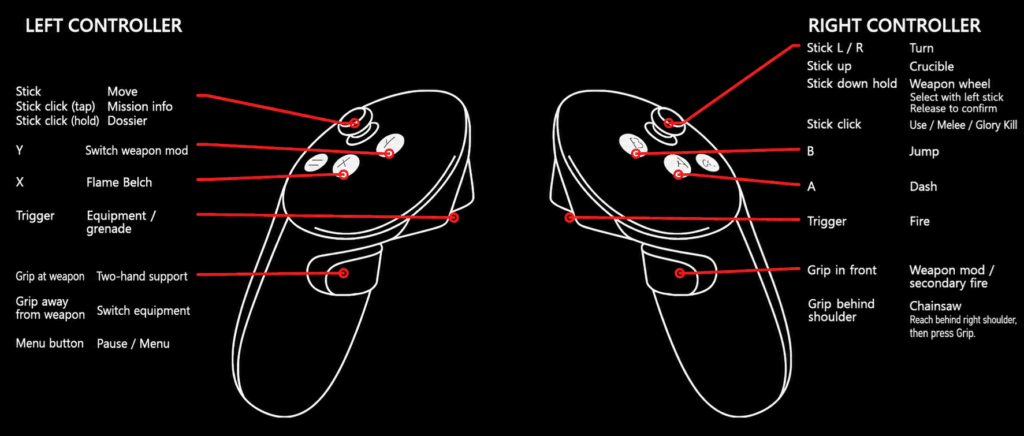
Both mods give you real motion controls with the gun going where your hand points, and a gamepad keeps working alongside the controllers in EternalVR. The biggest change from flat DOOM Eternal is that melee, glory kills and the Blood Punch are real physical punches.
EternalVR Default Controls (Quest Touch Controllers)
These are the default right-handed bindings. Valve Index, HP Reverb G2, Vive Cosmos and Pico 4 controllers use the same layout.
| Controller | Action |
|---|---|
| Right trigger | Fire |
| Right grip | Weapon mod |
| Right stick left or right | Smooth turn |
| Right stick up | Chainsaw |
| Right stick down, tap | Quick switch to your last weapon |
| Right stick down, hold | Weapon wheel (roll the stick toward a weapon, release to pick) |
| Right stick click | Melee, glory kill, Blood Punch, use |
| A | Jump |
| B | Dash (hold during a cutscene to skip it) |
| Left stick | Move |
| Left trigger | Equipment launcher (grenades) |
| Left grip | Flame Belch |
| Left stick click | Crucible |
| X, tap or hold | Switch equipment, or open the Dossier |
| Y, tap or hold | Switch weapon mod, or mission info |
| Left Menu button | Pause (under SteamVR, hold Y instead) |
| Both sticks pressed for 2 seconds | Recenter the view and reset your height |
| A real punch with your hand | Melee, glory kill, Blood Punch, use |
EternalVR also has optional gestures, all off by default: throw grenades with your left hand, swing your right hand down from above your head for the Crucible, and throw both hands up to jump while standing. You can remap everything with the Edit controls button on the launcher’s Play tab, and the weapon wheel can be set to point with your hand instead of the stick.
KHARVOX: ARGENT Controls and Left-Handed Mode
ARGENT documents its layout as a controller binding image in its GitHub README, so check that image for the exact button map on your controllers. What it adds on top of the basics:
- Two-handed weapons: turn on Virtual Gunstock, then hold the off-hand grip near the weapon’s support point to grab it and release to let go. A grip press away from the weapon cycles equipment.
- Physical glory kills: punch speed, the punch speed threshold and the punch hand are adjustable, and you still need a valid target for the game to trigger it.
- Shoulder chainsaw: the chainsaw is activated from your shoulder.
- Left-handed mode: Button Swap moves the weapon and use controls to the left controller, and Button and Stick Swap also swaps the face buttons and stick directions.
- Movement: smooth or snap turning, and head-directed or off-hand-directed movement.
- Hand Smoothing: an option under VR Options, off by default, added in 1.01a.
The physical Menu button stays Pause on ARGENT, and an Index controller opens the pause menu with a touchpad click.
DOOM Eternal VR Settings: DLSS, FSR, and Render Scale for Better Performance
Performance is the part that varies most from PC to PC, and the two mods approach it differently. The short version: ARGENT gives you render scale plus FSR or DLSS, and EternalVR gives you a render size multiplier plus TAA, DLSS or off.
KHARVOX: ARGENT Render Scale, FSR, and DLSS
- Start at 100% render scale, then reduce it gradually until the frame rate holds. FSR upscaling is disabled at 100% or higher.
- Turn on FSR Upscaling to upscale the reduced image and sharpen it. Disable FSR when you want to use DLSS, because FSR forces the game’s anti-aliasing off. Pick one and compare image clarity and performance in your own headset.
- DLSS is chosen in the game’s graphics settings and works in stereo with separate histories per eye, but it’s flagged experimental.
- ARGENT blocks the game’s native temporal anti-aliasing in VR, since it can make the picture blurry.
- On the SteamVR path, ARGENT uses 100% and doesn’t apply the launcher’s FSR reduction, so adjust resolution inside SteamVR instead.
- Desktop Mirror (Right Eye) is off by default. Turn it on for spectators or recording, and note that a higher mirror resolution costs GPU time without adding detail in the headset.
EternalVR Render Size, DLSS, and Frame Pacing
- Resolution is a size times a number from 0.50 to 2.00. Auto is the default and uses the size your runtime asks for, capped at about 4.6 million pixels per eye. Raise it for sharpness if your GPU has headroom, or lower it if the frame rate drops below your headset’s refresh rate.
- Anti-aliasing is TAA, DLSS or Off. Pick DLSS and the DLSS group holds the quality, version and preset. Click Download once to fetch NVIDIA’s newest DLSS version, which the launcher pulls from NVIDIA’s GitHub after you accept the license. Until then the game’s own DLSS 2.3 runs.
- DLSS only helps when your graphics card is the bottleneck. If your processor is holding the frame rate back, DLSS can be slower than TAA.
- Frame pacing defaults to Matched to the headset, which hands the headset exactly one new image per headset frame. Players found it much smoother than running as fast as the game allows.
- Foveated rendering on the Play tab can help on NVIDIA RTX cards, but it’s experimental and off by default.
Does it support ray tracing? EternalVR’s README says it supports full ray tracing, with testing so far done at maximum settings with ray tracing on. ARGENT’s README doesn’t mention it, so test it yourself before assuming a frame rate.
DOOM Eternal VR Mod Troubleshooting: Known Issues and Fixes
These are the problems the projects’ own documentation lists.
The Game Starts Flat on Your Monitor Instead of in VR
Rule these out first, in order:
- Start the game from the mod’s launcher, not from Steam. A Steam launch is the normal flat game by design.
- Make sure your headset’s OpenXR runtime is running and set as the active runtime before you click launch. Connect the headset first, then launch.
- For EternalVR, open the session’s eternalvr-status.txt in the logs folder. It says state=flat with a one-sentence reason, such as an unsupported game version, an outdated graphics driver, or no headset found.
- On a laptop with two GPUs, make Windows run DOOM Eternal on the same GPU your headset uses (Settings, Display, Graphics).
- If EternalVR says the game handed off to Steam, make sure Steam was running and logged in before you clicked Launch VR.
The Picture Looks Blurry or Soft on an AMD Graphics Card
Both projects flag AMD. On Radeon RX 5000 and 6000 cards, and with some newer AMD drivers, each eye renders at the size of the game’s desktop window instead of the planned size. EternalVR makes the window as large as your display allows, so putting the game on your biggest, highest-resolution monitor and updating your driver helps. The workaround that works today is a virtual display driver set to a resolution about the size of one eye, and a player with an RX 6750 XT and a Quest 2 plays that way. Full details are in EternalVR’s troubleshooting page.
You Can’t Open the Pause Menu Under SteamVR
SteamVR opens its own dashboard on the left Menu button. In EternalVR, hold Y to pause instead. On Index with ARGENT, click the touchpad.
Windows Blocks the Launcher or Your Antivirus Removes a File
EternalVR isn’t code-signed, and its DLL changes the running game’s code in memory, so SmartScreen or an antivirus program may flag it. If the launcher says the layer is missing, check your antivirus quarantine, restore the file and allow the EternalVR folder. Each release lists a SHA-256 checksum and a VirusTotal report so you can confirm the zip is the one the developer built.
Stuck at a Ladder or Door in DOOM Hunter Base
Places that open when you look at them checked the gun’s direction instead of your head in early versions. ARGENT 1.01a fixed the ladder blocker, and EternalVR fixed it in 0.1.4. If you’re stuck, update to the latest release first.
DOOM Eternal Updated and VR Stopped Working
EternalVR turns VR off until it supports the new game build, and the game runs flat. Wait for an EternalVR release that supports your build, and check the releases page. The launcher shows whether your installed version is supported.
Game Pass or Microsoft Store Version Asks for a Login
On its first start, the Microsoft Store version asks you to log in to Bethesda.net, and the text box can open Windows’ typing window on the desktop, which the headset doesn’t show. It’s easier to log in once without VR, starting the game from the Xbox app, before your first VR session.
A Short Freeze at Checkpoints
Right after a fight or just before a cutscene the picture can stop for about half a second. EternalVR’s developer traces that to the game’s own checkpoint autosave, not the mod. It happens in the flat game too, but a frozen picture stands out more in a headset.
Still stuck? Both projects want bug reports on GitHub. EternalVR’s launcher has an Export report button that bundles logs with your user name and Steam ID removed.
VorpX and VK3DVision: Older Ways to Play DOOM Eternal in VR
Before these mods existed, the options were injectors. VK3DVision gives you stereoscopic 3D with no head tracking, and VorpX can give head tracking through a ReShade and desktop viewer workaround. Neither gives you motion controls or room-scale. They’re still around if you already own them, but ARGENT and EternalVR are what I’d install today.
Frequently Asked Questions About the DOOM Eternal VR Mod (FAQs)
Does DOOM Eternal support VR?
No. DOOM Eternal has no official VR mode. You need a community mod such as KHARVOX: ARGENT or EternalVR, which run on a Windows PC and stream to a headset like the Quest 3.
Is the DOOM Eternal VR mod free?
Yes. KHARVOX: ARGENT and EternalVR are both free to download, and both source repositories are MIT-licensed. EternalVR has an optional Ko-fi link for donations. You still need your own legal copy of DOOM Eternal.
Can you play DOOM Eternal VR on Quest 3?
Yes. Run the game on your PC and connect the Quest 3 with Virtual Desktop (using VDXR) or Meta Quest Link. EternalVR was tested on a Quest 3 through Virtual Desktop and SteamVR, and ARGENT recommends VDXR or Meta’s OpenXR runtime for Quest.
Can you play DOOM Eternal in VR on PS4 or PS5?
No. Both mods need a Windows PC. A PlayStation VR2 headset can be used on a PC, and one tester has played EternalVR that way, but the PS4 and PS5 versions of the game can’t run these mods.
Is there a DOOM Eternal VR Luke Ross mod?
The two mods in this guide are not Luke Ross’s work. Luke Ross is known for his separate R.E.A.L.VR injector mods, but KHARVOX: ARGENT comes from Cactus VR Studios and EternalVR comes from ArcadaLabs, and both use their own launcher with OpenXR. I’d start with one of those two because both add motion controls.
Does the DOOM Eternal VR mod work with the Game Pass or Microsoft Store version?
Yes, both mods support it. EternalVR supports Microsoft Store version 1.0.56.0, and ARGENT’s README says Steam and Microsoft Store installs are both supported. EternalVR’s notes suggest logging in once in flat mode, from the Xbox app, before your first VR session.
Does the DOOM Eternal VR mod work with the DLC?
Yes. Both mods support the full campaign and both parts of The Ancient Gods DLC in single-player. EternalVR says the DLC and Master Levels have only had a short check, so report anything that breaks.
Can you play DOOM Eternal multiplayer in VR, and will I get banned?
Stick to single-player. EternalVR switches itself off in BATTLEMODE and any online mode by design. Its documentation says it doesn’t modify any game file and the developer knows of no bans for single-player mods, but that is not a guarantee from id Software. ARGENT’s README doesn’t address it, so use either mod at your own risk.
Does the DOOM Eternal VR mod work on AMD graphics cards?
Partly. ARGENT lists known rendering issues on AMD cards, and EternalVR has only been tested on NVIDIA. On Radeon RX 5000 and 6000 cards EternalVR renders softly, with a virtual display as the workaround.
What happens when DOOM Eternal updates?
EternalVR turns VR off and the game runs flat until the mod supports the new build. Check the releases page of whichever mod you use before assuming your install is broken.
Final Thoughts on the DOOM Eternal VR Mod
Two capable DOOM Eternal VR mods arrived within days of each other, and both do the thing that matters most: real hand aiming and punching glory kills in a game that was built around fast, close-range fights. For most people with a Quest 3 and a decent NVIDIA card, I’d install KHARVOX: ARGENT first, and keep EternalVR as the backup or the one to switch to if you want the open-source launcher and its very frequent updates.
Expect alpha-level bugs, check the GitHub release notes before you start a fresh save, and keep the game in single-player. If you want more mods like this, my best VR mods list, my UEVR install guide and my Titanfall 2 VR mod guide cover more games you can play in VR. If you run into anything this guide didn’t cover, drop a comment and I’ll help you sort it out.