
WinlatorXR (also written Winlator XR) is a free app for Meta Quest and Pico headsets that lets you install and play Windows PC games on the headset itself, with no PC attached. Think of it as a Windows game player that runs inside your Quest. In this WinlatorXR guide I’ll walk you through how to install it, sign in to Steam and get your first game running, and I’ll be straight about what works and what doesn’t.
WinlatorXR installs from SideQuest and it’s experimental. Its latest release, Dawn 42, added support for running PC VR games on the headset, which matters if you have a Quest 3 and want more than the Horizon Store offers, but it won’t replace a gaming PC.
The short version: install it from SideQuest, sign in to a store, and start with an older flat game before you try anything VR.
What Is WinlatorXR?
WinlatorXR is a free app that turns your Meta Quest or Pico headset into a Windows game player. You install it on the headset, sign in to a store like Steam or GOG, download a game you own and play it right there, with no PC, no cable and no streaming. It’s the same project people sometimes search for as Winlator XR.
It’s built on Winlator, a popular Android app that runs Windows programs on phones and tablets. Meta Quest and Pico headsets run Android-based software, so the same idea works in a headset, and WinlatorXR adds the VR parts: head tracking, motion controllers and a Windows screen you can place in front of you.
How Does WinlatorXR Work?
Under the hood it’s a stack of open source tools. Wine provides the Windows compatibility layer, Box64 and FEX translate x86 code to ARM, and graphics wrappers like DXVK turn DirectX calls into Vulkan. The project lists it as free software, and as of Dawn 42 it is licensed under GPLv3.
It works in two broad ways. In flat mode, you get a Windows screen floating in front of you and the controller acts as a mouse. In VR mode, the app feeds head tracking and controller data into compatible games, and since Dawn 42 it can also run PC VR games directly.
Is WinlatorXR a PC VR Streaming App?
No. Quest Link, Air Link, Virtual Desktop and Steam Link all stream a game from a real PC. WinlatorXR runs the game on the headset’s own chip. The project’s diagram shows the difference: the tracking data and the rendered frames stay inside the headset instead of travelling over Wi-Fi to a PC and back.
Your headset’s mobile chip does all the work here, and that shapes everything else in this guide. WinlatorXR is impressive for what it is, and the games that suit it are older and lighter ones, because the latest AAA releases will struggle on that chip.
WinlatorXR at a Glance
| Detail | Answer |
|---|---|
| What it is | A free, experimental Windows emulator for standalone Meta Quest and Pico headsets (Wine, Box64 and FEX) |
| Latest release | Dawn 42, the project’s 2026/Q4 update, named Discover Any World Naturally |
| Price | Free, with optional donations through Ko-fi. You still need to own the games you run |
| Install from | The WinlatorXR SideQuest listing or the GitHub releases page. It is not on the Horizon Store |
| Fully supported headsets | Quest 2 (with the Turnip driver) and Pico 4 Ultra |
| Supported with limits | Quest 3, Quest 3S and Pico 4 (limited driver and wrapper support) |
| Not supported | Quest 1 |
| PC required | No. Everything runs on the headset |
| Steam | You can sign in to Steam inside the app’s store tab. There is no full Steam client |
| PC VR games | Yes since Dawn 42, but compatibility varies game by game |
| Download size | The Dawn 42 APK is roughly 1GB, and every game you install needs room on top of that |
WinlatorXR Supported Headsets: Does It Work on Quest 3, Quest 2 and Pico 4?
The project publishes its own support table:
| Headset | Status | Notes from the project |
|---|---|---|
| Meta Quest 1 | Not working | The device is not OpenXR compliant |
| Meta Quest 2 | Fully supported | All major drivers and wrappers are supported |
| Meta Quest 3 and 3S | Supported | Limited driver and wrapper support |
| Pico Neo 3 | Working, broken UI | Limited driver and wrapper support, UI density bug |
| Pico 4 | Supported | Limited driver and wrapper support |
| Pico 4 Ultra | Fully supported | All major drivers and wrappers are supported |
| Play for Dream MR | Partially working | Unable to turn off passthrough, limited performance |
The thing that separates “fully supported” from “supported” is the graphics driver. The project says OpenGL games need the full Turnip driver, and DirectX 12 games may launch without it but are likely to show severe graphical glitches. Dawn 42 added limited Turnip support for the Quest 3, Quest 3S and Pico 3 and 4, so the gap is closing, but it hasn’t closed.
Does WinlatorXR Work on Quest 3 and Quest 3S?
Yes. The project says the Quest 3 and Quest 3S remain the most popular headsets for running WinlatorXR. The catch is the limited driver support above, so some OpenGL games that run on a Quest 2 or Pico 4 Ultra can give you trouble on a Quest 3.
Does WinlatorXR Work on Quest 2?
Yes, and it’s the surprise of the table. The project describes the older Quest 2 as performing admirably, and with the Turnip driver enabled it offers full compatibility. If you have a Quest 2 in a drawer, this is a decent reason to charge it up.
Does WinlatorXR Work on Pico 4 and Pico 4 Ultra?
Yes. The Pico 4 Ultra is listed as fully supported, and the project says its Turnip support can give slightly better performance than a Quest 3 in many scenarios. The standard Pico 4 is supported with limited drivers. Play for Dream support came from a community contributor and the developers can’t test it long term, so treat that one as partial.
WinlatorXR Requirements: What You Need Before You Start
- A supported headset from the table above, ideally a Quest 2, Quest 3, Quest 3S or Pico 4 Ultra
- Developer mode turned on, which you need to install apps from outside the store (my SideQuest sideloading guide covers it)
- Free storage for the roughly 1GB APK, the extra system files it unpacks on first launch, and every game you install
- A phone, because the official setup video recommends signing in to Steam by scanning a QR code through the headset lenses
- Games you own on Steam or GOG. WinlatorXR doesn’t supply games, and the free VR mods it supports still need the base game
- Patience. It’s an experimental project and per-game tweaking is part of the deal
WinlatorXR Download: SideQuest vs GitHub APK
WinlatorXR isn’t on the Horizon Store. The project says the official stores restrict the low-level Android APIs it relies on, so it’s distributed through two official channels.
WinlatorXR SideQuest Listing
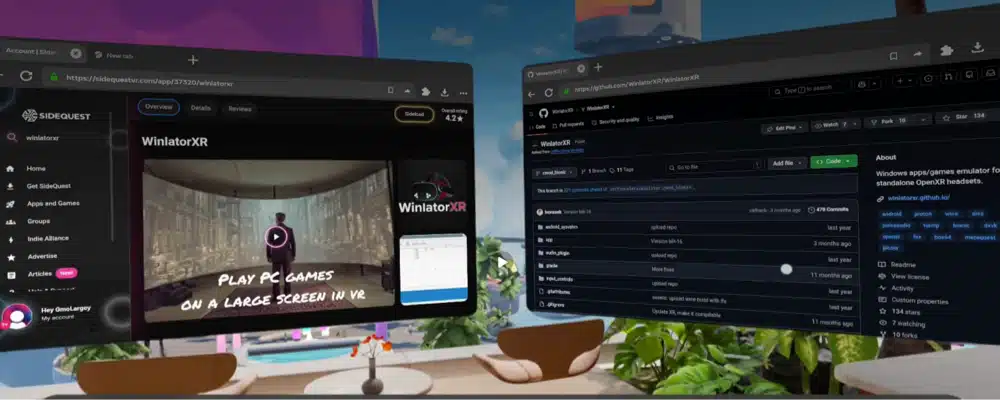
The WinlatorXR SideQuest listing is free, supports Quest and Pico, and lists the dawn-42 build. This is the easiest route.
WinlatorXR GitHub APK and Releases
The WinlatorXR GitHub project publishes the same builds as an APK (WinlatorXR-dawn-42.apk) on its releases page, which is useful if you’d rather sideload the file yourself. The repository’s front page has build-from-source instructions, which are for developers, so ignore them. The official WinlatorXR site links to both downloads, the tutorials and the compatibility list.
Because this is a sideloaded app that asks for broad storage access, I’d stick to those sources and skip random WinlatorXR APK mirror sites. If you already know how to push an APK to your headset, adbLink works too.
How to Install WinlatorXR on Meta Quest (Step by Step)
These steps follow the project’s own setup video and the Dawn 42 notes. The menus on Pico headsets differ slightly, but the order is the same.
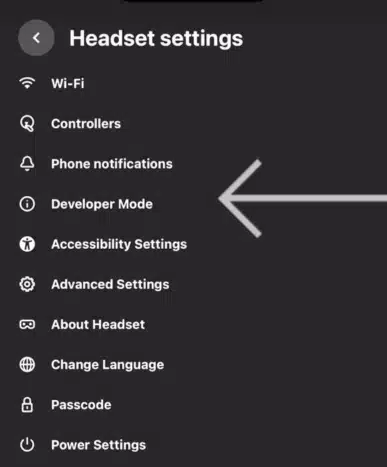
Step 1: Turn On Developer Mode for WinlatorXR
Enable developer mode for your headset in the Meta Horizon phone app. Without it, SideQuest can’t install anything. If you haven’t done this before, the sideloading walkthrough has the full process.
Step 2: Install WinlatorXR From SideQuest
Open the WinlatorXR listing in SideQuest, connect your headset and install it. If you already have an older WinlatorXR build, update it, but note that the Virtually Real creator recommends a fresh install for Dawn 42 because the containers are now set up for you out of the box. I’d take that advice and start clean.
Step 3: Launch WinlatorXR From Unknown Sources
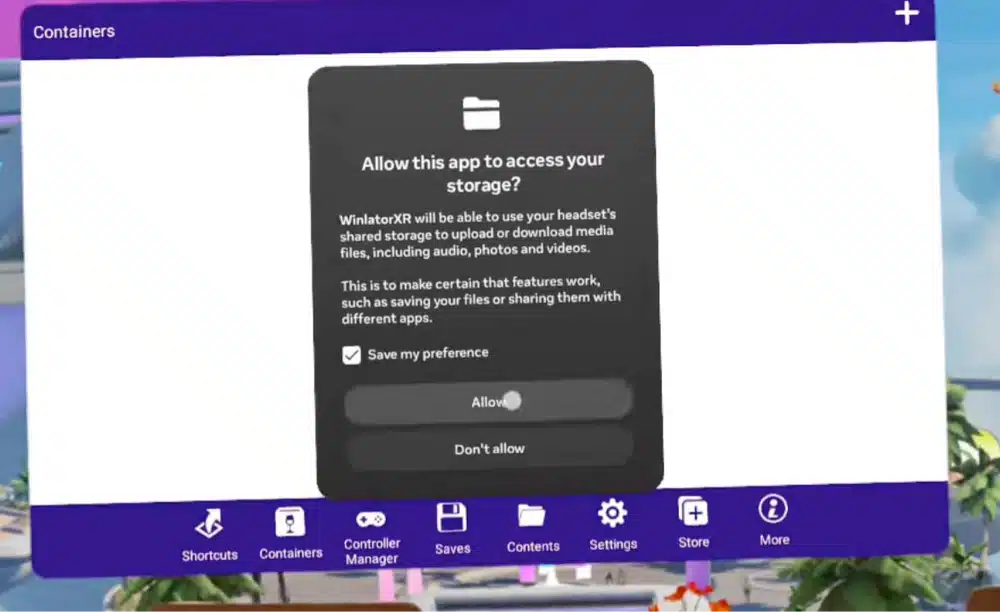
Sideloaded apps don’t show up in your main library. Put on the headset, open your app library, switch the filter to Unknown Sources and launch WinlatorXR. It asks for storage access on first launch, so allow it.
Step 4: Wait for the WinlatorXR System Files to Install
The first launch unpacks WinlatorXR’s system files, which the official video says takes about two minutes on a Quest 3. Don’t back out. When it finishes, you’ll get a USB storage access prompt. Accept it and tap done.
Step 5: Take the WinlatorXR Guided Tour
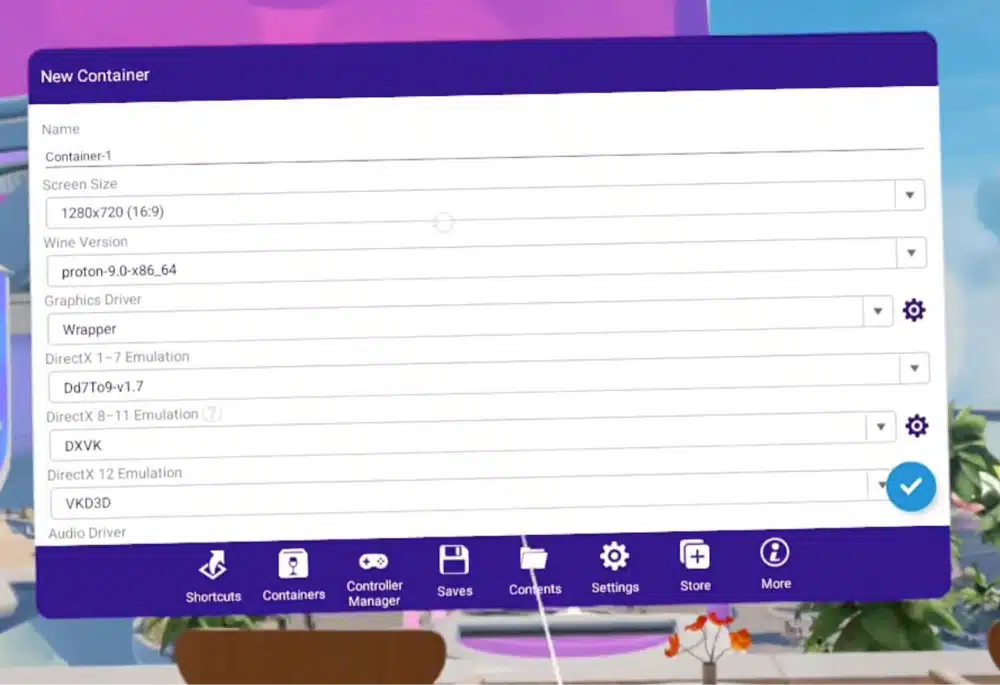
Dawn 42 added a guided tour at the bottom of the app. It walks you through the basics, such as adding a game from local storage, so I’d run it once rather than hunting for a separate tutorial. The creator’s advice is also to leave the settings alone at first, because the defaults are tuned per headset.
One warning about older guides: the project’s setup video from before Dawn 42 has you create Wine and FEX containers by hand and install an AJ Prefix runtime pack. Dawn 42 does that setup for you, so check which version a tutorial was recorded on before copying its steps.
WinlatorXR Tutorial: How to Use WinlatorXR to Play Your First Game
Sign In to Steam in WinlatorXR
Open the store tab in the app and sign in. For Steam, the official video recommends the QR code option: scan it with your phone through the headset lenses. Wait for the library to load until all the thumbnails appear before you tap anything.
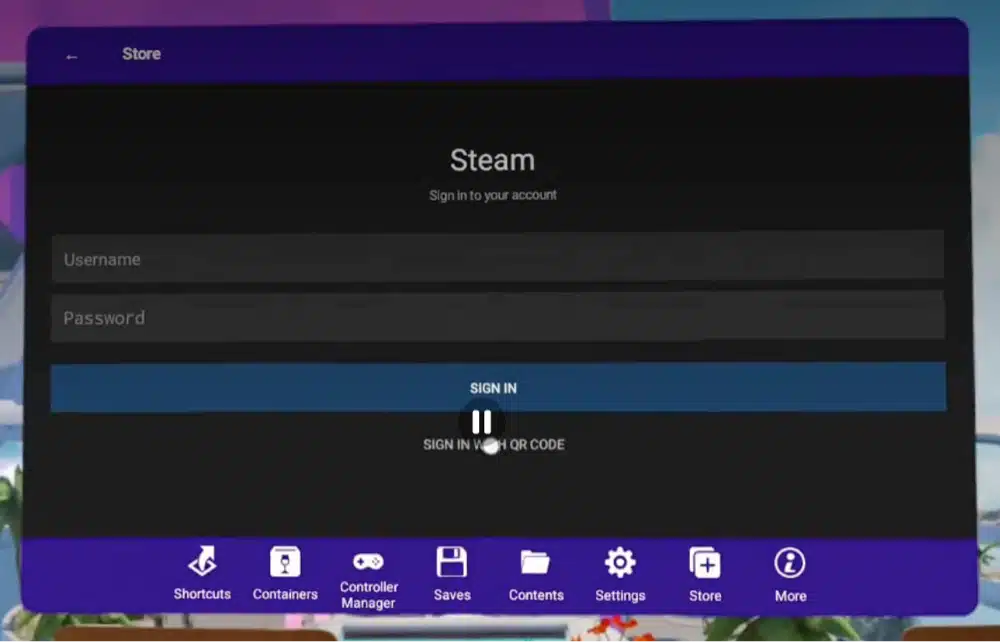
Install and Launch Your First WinlatorXR Game
Pick a game, tap install, then launch it. The first time you launch, WinlatorXR asks which container to use and creates a shortcut for that pairing. The two options are an x86 container that uses Box64 and a FEX container, and the shortcut lets you try the same game both ways. If one runs badly, launch it again with the other container.
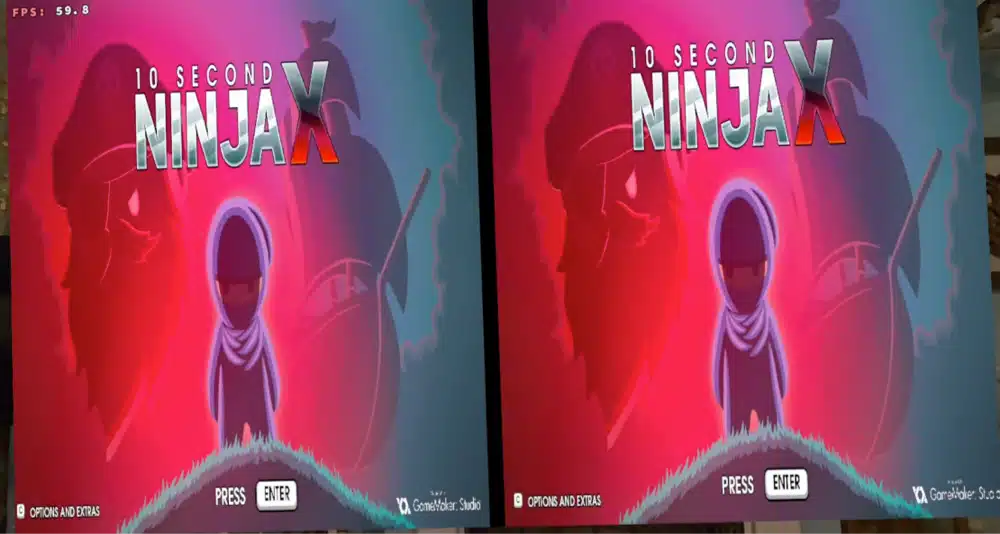
My advice is to test with something small and old before you spend an hour downloading a big game. The official video uses 10 Second Ninja, and the compatibility list below is full of older titles that are good first tests.
Install Games in WinlatorXR From Local Files or a USB Drive
You don’t have to use a store. The guided tour has an option to install local game files, such as a folder copied over from Steam, or to run a GOG offline installer or a setup.exe straight into a container. Dawn 42 also improved how it handles games stored on USB drives and added an option to copy game files into protected storage for better performance.
WinlatorXR Controls: Flat Mode, VR Mode and Gamepad Mode
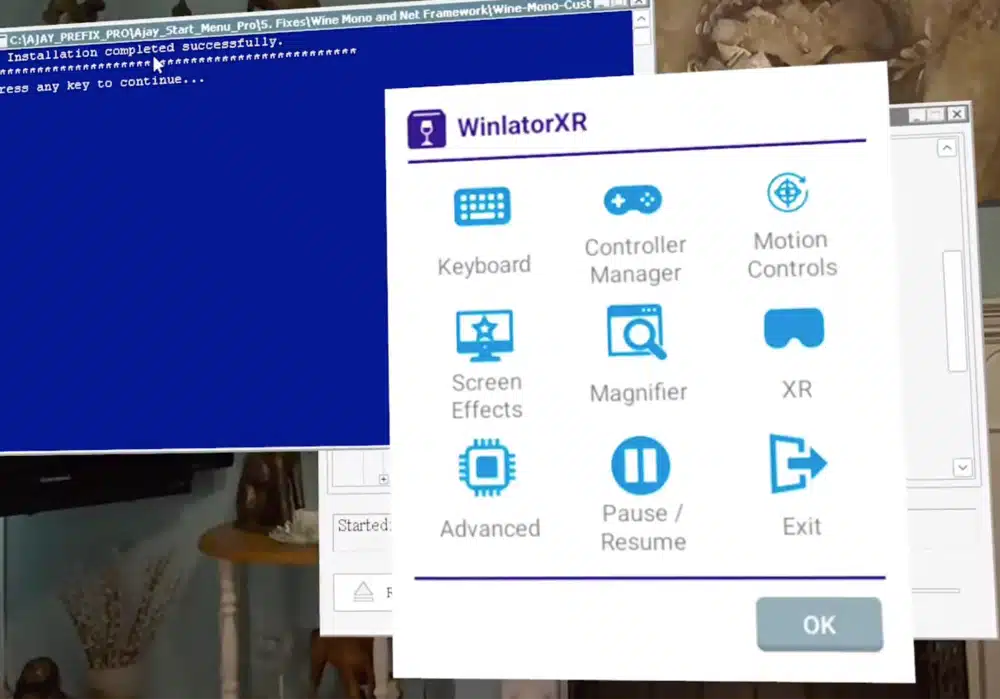
Once a game is running, hold the right thumbstick to open the WinlatorXR quick menu. In Dawn 42 that’s a long press, because a click used to open it and the change frees the click for gamepad mode. Everything below lives in that menu.
- For mouse and keyboard games, move your hand in space to move the cursor and use the main trigger as a left click. There’s an on-screen keyboard in the menu.
- Gamepad mode, new in Dawn 42, turns your motion controllers into a normal gamepad, so flat games that expect an Xbox controller still work.
- Motion controls map controller motion to an analog stick, which the project suggests for steering in racing games.
- Light gun mode gives you a laser-pointer style aim for light gun games, with rumble added in Dawn 42.
- Screen options include a curved screen, edge glow, a 360 environment instead of a black void, contrast adaptive sharpening and ReShade 3D for converting flat games to a side-by-side 3D image.
- Turning passthrough off gives the main performance increase according to the official setup video.
There is also an experimental five degrees of freedom mode for games with controller support, where walking in real life moves your character. The creator calls it highly experimental, and I’d treat it as a party trick until it matures.
WinlatorXR Steam: Why There’s No Steam Client and How to Play Steam Games
This part trips people up, and it’s why you see conflicting claims online. The project’s app list marks the Steam client as not working on the Quest 2, Quest 3 and Pico 4 Ultra. That’s the Windows Steam client running inside a container. It doesn’t contradict the store tab, which lets you log in to Steam, browse your library and download games directly.
The Virtually Real video is blunt about it: there is no actual Steam client in WinlatorXR, because running one would cost too much performance. That means Steam games with DRM or a dependency on the Steam client can launch to a black screen. For those, WinlatorXR has workarounds:
- The Goldberg Steam Emulator fix: Dawn 42 can patch a game to run without Steam by transferring a few API files so the game starts.
- The ColdClient fix: a stronger fallback for stubborn games that need to run as if the Steam client were present.
- Recommended fixes: for games the team has tested, the fix appears at the top of the game’s settings page as a one-click option.
Skyrim is the example in the video: installed from Steam, it doesn’t launch the first time and leaves you in a black void until the ColdClient fix is applied. Because these fixes modify game files, WinlatorXR doesn’t force them on you. Only use them on games you own. Dawn 42 also added Steam branch selection, which is handy when a patch breaks a game that used to run, plus collections and faster downloads, and an experimental option to list and install Android APKs from the store.
WinlatorXR PCVR: How to Play Steam VR Games on Quest Without a PC
PC VR support is the headline feature of Dawn 42. It uses OpenComposite plus a custom OpenXR runtime, so a Steam VR game can render on the headset’s own chip instead of a PC. WinlatorXR doesn’t run the SteamVR client itself. OpenComposite translates the game’s OpenVR calls to OpenXR instead.
The Virtually Real creator says he has tested 74 VR games that launch and play, and that they’re ordinary Steam VR games rather than ports. That’s one person’s count, so check the project’s PCVR compatibility sheet, which is linked from the WinlatorXR compatibility page, before you buy or download anything.
WinlatorXR Proton 11 and Direct PCVR Frames
When WinlatorXR recognizes a VR game, it tells you to launch it in the WXR version of Proton 11. The new direct PCVR frames option only works in Proton 11 and only for DirectX 11 games, and it follows your headset’s actual eye buffer. OpenGL and Vulkan games fall back to the older side-by-side mode, which renders at the screen size you set. At 1280 pixels across both eyes that’s only 640 per eye, so expect a very soft image.
WinlatorXR PCVR Mixed Reality and Passthrough
Dawn 42 can also show passthrough through a small field of view window or color key out black so the real world shows through. The creator says the color key trick works best in Beat Saber and not very well in Skyrim.
WinlatorXR API: How Mods and Apps Get Head Tracking
The WinlatorXR API, often called the XR API, is how a game or mod inside the container receives head tracking and controller data from the headset. The project’s diagram shows it passing that data between processes over UDP on the same device, and the changelog lists versions 0.6 in a human readable format and 0.7 in a binary format for fast processing. The creator describes the Far Cry VR mod as one that uses it. Most players never touch it.
WinlatorXR Settings: Turnip Driver, Render Scale and Controller Type
The good news is that you mostly don’t need to touch these. The creator says that on a fresh Dawn 42 install the defaults are set for you, and the container, DXVK and wrapper settings only need changing for something very old.
WinlatorXR Turnip Driver and DXVK
The official setup video says the one setting worth changing is the DXVK version in a game’s shortcut, using the in-app guide that suggests the best choice for your headset. Turnip matters more. OpenGL games need the full Turnip driver, which means Quest 2 and Pico 4 Ultra get the best results, and Quest 3 and 3S only have limited Turnip support. Dawn 42 also added D7VK 2.3 as an option for DirectX 1 to 7 games, which helps with very old titles.
WinlatorXR Render Scale and VR Field of View
Direct frames defaults to a 50% render scale, which the creator calls a good compromise. If a game stutters, lowering it is the first thing I’d try. He also notes that nothing will hit 100% because a PC VR game on a headset chip is so demanding.
The VR field of view setting can go past 100%, which renders beyond what you can see so head turns don’t show black bars, at the cost of sharpness. Dropping it to around 80% squeezes the image tighter and looks better if you don’t mind a square edge to your vision.
WinlatorXR Controller Type and Thumbstick Clicks
By default the controller type is set to present as a Valve Index, with Oculus Touch, HTC Vive and Windows Mixed Reality as alternatives. The creator says only two or three games he tested needed Touch. Since there’s no Steam VR client, older games with Vive-style touchpad bindings can be a pain, so WinlatorXR has a tick box that makes pressing the stick left or right act like a touchpad click.
WinlatorXR Compatible Games and Compatibility List: What Actually Runs
The project keeps three lists: about 100 tested flat games, a short list of utilities, and a PCVR sheet. Each flat game is marked Y, N or ? for the Quest 2, the Quest 3 and the Pico 4 Ultra.
WinlatorXR Tested Games: A Sample From the Project’s List
A small sample shows the range, including a few games that don’t work:
| Game | Quest 2 or Pro | Quest 3 or 3S | Pico 4 Ultra |
|---|---|---|---|
| Half Life 2 | ? | Y | Y |
| Portal | ? | Y | Y |
| The Witcher 3 | ? | Y | ? |
| No Man’s Sky | ? | Y | Y |
| Halo Combat Evolved VR Mod | Y | Y | Y |
| Lethal Company | N | Y | ? |
| GTA V | N | Y | ? |
| Half Life Alyx (Non-VR Mod) | N | N | ? |
| Microsoft Flight Simulator X | ? | N | ? |
The project adds two caveats that I’d take seriously. “Works” is a flexible term, and you’ll often need per-game container tweaks and may still hit crashes, lag spikes or sound issues. And even if a game worked in an earlier build, that doesn’t guarantee it works in the latest one, because the headset OS, WinlatorXR and its graphics drivers all keep changing.
WinlatorXR Halo: How to Play Halo Combat Evolved in VR
Halo is a good example of what WinlatorXR can do. The project supports the Halo: Combat Evolved PC VR mod, which puts the original campaign and multiplayer maps in VR with head tracking and motion controls, fully standalone. The compatibility list marks the Halo VR mod as working on all three headsets.
It’s also the easiest game to get started with. According to the Virtually Real video, the downloader offers a preset Halo VR container, so you download it, import it, and the Halo trial appears in your games list already configured for your headset, with multiplayer now included, so you skip container setup entirely. The project’s tutorials page has the HWXR setup guide for Halo in VR.

Half-Life 2 on WinlatorXR
Half-Life 2 is marked as working on the Quest 3 and Pico 4 Ultra, and VR.org’s report on it running on a Quest 3 with no PC attached is a good overview of what it looks like. The free Half-Life 2 VR mod still needs the base game in your own Steam library, and Steam family sharing doesn’t count.
WinlatorXR has several modes, from full stereo VR to flat screens with head tracking, and they feel very different, so check which mode a demo video is actually using.
WinlatorXR vs Steam Link, Virtual Desktop and Quest Link: Is It Worth It?
If you own a gaming PC, streaming is still the better way to play demanding PC VR games, because your PC’s graphics card does the heavy lifting. My Air Link vs Virtual Desktop comparison covers the options. WinlatorXR makes sense in the cases streaming can’t help:
- You don’t own a gaming PC, or you’re away from it
- You want older games, mods and classics that run fine on a mobile chip
- You like tinkering and want to see what the headset can do
- You want PC games with no streaming latency, because the frames never leave the headset
Skip it if you want a game to just work, or if you want modern PC VR titles at full quality. If the standalone-PC-gaming idea appeals to you, my Steam Frame vs Meta Quest 3 comparison covers Valve’s officially supported take on it, and my list of the best SideQuest VR games is a good place to go if you’d rather install games that need no emulation at all.
WinlatorXR Troubleshooting: Black Screen, Low Resolution and Games That Won’t Launch
WinlatorXR Steam Game Launches to a Black Screen
Open the game’s settings and look for a recommended fix at the top. Apply the Goldberg Steam Emulator fix first, and if the game still won’t start, try ColdClient. This is the documented fix for games like Skyrim.
WinlatorXR PCVR Game Looks Very Low Resolution
You’re probably in the side-by-side fallback at 1280 pixels across both eyes. Use Proton 11 with direct PCVR frames for DirectX 11 games, and adjust the render scale from the 50% default.
WinlatorXR OpenGL Game Won’t Run or DirectX 12 Game Is Glitchy
This is the Turnip driver issue. The project says OpenGL games need full Turnip support, and DirectX 12 games can launch without it but with severe glitches. A Quest 3 only has limited Turnip support, so check the compatibility list for your headset before blaming your setup.
WinlatorXR Game That Used to Work Stopped Working
The project warns that the headset OS, WinlatorXR and the drivers all update constantly, so a game that worked before can break. I’d keep the APK of a build you know works so you can go back if an update breaks your favorite game.
WinlatorXR Thumbstick Click Games and Odd Controls
For games that need a thumbstick click, use the touchpad emulation tick box described above. For anything else, check the controller manager in the quick menu, where you can also swap to left-handed mouse mapping.
WinlatorXR Reddit and Discord: Where to Get Help
The project’s community lives on the r/WinlatorXR subreddit and in a WinlatorXR channel on the Team Beef Discord server. Both are linked from the WinlatorXR resources page. Dawn 42 also added a launch report option to the shortcut menu, which is useful to attach when you ask for help.
WinlatorXR FAQ
Is WinlatorXR free?
Yes. WinlatorXR is free to download from SideQuest or GitHub. The developers accept optional donations through Ko-fi, but you only need to own the games you run.
Is WinlatorXR safe?
WinlatorXR is open source and listed on SideQuest, and the developers publish builds on GitHub. It’s still an experimental sideloaded app that requests storage access, so only download it from the SideQuest listing or the project’s GitHub releases page.
Does WinlatorXR work on Quest 3?
Yes. The Quest 3 and Quest 3S are supported and are the most popular headsets for WinlatorXR, but driver support is limited, so some OpenGL games work better on a Quest 2 or Pico 4 Ultra.
Does WinlatorXR work on Quest 2?
Yes. The project lists the Quest 2 as fully supported, and with the Turnip driver enabled it offers full compatibility. The original Quest 1 does not work.
Does WinlatorXR work with Steam?
Yes, partly. You can sign in to Steam and download games in the app’s store tab, but there is no full Steam client, so some games need the Goldberg Steam Emulator or ColdClient fix to launch.
Can WinlatorXR play PCVR games?
Yes, since the Dawn 42 update. It runs Steam VR games on the headset using OpenComposite and Proton 11, but compatibility varies by game, so check the project’s PCVR compatibility list first.
Do I need a PC to use WinlatorXR?
No. WinlatorXR runs entirely on the headset. You only use a phone or computer once, to turn on developer mode and sideload the app.
Is WinlatorXR on the Meta Quest Store?
No. The project says official stores restrict the Android APIs it needs, so you install it from SideQuest or as an APK from GitHub.
What is the difference between Winlator and WinlatorXR?
Winlator is an Android app that runs Windows software on phones and tablets. WinlatorXR is the port for Meta Quest and Pico headsets, adding OpenXR support so Windows games appear in VR, plus head tracking, motion controls and PC VR support.
Does WinlatorXR work with SteamVR?
Not directly. WinlatorXR doesn’t run the SteamVR client. Since Dawn 42 it uses OpenComposite and a custom OpenXR runtime to run Steam VR games on the headset, so many SteamVR games work, but compatibility varies by game.
Is WinlatorXR on GitHub?
Yes. The project is at github.com/WinlatorXR/WinlatorXR, where the releases page has each build as an APK. The official site is winlatorxr.github.io.
Does WinlatorXR work on Pico 4?
Yes. The Pico 4 Ultra is fully supported and the Pico 4 is supported with limited driver and wrapper support. Play for Dream support is partial.
Where do I download the WinlatorXR APK?
Use the GitHub releases page for the WinlatorXR APK. The current file is WinlatorXR-dawn-42.apk. The same build is available through SideQuest.
Final Thoughts
WinlatorXR is a genuinely interesting project for standalone headsets, and I wouldn’t dismiss it just because it’s experimental. Install it from SideQuest, sign in to a store, test an older game first and only then work up to PC VR. Check the compatibility list before you spend time on a download, and expect to tweak.
If you have a gaming PC, streaming will still give you better results for demanding games. If you don’t, or you just like seeing what a Quest can do, WinlatorXR is a free way to find out. While you’re setting up your headset, my guide to the best SideQuest VR games has plenty more worth sideloading.