

VR frame generation is software that builds extra frames between the ones your game renders, so a headset that wants 90 frames per second can show 90 even when your PC only manages 45. This guide covers how it works, which tools exist (OFXR Bridge, AutoFPS and Lossless Scaling), what your headset’s built-in smoothing already does, and how to set it all up without judder.
The short version: use your headset’s built-in smoothing first, add OFXR Bridge for OpenXR games on a PC, and add AutoFPS if you fly Microsoft Flight Simulator. Lossless Scaling is great on a flat screen, but it does not add frames to what your eyes see in a headset. None of these tools come from Nvidia, Valve or a headset maker, so expect the occasional rough edge.
Quick Answer: What to Use and in What Order
- Built-in smoothing first. SteamVR Motion Smoothing, Meta Application SpaceWarp, Virtual Desktop SSW and Pimax Smart Smoothing are free and one toggle away.
- OFXR Bridge for PC VR. Free, community made, works with OpenXR games, and lets you pick 2x or 3x.
- AutoFPS for flight sims. Pairs with OFXR Bridge in Microsoft Flight Simulator and tunes detail to hold your target.
- Upscaling on top. DLSS, FSR and OpenXR Toolkit make each real frame cheaper, and they stack with frame generation.
VR Frame Generation: What Is It and How Does It Work?
Your headset asks for a new picture at a fixed rate, such as 72, 90 or 120 times per second. If your PC finishes a frame late, the headset has nothing new to show, and you see judder or a drifting world. Frame generation closes the gap by creating a believable in-between frame from frames the game already drew.
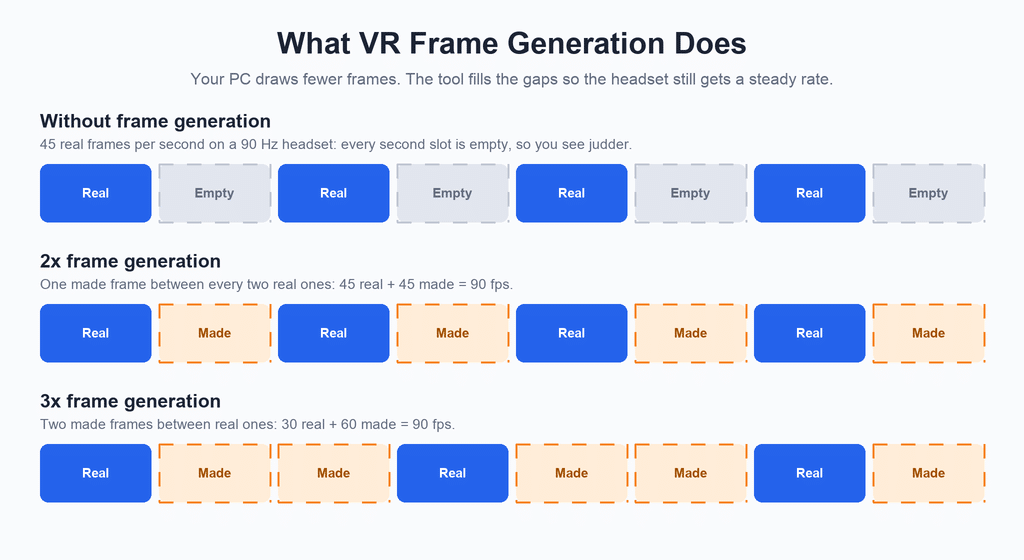
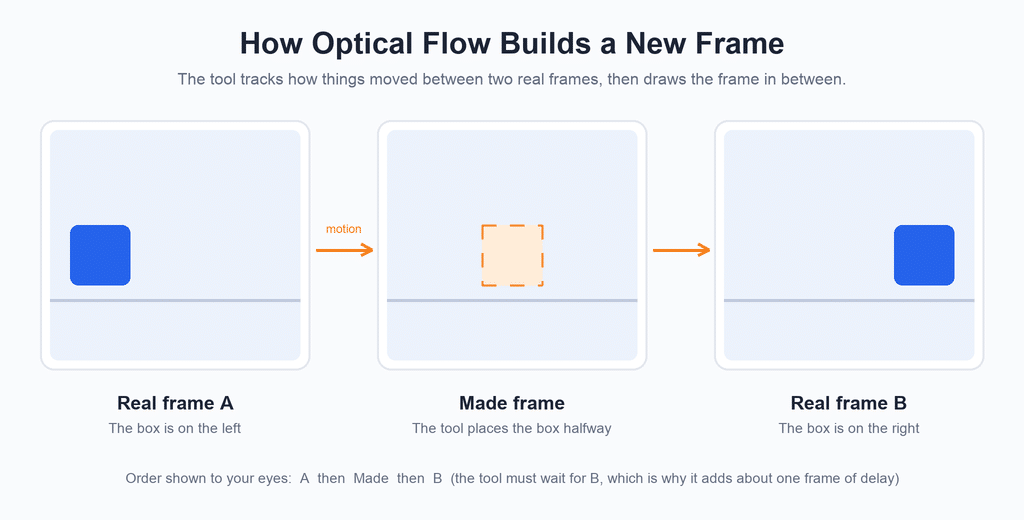
OFXR Bridge does this with optical flow. It compares two rendered frames, works out which way each part of the picture is moving, and builds a new frame between them. It runs as an OpenXR layer, so the game does not know it is there and no game files are touched. You pick a multiplier: 2x adds one generated frame per real one, and 3x adds two.
VR is harder than a monitor because every frame has to look right in both eyes and arrive on time, so artifacts have less room to hide. That is why it needs a decent base frame rate. If the game runs at 45 on a 90 Hz headset, the tool only invents every second frame. If the game runs at 20, the gaps are too wide for any tool.
2x vs 3x: Which Multiplier Should You Pick?
Use 2x when your game reaches about half your refresh rate and 3x when it reaches about a third. At 90 Hz, 2x looked close to native in most scenes, while 3x showed more shimmer on repeating patterns like building windows and cockpit grilles. I treat 3x as a rescue setting, not a default.
How Much Latency Does Frame Generation Add in VR?
Any method that builds a frame between two real ones has to wait for the second, so it adds delay. OFXR Bridge has a Prefer FPS Over Latency setting, on by default, which the project says adds about one frame, around 11 ms at 90 Hz. In flight sims I did not notice it. In fast arm-swinging games I did.
Does Frame Generation Work in VR?
Yes, but not through the official flat-screen features. Nvidia and AMD built theirs for monitors and do not document either as a supported VR feature. What works in VR is community software that sits between the game and your headset, plus the smoothing built into each headset platform.
Does DLSS Frame Generation Work in VR?
Not officially. DLSS frame generation expects a flat-screen swap chain, and workarounds people tried in flight sims added noticeable delay. DLSS upscaling is a different feature and does work in VR, covered below.
Does Nvidia Frame Generation Work in VR?
The same answer applies to Nvidia’s multi frame modes: built for monitors. Your RTX card still benefits through OFXR Bridge, which can use the card’s optical flow hardware, and in DLSS games its Hybrid mode reuses the game’s motion data to cut warping on moving objects.
AMD Frame Generation in VR (Fluid Motion Frames)
AMD’s frame generation and Fluid Motion Frames also target flat screens. A Radeon card is fine for the community route: OFXR Bridge supports RX 400 series and newer, and its default FidelityFX backend is vendor neutral. Intel Arc is supported too.
SteamVR Frame Generation: Motion Smoothing vs OFXR Bridge
SteamVR already has a built-in version called Motion Smoothing. When a game starts missing frames, SteamVR drops it to half your refresh rate and fills the gaps by extrapolating from the last two real frames. It is automatic, free and per game, so try it first.
OFXR Bridge adds control. You pick 2x or 3x, switch while the game runs and tune the optical flow resolution. The trade is extra software to set up. In my use, Motion Smoothing was fine in gentle scenes but haloed around fast objects, where OFXR at 2x looked cleaner.
SteamVR Motion Smoothing Not Working or Missing: How to Turn It On or Off
Motion Smoothing has a global switch on the SteamVR Video page and per-game overrides on the Applications page. If it seems missing or ineffective, check these:
- Wrong runtime. It is part of SteamVR’s own compositor, so it does nothing in games running through another runtime.
- Game override. Open the game under Applications and set it explicitly to on or off rather than leaving it on global.
- Competing smoothing. Meta, Virtual Desktop and Pimax have their own. Two at once is a common cause of stutter.
If you install OFXR Bridge, turn Motion Smoothing off for that game, including the fixed frame rate at half setting. The project lists both as conflicts.
SteamVR Motion Smoothing vs Reprojection
Reprojection re-shows the last frame rotated to match your head. Head turns stay smooth, but nothing moves on its own. Motion Smoothing predicts object motion too, so animated things keep animating. Reprojection is the safety net, motion smoothing is the upgrade, and frame generation can produce more frames than either.
Pimax Smart Smoothing vs OFXR Bridge
Pimax Smart Smoothing locks the game to a lower rate and fills in the rest, like the others. OFXR Bridge supports Pimax headsets, but the project’s notes say to run them through SteamVR with the community native driver, because the Pimax OpenXR path uses noticeably more VRAM. Turn Smart Smoothing off when you use OFXR.
OFXR Bridge vs Lossless Scaling vs AutoFPS: Which Tool Should You Use?
These tools do different jobs. OFXR Bridge generates frames inside the headset. AutoFPS adjusts sim detail to protect a frame rate target. Lossless Scaling generates frames for a window on a flat display. A fourth name, Vector XR, shows up in searches, but I have not tested it, so it is not in the table.
| OFXR Bridge | AutoFPS | Lossless Scaling | |
|---|---|---|---|
| Job | Generates frames for the headset | Tunes sim detail to hold a target | Generates frames for a monitor window |
| Cost | Free, open source | Free, open source | Paid, one-time purchase on Steam |
| Works in the headset | Yes, OpenXR games | Yes, Microsoft Flight Simulator | No |
| Best for | Flight sims, driving, Skyrim VR, Fallout 4 VR | Microsoft Flight Simulator 2020 and 2024 | Flat-screen games and handhelds |
| Latency | About one frame by default | None added | Adds delay |
| Artifacts | Shimmer on repeating patterns | None | Varies by mode |
My rule: for a flight sim, run OFXR Bridge and AutoFPS together. For any other OpenXR game, run OFXR Bridge alone. For a handheld or monitor, use Lossless Scaling, and see my guide to Lossless Scaling on Steam Deck.
OFXR Bridge: Download, Install and Settings
OFXR Bridge is a free, community-made OpenXR layer that adds optical flow frame generation to VR games. It updates often, so always download the latest release from the project’s official release page, not a mirror or a link in a video description.
Is OFXR Bridge Free?
Yes. It is open source under the LGPL license with no paid tier, and the developers only accept optional tips. If something asks you to pay for it, you are on the wrong download.
OFXR Bridge Requirements
- GPU: Nvidia GTX 10 series or newer, AMD Radeon RX 400 series or newer, or Intel Arc.
- OS: Windows with the Microsoft Visual C++ Redistributable (x64). A Linux setup under Proton also exists.
- Graphics APIs: Direct3D 12, Direct3D 11 and Vulkan.
- Game API: OpenXR only. OpenVR games need a translation layer such as OpenComposite. For Unreal Engine mod injectors, pick the OpenXR option.
- Headset: anything your game reaches over OpenXR. OFXR does not replace your active runtime, so it sits on top of SteamVR, Virtual Desktop or whatever you use.
Not sure your PC qualifies? Run the PC VR readiness checker first.
How to Install OFXR Bridge
- Download the latest release archive from the project’s official release page.
- Extract the whole archive to a folder you can write to. Do not run it from inside the zip.
- Run the tray program. It arms itself and shows a tray icon. If it cannot arm, it tells you why.
- Right-click the tray icon to set your options.
- Start the tray before the game. OFXR must be armed when the game launches.
- When finished, choose Disarm Bridge or close the tray.
Do not run the game as administrator. The project warns that OFXR will not load, with no error, and that includes launchers and mod managers. Some video guides suggest admin mode as a fix, but the project’s own advice is the opposite, so follow the project.
OFXR Bridge Settings: 2x vs 3x and Optical Flow Resolution
| Setting | Default | What It Does | My Pick |
|---|---|---|---|
| Optical flow backend | FidelityFX | How motion is estimated. Nvidia’s own optical flow is an option on RTX cards and the GTX 1660. | FidelityFX |
| Optical flow resolution | 50% | Lower is cheaper. 100% costs about four times more for almost the same image. | 50%, or 25% if GPU is short |
| Frame Gen multiplier | 2x | 2x doubles frames, 3x triples them. | 2x |
| Hybrid | Off | Uses a DLSS game’s motion data to cut warping. | On for DLSS games with GPU room |
| Prefer FPS over latency | On | Smoother pacing, about one frame of delay. | On for sims, off for fast games |
| Lower VRAM | On | Saves about half a gigabyte at high resolutions, may stutter. | On |
| Pause frame generation | Ctrl + Alt + F7 | Toggles generation without disarming. | Use it to compare |
The overlay confirms it is working: a green number means OFXR is generating frames, and a red number means it loaded but is not. Other frame counters can misreport, so trust OFXR’s own.
OFXR Bridge Not Working: Fixes
- No overlay. The game is probably OpenVR, you ran it as administrator, or the tray was not armed first. Restart in order: tray, then game.
- Red number. It loaded but cannot generate. Turn off SteamVR Motion Smoothing, Meta spacewarp, Virtual Desktop SSW and Pimax Smart Smoothing.
- Slower than before. Not enough GPU headroom. Lower the optical flow resolution, per-eye resolution or refresh rate.
- Stutter after a while. Likely VRAM. Keep Lower VRAM on and drop resolution a notch.
- Pimax oddities. Run through SteamVR, not Pimax OpenXR.
- Still stuck. Open the bridge logs from the tray menu and attach the newest one when you report it on the project’s issue page.
Antivirus software sometimes flags small community tools. OFXR’s files are digitally signed, and the tray copies itself into your local app data folder and registers an OpenXR layer for your user, nothing more. If a scanner flags it, re-download from the official release page before adding an exception.
Frame Generation Settings for VR: How to Match Your Refresh Rate and Avoid Judder
Most bad experiences come from a refresh rate that does not fit the multiplier. Pick a refresh rate close to double your game’s frame rate for 2x, or triple it for 3x. If the math falls short, the headset software fills gaps with repeated frames and you see judder.
| Game Frame Rate | Multiplier | Result | Refresh Rate |
|---|---|---|---|
| 36 fps | 2x | 72 fps | 72 Hz |
| 45 fps | 2x | 90 fps | 90 Hz |
| 60 fps | 2x | 120 fps | 120 Hz |
| 30 fps | 3x | 90 fps | 90 Hz |
| 40 fps | 3x | 120 fps | 120 Hz |
| 55 fps | 2x | 110 fps | Drop to 90 Hz for headroom |
Leave headroom: the game needs to run a little above half your refresh rate, not exactly at it. If the OFXR counter shows 110 on a 120 Hz headset, lower the refresh rate or resolution until it lands on target.
Turn Off Frame Limiters and Half-Rate Modes
Turn off every frame limiter in the game, headset software and driver overlay so OFXR sees the real unlimited rate, and avoid half-rate refresh modes. When I left a limiter on, the overlay number looked healthy while the picture still doubled up, which you only catch by testing.
Is 90 FPS Good for VR?
Yes. 90 frames per second is a solid target and the point where most people stop noticing flicker. 72 is still comfortable for many. Below that, head turns feel rough, which is where frame generation pays off most.
AutoFPS Settings for MSFS 2024: Download, Install and Setup
AutoFPS is a free companion app for Microsoft Flight Simulator from a separate developer. It adjusts terrain and object detail and clouds while you fly to hold a frame rate target. With OFXR Bridge running, it reads the bridge’s live status, so it knows when frame generation is active and at which multiplier.
AutoFPS Download and Install
Get the installer from the project’s official release page and run it normally. It installs what it needs, including the .NET desktop runtime, the Visual C++ runtime and a small sim module. The installer is unsigned, so Windows or your antivirus may warn you, and the project says not to run it as administrator unless a permissions error forces you. It covers both 2020 and 2024, so the older sim does not get its own section.
Target FPS 10 Percent Below Your Refresh Rate
Set the target as the final frame rate after frame generation. I aim about 10 percent below the refresh rate, so 80 on a 90 Hz headset, which gives the sim room to absorb a heavy scene. AutoFPS keeps a separate saved target for each graphics mode and detects OFXR automatically when the bridge is armed. Flight type presets for VFR and IFR flying are in the simple mode, and expert mode adds controls you do not need to start.
AutoFPS Not Working or Not Opening
- Windows blocks the installer. It is unsigned. Re-download from the official release page and choose to run it anyway.
- It does not see OFXR. Start the OFXR tray first and confirm it is armed.
- Settings do not move in the sim. The sim must be running and the small sim module installed.
- It fights the sim’s own dynamic settings. Pick one controller, and start with AutoFPS alone.
Lossless Scaling VR: Does It Work in VR Games?
Not the way you want it to. Lossless Scaling captures a game window and shows a smoother version of it, with upscaling and frame generation. It needs windowed or borderless mode and produces its picture on a monitor. A VR game sends its picture to the headset, so there is nothing for it to rebuild inside your eyes.
I tried it on the SteamVR mirror window. It smoothed the mirror, and the headset image was untouched. The store listing does not mention VR, so treat any VR use as an experiment, and check whether a video claiming otherwise is showing the monitor or the headset. For the tool in its proper home, see Lossless Scaling on Steam Deck.
Lossless Scaling VR Settings
- Run the game in windowed or borderless mode.
- Start with a fixed 2x multiplier before trying adaptive mode.
- Keep your base frame rate at 60 or higher.
- Leave GPU headroom, because it competes with the game for the same card.
VR Reprojection Explained: What Is Reprojection in VR?
Reprojection is how PC VR hides a missed frame. The headset takes the last frame and re-aims it at where your head now points. Head turns stay smooth, but anything that moves on its own, such as hands, enemies and water, freezes for that frame. That is the shimmer you see when a headset runs below target. VR reprojection explained simply: the world keeps up with your head, but not always with itself.
Quest 3 Reprojection and How to Disable It
Over a cable or Wi-Fi link, Meta’s PC software handles reprojection and Asynchronous Spacewarp. You can turn ASW off in Meta’s PC debug tool by setting Asynchronous Spacewarp to Disabled. The setting can reset when the PC software restarts, so recheck it if smoothing creeps back. See how to set up Meta Quest Link for the wired setup.
Pimax Motion Reprojection
Pimax Play includes Smart Smoothing, which locks the game to a lower rate and fills in the rest. Turn it off with OFXR Bridge, and run the headset through SteamVR.
Valve Index Reprojection
On Valve Index, SteamVR handles reprojection and Motion Smoothing, and can drop to 45 and fill in frames if the game cannot hold 90. The Index also runs at 120 and 144 Hz, so pick a rate your PC can actually reach.
HP Reverb G2 Motion Reprojection
The Reverb G2 runs through Windows Mixed Reality, which has its own motion reprojection setting separate from SteamVR. It is the first thing to check if a G2 looks stuck at half rate.
PSVR2 Reprojection
PSVR2 on PC connects through SteamVR, so it uses SteamVR’s smoothing. OFXR Bridge has specific PSVR2 handling so it holds 90 frames per second in light scenes without switching refresh rate.
Quest 3 Spacewarp: How to Turn Off Asynchronous Spacewarp (ASW) and Virtual Desktop SSW
Quest 3 has three spacewarp-style systems, and mixing them up causes most of the confusion. Application SpaceWarp runs inside standalone Quest games. Asynchronous Spacewarp runs on your PC when you stream with Meta’s software. Synchronous Spacewarp, or SSW, is Virtual Desktop’s version and runs on the headset.
| System | Where It Runs | Used For | How to Turn It Off |
|---|---|---|---|
| Application SpaceWarp | Inside the game | Standalone Quest games | Set by the game developer |
| Asynchronous Spacewarp (ASW) | On your PC | Meta Link and Air Link | Meta debug tool: set Asynchronous Spacewarp to Disabled |
| Synchronous Spacewarp (SSW) | On the headset | Virtual Desktop | Virtual Desktop options menu |
Quest 3 Disable Spacewarp
You cannot turn off Application SpaceWarp in standalone games. For PC streaming, use the options in the table. If you want OFXR Bridge on a Quest 3, disable ASW or SSW first and set the stream refresh rate to match your multiplier.
How to Turn Off ASW in Virtual Desktop
Virtual Desktop does not use ASW. It uses SSW, so turn that off instead. On Meta Link or Air Link, use the debug tool setting above.
How to Enable SSW in Virtual Desktop
Open the Virtual Desktop options menu in the headset and enable Synchronous Spacewarp, on a current version of the app. SSW runs on the headset, so it works with any GPU and costs your PC nothing, which makes it a good first step when your PC is the bottleneck.
SSW vs ASW in VR: What Is the Difference?
ASW runs on your PC and halves the game’s frame rate. SSW runs on the headset and extrapolates from the frames it receives. In practice, SSW tends to look better and spares your GPU. Neither lets you choose a multiplier, which is why people reach for OFXR Bridge.
Virtual Desktop SSW Not Working
- Update the app on both the headset and the PC streamer.
- Make sure no other smoothing mode is on at the PC.
- Turn SSW off if you use OFXR Bridge. Both together cause doubled images.
- Check that your resolution and bitrate are not so high that the encoder is the bottleneck.
Steam Link Frame Generation and Steam Link Settings for Best Performance
I did not find a frame generation switch in Steam Link on Quest. The settings that matter are streaming bitrate and resolution: a higher bitrate on strong Wi-Fi 6 or a wired link looks cleaner, but if your PC cannot render fast enough, no streaming setting fixes that. Turn on SteamVR Motion Smoothing or run OFXR Bridge on the PC. My Steam Link on Meta Quest guide covers the setup. OFXR works with whichever OpenXR runtime your game uses on the PC, so a Quest needs no special build.
VR Upscaling vs VR Frame Generation: DLSS, FSR and OpenXR Toolkit
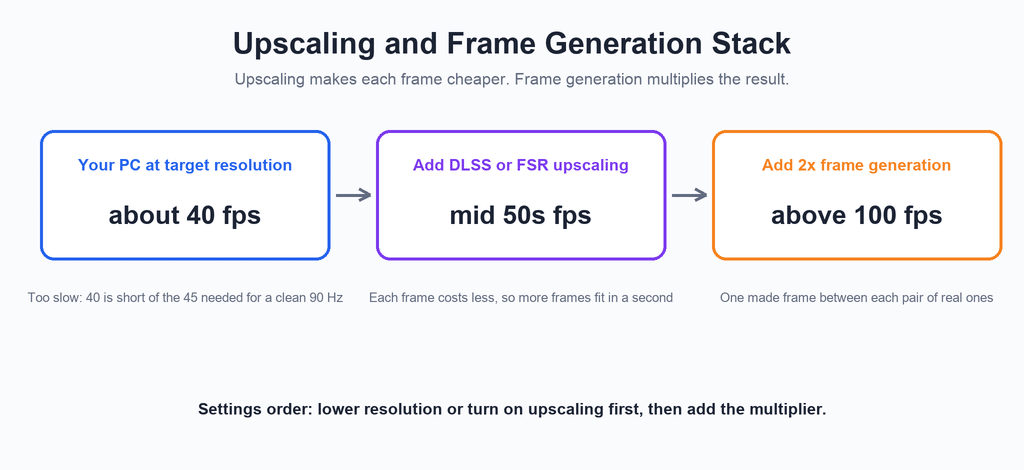
Upscaling renders each frame at a lower resolution and sharpens it back up, so every frame is cheaper. Frame generation leaves each frame alone and builds extra ones. They stack: upscaling raises the base frame rate and frame generation multiplies it. If your PC manages 40 frames per second, upscaling can lift that to the mid 50s and 2x then lands above 100. Without it, 40 is short of the 45 you need for a clean 90.
FSR 4 VR Games
FSR upscaling is vendor neutral and works in many VR games that offer it, including on Nvidia cards. What you get depends on what each game ships, so check the graphics menu rather than assuming. Games without it can sometimes be helped by OpenXR Toolkit.
DLSS 4 VR Games
DLSS upscaling is supported in a growing list of VR games, and in flight sims through OpenXR Toolkit. It needs an RTX card. It also unlocks OFXR’s Hybrid mode, which uses DLSS motion data for cleaner generated frames.
Best VR Upscaler
There is no single winner. On RTX cards, DLSS is usually sharper when offered. On AMD or older Nvidia cards, FSR is safer. In my testing, the best result came from the lightest preset that reached my base frame rate, because aggressive presets cost sharpness you can see in a headset.
OpenXR Toolkit Settings
OpenXR Toolkit is a free layer that adds upscaling, sharpening, a performance overlay and world scale to OpenXR games. Pick your upscaler and a quality preset, and keep sharpening low to start. It can run alongside OFXR Bridge, but both are OpenXR layers, so if something breaks, turn one off and retest. It is also an older project, so check a game’s compatibility first.
How to Improve VR Performance: How to Increase FPS in VR Games
Frame generation is not your first fix. Work down this list, then add the tools:
- Lower render resolution or supersampling. The biggest lever, and cost grows faster than sharpness.
- Close background apps. Browsers, overlays and capture tools use GPU time.
- Pick a lower refresh rate. 90 Hz asks for far less than 120.
- Check CPU versus GPU limits. If the GPU is not fully loaded while the frame rate is low, the CPU is the limit and lowering resolution will not help.
- Turn on upscaling. DLSS, FSR or OpenXR Toolkit.
- Add smoothing or frame generation last. It multiplies a decent base rather than replacing one.
The same list is how to improve SteamVR performance whether you play on a cable, Wi-Fi or a Steam Link stream. My Meta Quest 3 tips guide covers the Quest side, and the best VR headsets list helps if hardware is the limit.
Frame Generation in Specific VR Games
OFXR Bridge needs OpenXR, so support depends on the API each game uses. Where I say test it, I mean I cannot give a confident yes without checking that game’s OpenXR option.
| Game | OFXR Bridge | Notes |
|---|---|---|
| Microsoft Flight Simulator 2024 | Yes | Pair with AutoFPS. Strong 2x candidate. |
| Skyrim VR | Yes | Shimmer on distant foliage at 3x. |
| Fallout 4 VR | Yes | Similar to Skyrim VR. |
| Cyberpunk 2077 (VR mod) | Through UEVR’s OpenXR option | Heavy load. Upscale first. |
| Star Citizen | Yes | Anti-cheat game. Use at your own risk. |
| DCS World | Test it | Ghosting risk around cockpit frames. |
| iRacing | Test it | Ghosting risk on mirrors and dashboards. Try 2x only. |
| Assetto Corsa | Test it | Test 2x first. Watch road markings. |
| Elite Dangerous | Test it | Check the OpenXR route first. |
| X-Plane 12 | Test it | Scenes similar to other flight sims. |
| Euro Truck Simulator 2 and American Truck Simulator | Test it | Slow scenes, low artifact risk. |
| VRChat | Not documented | Use built-in smoothing and lower world settings. |
| No Man’s Sky VR | Test it | Use built-in smoothing first. |
MSFS 2024 VR Frame Generation
Microsoft Flight Simulator 2024 is the headline use: it is demanding and its camera moves slowly. Run OFXR Bridge at 2x, set AutoFPS about 10 percent under your refresh rate and turn the in-sim frame cap off. A doubled cockpit means another smoothing layer is active. Recent OFXR releases include fixes specific to 2024.
Skyrim VR Frame Generation
Skyrim VR often sits near 45 on modded setups, which makes 2x to 90 a natural fit. A Skyrim VR upscaler mod raises the base rate before you add generation. Expect shimmer on distant trees, especially at 3x.
Cyberpunk VR Frame Generation
Cyberpunk in VR is mostly a mod story and the load is heavy, so upscale first. See my guide to Cyberpunk 2077 in VR for the install. Once it runs at a stable but low rate, 2x is the cheapest way to make it comfortable.
DCS Frame Generation in VR
DCS cockpits are full of fine detail, which is where optical flow struggles most. Try 2x with a lower optical flow resolution and watch gauge edges and canopy frames. Hybrid mode with depth search can help, at a GPU cost.
iRacing Frame Generation in VR
iRacing has fast motion at the edge of your view, where artifacts show. Start with 2x and decide by feel after a few laps, since driving sims punish added delay more than flight sims.
RTX 4070 VR Performance: Is Frame Generation Enough?
An RTX 4070 class card has the GPU room for the optical flow work and enough VRAM for most games at moderate resolution, but not for the heaviest titles at high resolution. If your base rate sits in the low 40s, upscaling then 2x gets you there. If it sits in the 20s, lower the render resolution first.
| GPU Tier | What to Expect | Advice |
|---|---|---|
| RTX 5090 and RTX 4090 | Room for high resolution and 2x or 3x | Try Hybrid, push resolution higher |
| RTX 4080 | Comfortable at high settings | 2x at 50% optical flow |
| RTX 4070 | Good for most OpenXR games at moderate resolution | Upscale first, then 2x at 50% or 25% |
| RTX 4060 and RTX 3060 | Limited by VRAM and raw speed | Lower resolution, 25% optical flow, Lower VRAM on |
| AMD Radeon | Supported through FidelityFX | FidelityFX backend, 50%, watch VRAM |
These tiers are my judgement from the project’s requirements and how each card handles the extra GPU load, not lab benchmarks.
RTX 4090 vs 5090 VR Performance
Both have headroom for 2x at high resolution. The faster card lets you keep Hybrid on, push resolution higher and run 3x without stutter.
RTX 4080 VR Performance
An RTX 4080 handles 2x in demanding games with room to spare. If it falls short, lower optical flow resolution before the game’s resolution.
AMD GPU VR Performance
AMD cards work through the FidelityFX backend from the RX 400 series up. Plan for extra VRAM headroom, since the project’s notes call out runtime-specific VRAM use.
How Much VRAM for VR? Does VR Use a Lot of VRAM?
Yes. Two high-resolution eye views plus frame generation’s extra image copies add up fast. 8 GB is tight for a demanding game, 12 GB is comfortable for most, and 16 GB or more leaves room to push sharpness. I hit the ceiling of a 12 GB card in a heavy flight sim scene at high resolution, and the stutter was unmistakable until I dropped it a notch.
OFXR’s Lower VRAM option saves roughly half a gigabyte at high resolutions, and the project’s earlier notes said Pimax’s OpenXR path used about one and a half times the memory of the SteamVR path. A CPU bottleneck is separate: if the GPU is not fully loaded and the frame rate is still low, generating frames will not fix a late CPU.
Frame Generation VR Problems: Artifacts, Latency and VRAM
- Artifacts. Fast objects and repeating patterns (windows, grilles, fences) can shimmer or smear. A lower multiplier and higher optical flow resolution reduce it.
- Latency. About one frame in the default mode. It matters more in fast games.
- VRAM. Extra image copies can tip a tight card into stutter.
- Conflicts. Other frame counters, capture tools and layers can misreport or interfere.
- Anti-cheat. Online games may object to any injected layer. The project says to use it at your own risk.
Community threads repeat the same themes: ghosting, doubled images, and a counter that disagrees with the headset. Almost all trace back to a second smoothing system still running or a refresh rate that does not fit the multiplier.
VR Stuttering, Judder and Ghosting: Causes and Fixes
Stutter is uneven frame times. Judder is a mismatch between frame rate and refresh rate. Ghosting is a trailing double image behind fast objects. Frame generation can fix the first two and worsen the third if set up badly.
VR Stuck at 45 FPS (Half Refresh Rate)
If a 90 Hz headset is stuck at 45, a smoothing system has locked you to half rate: Motion Smoothing or fixed frame rate at half on SteamVR, ASW on Meta software, SSW on Virtual Desktop. Turn it off to use OFXR Bridge. Otherwise it is doing its job, and the fix is a lower resolution or a lighter game.
VR Ghosting With Frame Generation
Ghosting usually means the multiplier is too high, the optical flow resolution is too low, or a second layer is also generating frames. Try 2x, raise the optical flow resolution and, in DLSS games, try Hybrid mode.
SteamVR Stuttering Fix
- Close other GPU-heavy apps.
- Match the multiplier to the refresh rate using the table above.
- Turn off Motion Smoothing if you use OFXR, and vice versa.
- Lower render resolution until the game holds its base rate.
- Check VRAM. Full memory causes stutter.
- Restart SteamVR, then the OFXR tray, if it starts after a long session.
Frequently Asked Questions
Does frame generation work in VR?
Yes, through community tools rather than the official flat-screen features. OFXR Bridge adds optical flow frame generation to OpenXR VR games, and each headset platform has built-in smoothing such as SteamVR Motion Smoothing or Virtual Desktop SSW.
Does DLSS frame generation work in VR?
Not officially. DLSS frame generation is built for flat screens, and workarounds reported extra delay. DLSS upscaling does work in supported VR games, and OFXR Bridge can use DLSS motion data in Hybrid mode.
Does Nvidia frame generation work in VR?
Nvidia does not document its frame generation as a VR feature. An Nvidia card works well with OFXR Bridge, which supports GTX 10 series and newer.
Does multi frame generation work in VR?
Not through Nvidia’s official multi frame generation. OFXR Bridge has its own 3x mode for games running near a third of your refresh rate, with more artifacts than 2x.
Is OFXR Bridge free?
Yes. It is open source under the LGPL license with no paid tier. The developers only offer optional tips.
Is VR frame generation safe to use?
OFXR Bridge is open source, its files are digitally signed and it installs as an OpenXR layer without changing game files. Download it only from the project’s official release page. Antivirus tools sometimes flag small community tools, and the AutoFPS installer is unsigned. Anti-cheat games may object to any injected layer, so use it there at your own risk.
Does Lossless Scaling work with VR games?
Not for the headset image. Lossless Scaling captures a game window on your monitor and generates frames for that window. It can smooth a mirror window but does not add frames to what the headset displays.
Does frame generation add input lag in VR?
Yes, a little. With the default Prefer FPS Over Latency setting, OFXR Bridge adds about one frame, roughly 11 ms at 90 Hz. Turning the option off trades some smoothness for lower delay.
Does frame gen work in VRChat?
VRChat is not on OFXR Bridge’s documented game list, so I would not count on it. Built-in smoothing and lower world and avatar settings are the safer route.
What is reprojection in VR?
Reprojection is the headset re-showing the previous frame, rotated to match your latest head position, when the game misses a frame. It keeps head turns smooth but does not move objects that animate on their own.
Should I turn off motion smoothing in SteamVR?
Turn it off if you use OFXR Bridge, because the two conflict. Otherwise keep it on if your game cannot hold the refresh rate, and off if you prefer a lower but unprocessed frame rate.
Is 90 FPS good for VR?
Yes. 90 frames per second is a good target for most headsets. 72 is acceptable, and below that head turns feel rough.
Does VR use a lot of VRAM?
Yes. Two high-resolution eye views plus frame generation copies add up. 12 GB is comfortable for most games, and 8 GB is tight in demanding ones.
How do I stop ASW on Quest 3?
For PC streaming over Meta software, set Asynchronous Spacewarp to Disabled in Meta’s PC debug tool. In Virtual Desktop, turn off Synchronous Spacewarp. Standalone Quest games that use Application SpaceWarp cannot be changed by you.
Does OpenXR Toolkit work with frame generation?
It can run alongside OFXR Bridge since both are OpenXR layers. Use it for upscaling and sharpening, and turn one layer off if something misbehaves.
Final Thoughts: Is Frame Generation in VR Worth Using?
Yes, if your game is stuck near half your refresh rate and you play something slow enough to forgive a little latency. OFXR Bridge is the best free upgrade I have found for flight sims and driving games, and AutoFPS makes it more automatic in Microsoft Flight Simulator. For everything else, start with built-in smoothing, add upscaling, and only then reach for a multiplier.
Streaming from a Quest? Start with my Steam Link on Meta Quest guide, and check the best VR headsets if your hardware is the limit. Shopping for new hardware? My Steam Frame review covers Valve’s headset.