VR4ALL is a Windows app that installs standalone VR mods on a Meta Quest for you. The VR4ALL library puts more than 120 community-made ports in one place, and its one-click installer does the patching and the transfer to your headset, so you don’t have to follow a separate build guide for each game. In this guide I’ll show you how to install VR4ALL, set up your Quest and install your first standalone mod.
Despite the name, VR4ALL isn’t a website or a list of mods to browse. It’s a desktop program in early beta, and it ships no games, so you bring your own files for any port that needs them. If you want a simpler way to run standalone Quest ports without hunting down every creator’s install page, this is what it’s built for, and I’ll point out where the rough edges are.
VR4ALL at a Glance
| Detail | Answer |
|---|---|
| What it is | A Windows app, “Standalone VR Mod Installer for Meta Quest”, with the tagline “One hub for ALL standalone Quest VR ports” |
| Where to get it | VR4ALL on GitHub (download VR4ALL-win-x64.exe from the releases page) |
| File size | About 190 MB, a portable .exe with no installer |
| Version covered | v0.3.62-beta, which GitHub marks as a pre-release |
| Price | No price is listed. Donations go through Ko-fi |
| Computer | Windows x64 PC only (a Linux request is open on GitHub) |
| Headsets | Detects Quest 2, Quest 3, Quest 3S and Quest Pro. Which ones work depends on each port |
| Connection | USB data cable, Developer Mode and USB debugging |
| Catalog | 128 game projects, 5 emulator and runtime tools and 142 port choices, according to the README |
| Games included | None. You supply your own game files for any port that needs them |
| Status | Early beta, with new builds posted often |
What Is VR4ALL? A Standalone Quest Mod Installer, Not a Website
Standalone ports are mods that run directly on the Quest, with no PC streaming. They’re usually made by one person or a small team, and each creator has their own download page, their own list of files you need and their own install steps. Some are a single APK. Others need a ROM, a disc image or a folder from a game you own, copied to an exact location on the headset.
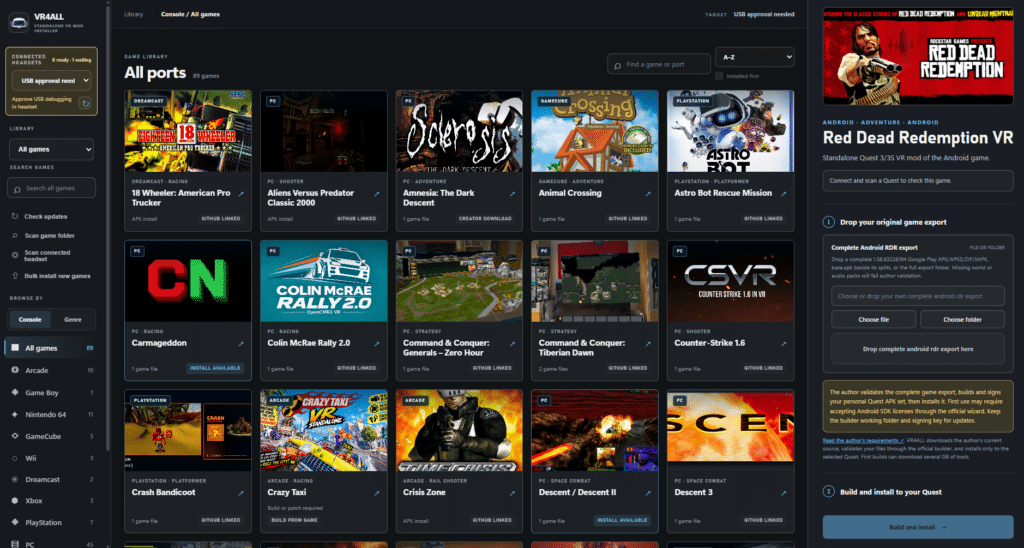
VR4ALL collects those projects behind one window. You pick a game, it tells you which files that port needs, and when you click Install it handles the APK install and the file transfer over USB. It also scans your headset and tells you when a creator has posted a newer release, so you can update your installed mods in one go. The VR4ALL README calls itself an independent community frontend. It isn’t affiliated with Meta, game publishers or the port creators, and the ports belong to their creators.
That makes it a different kind of tool from the PC mods I cover in my guides, like the Titanfall 2 VR mod, where the game runs on your computer and streams to the headset. With VR4ALL the PC is only the installer. Once a port is on the Quest, you launch it from the headset.
VR4ALL Requirements: What You Need Before You Start
- A Windows x64 PC. The README lists Windows x64 as the requirement. There’s no Mac build, and Linux is only a request on GitHub for now.
- A Meta Quest. The app detects Quest 2, Quest 3, Quest 3S and Quest Pro, but each port decides which of those it runs on (more on that below).
- A USB data cable. A charge-only cable won’t work, because the app talks to the headset over USB debugging. The README describes USB only.
- Developer Mode on the Quest. Step 2 covers it.
- Your own game files. For any port that needs them, you provide them from a copy you own, as a ZIP, 7z, RAR, folder, ROM or disc image depending on the game.
- Free space. Some ports are big. BioShock VR, for example, is listed as needing roughly 7 GB free on the PC and 14 GB on the Quest, so check my Meta Quest storage guide if you’re on a 128 GB headset.
Is VR4ALL Safe? Is VR4ALL Legal?
Is VR4ALL Safe to Download?
I can’t promise a tool is safe, but I can tell you what the project shows and what I’d do. The repository is public and includes build instructions, so you can build the app yourself instead of running the compiled file.
The app is unsigned, so Windows may show a publisher warning when you open it. That warning is expected for an unsigned program, but it’s also a reason to be careful about where you got the file.
Is VR4ALL Legal? Why You Need Your Own Game Files
VR4ALL says it doesn’t include ROMs, paid games, disc images or commercial game data, and it doesn’t include port APKs that creators only share through manual downloads. Where a creator publishes a Quest APK on GitHub, the app can fetch it for you. Everything else comes from you, from a copy you own.
That matters most for the arcade ports. Several of them run on arcade ROM sets, and the card tells you which set and revision it expects. Whether you may copy and use those files depends on the country you live in and on how you got them, and it’s a gray area. I’m not going to point you to places to get game files, and the VR4ALL README asks for legally obtained files only. If you don’t own the game, don’t use the port.
How to Install VR4ALL Standalone Quest VR Mods (Step by Step)
These steps follow the project’s own README and user guide. Because VR4ALL is in beta and changes quickly, treat the screens in your copy as the final word if anything looks different.
Step 1: Download VR4ALL From GitHub
Go to the VR4ALL releases page and download VR4ALL-win-x64.exe from the newest release. The file name stays the same across releases, and the app is a portable .exe, so there’s nothing to install. Double-click it and the VR4ALL window opens. It doesn’t need Node.js or a separate browser, and it bundles Android Platform Tools (ADB) for headset detection and 7-Zip for converting archives.
If you ever used a build up to version 0.3.51, the README says that one needs a single manual download of VR4ALL-win-x64.exe to repair its self-updater. Anyone downloading fresh today can ignore that.
Step 2: Turn On Developer Mode on Your Quest
This is a one-time setup on the headset side. Meta’s developer documentation lists these steps:
- Open the Meta Horizon app on your phone and tap the headset icon.
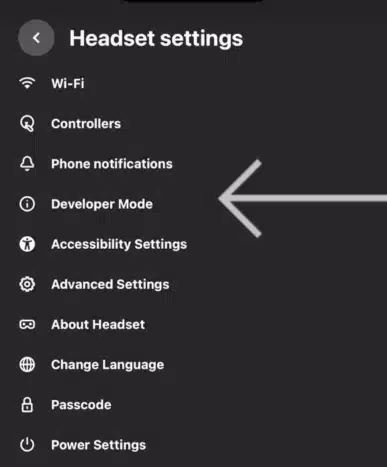
- Tap your paired headset, then Headset Settings, then Developer Mode, and switch it on.
- Connect the headset to your PC with a USB-C data cable and put the headset on.
- In the headset, open Quick Control, select the gear icon, go to the Developer tab and turn on MTP Notification.
Meta also asks you to belong to a developer team on its developer dashboard and to verify your account once with a mobile number or a payment method, and you need to be at least 18. If Developer Mode is missing from the app, that verification is the usual reason.
Step 3: Connect Your Quest to VR4ALL and Approve USB Debugging
With the headset on and connected, a prompt asks whether to allow USB debugging. Choose the option to always allow it from this computer, then open VR4ALL and select your headset in the list above the library. The list refreshes on its own after you plug in. If the app can’t find ADB, use the Connection help control below the headset selector to point it at an adb.exe.
Step 4: Pick a Game in the VR4ALL Library
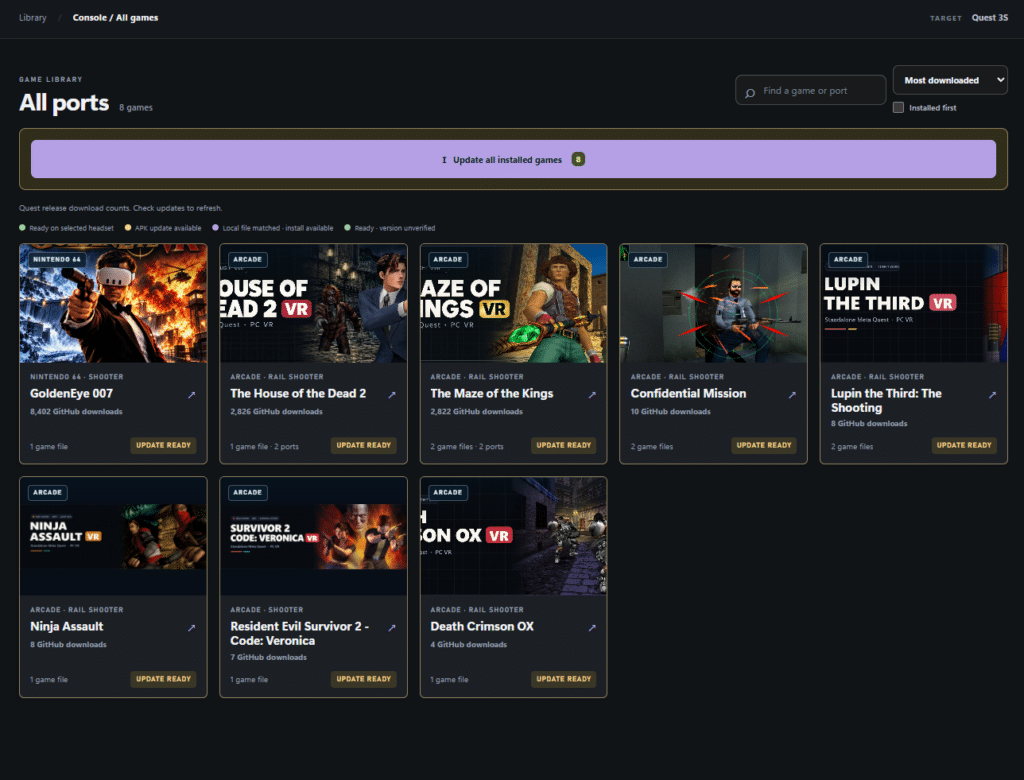
Browse the library or search by game, console or genre. The sidebar filters let you view all games, games available to install, and the newest additions, and once a headset is connected you can also filter to installed games and to games with an update waiting. Open a card and read it before you do anything else, because each card lists the files that port needs, the expected format and any extra preparation.
Step 5: Add Your Own Game Files to VR4ALL
Each requirement on a card has a copy button, so you can paste the exact file name or revision into your search or folder instead of guessing. Arcade cards show the known ROM set and revision. Choose or drop your file onto the card, and VR4ALL tells you whether it accepts the input. ZIP fields also take 7z, RAR, a folder or several loose files, and the app packages them for you. The app remembers where each file lives, so later installs and updates don’t ask again.
A few ports need no game files at all because the APK already includes the content. Others, like Gran Turismo 3 Revisited, expect a disc image you made from your own disc. The card is the source of truth for each one.
Step 6: Click Install in VR4ALL, Then Launch From Unknown Sources
Choose the supported creator APK source or supply an APK you downloaded from the creator, then click Install. VR4ALL installs the APK and transfers your files to the headset. When it finishes, put the headset on and find the port in your app library under Unknown Sources. A finished transfer only confirms the files reached the headset, so test the game in the headset before you call it done.
Which Quest Models Does VR4ALL Support?
The app detects the Quest 2, Quest 3, Quest 3S and Quest Pro, but detection isn’t the same as support. Each port’s compatibility depends on its author, and many ports have only been confirmed on one headset. A few examples from the project’s own user guide show how much it varies:
| Port | What the guide says about headsets and setup |
|---|---|
| GT3 Revisited | The author verified Quest 3. Quest 2, Quest 3S and Quest Pro are not confirmed. Needs an ISO from your own Gran Turismo 3: A-Spec disc |
| Project 06 VR | Installs the creator’s experimental Quest 3 APK with its Sonic content packaged. No ROM needed, Sonic levels only |
| BioShock VR | Quest 3 or 3S. Experimental and not yet confirmed by the creator on Quest 3 or 3S hardware. Needs your own BioShock (2007, v1.1) and the Remastered version is not compatible |
| Qualyx | Copies the hlvr and core folders from your own Half-Life: Alyx install. The transfer is large |
So the safe habit is to check the card for your headset before you download anything big. If you own a Quest 3S or a Quest 2, don’t assume a port will run just because the app lets you click Install.
VR4ALL Games List: What Is in the VR4ALL Catalog?
VR4ALL lists over 130 game projects, 5+ emulator and runtime tools and 142+ port choices. The extra port choices come from games with more than one mod, so Time Crisis, Pokemon, Halo, Max Payne, Virtua Cop and The House of the Dead each have alternates you can pick between. The catalog also includes Sega arcade-style ports, driving games, PlayStation-era classics and some big-name PC games, and the repository’s own issues show the developer is taking requests for more.
Two caveats. First, some entries aren’t playable yet. Deus Ex is listed as an in-development project, and VR4ALL links it without offering an install. Second, the project’s own user guide still shows older catalog numbers than the README, which is a good sign of how fast it’s changing. If you want a specific game, search for it in the app instead of trusting any list, including mine.
Some of the same games are ones I’ve covered separately, with other ways to play them. See my guides to Gran Turismo 2 in VR on Meta Quest and the Time Crisis VR fan mod if you want the creator’s route for those two.
How to Update VR4ALL and Your Installed Mods
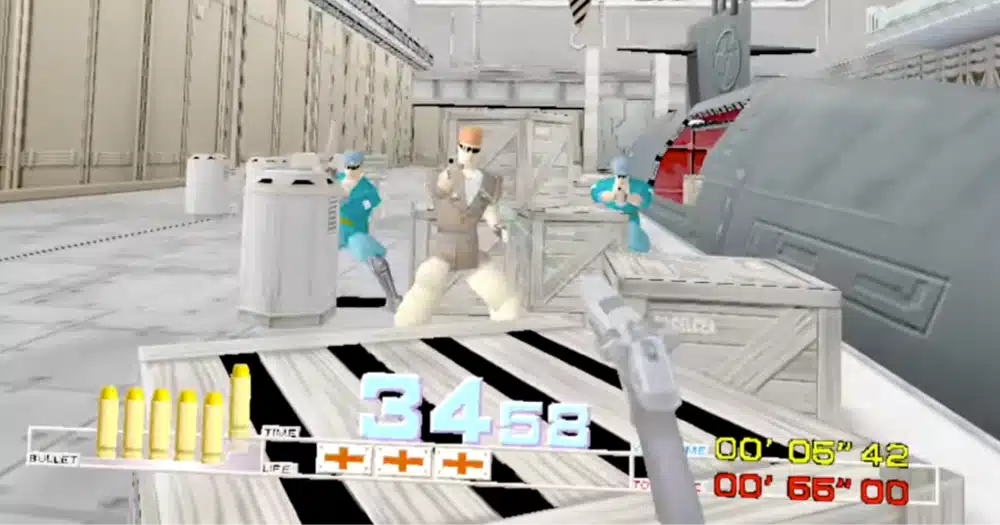
Updating is the other half of what the app does, and it saves you from checking each creator’s page for new releases. Use Scan connected headset to check which packages are installed, then Check updates to look for newer creator releases.
When a headset has a confirmed newer APK for an installed port, an Update all installed games button appears above the cards and installs the available updates one at a time. There’s also a Bulk install option that offers every game you haven’t installed yet, using files you’ve already selected on their cards.
VR4ALL also updates itself. It checks for a new release when it opens, and if one is available you can choose Update and restart. The app downloads the new .exe, verifies its GitHub SHA-256 digest, replaces the portable file you launched and reopens. It won’t do that while a game install is running. If the replacement fails, it restores the old version and writes the reason to a log file.
Some ports are hosted only on the creator’s own site, and VR4ALL can’t auto-update those. For them you drop the creator’s APK onto the card yourself. And an update only works for ports the app can see on the headset, so run a scan first.
VR4ALL Troubleshooting: Early Beta Problems and Fixes
Ports have different requirements, and some workflows haven’t been tested end to end on every Quest model. The developer’s own release notes say a physical install of every port hasn’t been done. Here are the issues the project documents, with the fixes it suggests.
- Windows shows a publisher warning. The app is unsigned. Make sure you downloaded it from the official releases page, then decide whether you’re comfortable running it.
- VR4ALL doesn’t see your Quest. Check that the cable carries data, that Developer Mode is on and that you approved USB debugging inside the headset. If the app can’t find ADB, set the path under Connection help.
- An install fails. Open the Activity log in the app. It shows each command’s result. Fix the file or connection problem and choose Retry install on the same selected Quest.
- The game doesn’t appear in your library. Look under Unknown Sources in the headset’s app library.
- The updater is broken on an old build. Versions through 0.3.51 need one manual download of the current .exe.
- A port installs but doesn’t play right. A successful transfer isn’t a guarantee. Re-read the card, confirm your headset model is supported and then report it.
- Red Dead Redemption fails to launch. The guide says to keep the Quest online on first launch, because an offline headset can fail with an NGP-92 error even after a good install.
To report a bug, use the Report a bug link in the app or the project’s GitHub issues. Include the port name, headset model, VR4ALL version and a redacted log. Don’t attach game files, headset serial numbers or personal file paths.
VR4ALL Alternatives: Other Ways to Run VR Mods on Quest
VR4ALL only covers standalone ports. If the mod you want isn’t in the catalog, or you’d rather not run an unsigned beta, these are the other routes I’ve written up:
- Sideloading with SideQuest: the standard way to put an APK on a Quest from a PC, and the right tool for a creator’s download that VR4ALL doesn’t cover.
- WinlatorXR: runs Windows PC games on a Quest with no PC at all.
- VR emulators on Meta Quest: retro consoles on the headset, with the same ROM questions covered carefully.
- Best games with VR mods and the best PC VR games: where the game runs on your PC and streams to the headset.
- Setting up Meta Quest Link: the cable setup many PC mods rely on.
- Gorilla Tag mods and Beat Saber custom songs: two popular mod setups with their own tools.
VR4ALL FAQ: Download, Safety, Quest 2 and More
What is VR4ALL?
VR4ALL is a Windows app that installs standalone VR mods and ports on a Meta Quest over USB. It’s a desktop program you download from GitHub. It collects community ports in one library, tells you which game files each one needs and installs them on your headset.
Is VR4ALL free?
No price is listed in the README or the user guide, and the app is a plain download from GitHub. The developer accepts donations through Ko-fi. You still need to own any game a port requires.
Is VR4ALL safe?
The repository is public and has build instructions, but it’s a very new, unsigned beta, so Windows may show a publisher warning. Download it only from the official releases page, compare the file against the posted SHA256SUMS.txt on recent releases and don’t turn off your antivirus to get around a warning.
Is VR4ALL legal?
The app ships no games, ROMs or disc images, and it asks for files from a copy you own. Arcade ports that use ROM sets are a gray area that depends on where you live, so check your local rules and use only files you have the right to use.
Does VR4ALL work on Quest 2, Quest 3 and Quest 3S?
The app detects Quest 2, Quest 3, Quest 3S and Quest Pro. Whether a port runs on them is up to the port. Some are confirmed only on Quest 3, so check the game’s card before installing.
Does VR4ALL work on Mac or Linux?
Not yet. The README lists a Windows x64 PC as the requirement, and a request for Linux support is open on the project’s GitHub issues.
Do I need a PC to use VR4ALL?
Yes, to install. The PC runs VR4ALL and sends the files to the headset over USB. After that, the installed ports run standalone on the Quest with no PC streaming.
Can I use VR4ALL without a USB cable?
The README and user guide only describe a USB connection with Developer Mode and USB debugging, so I’d plan on a USB data cable.
Does VR4ALL include the games?
No. It doesn’t include commercial games, ROMs, disc images or port APKs that creators distribute only by manual download. For ports that need them, you add your own files.
How do I update games installed with VR4ALL?
Connect your Quest, scan the headset, run Check updates and choose Update all installed games. Ports hosted only on a creator’s own site can’t be auto-updated, so for those you supply the new APK yourself.
Is VR4ALL the same as SideQuest?
No. They’re separate programs. Both put apps on a Quest from a PC, but VR4ALL is built around a catalog of standalone ports and their game files, and it isn’t affiliated with Meta or the port creators.
Where is the official VR4ALL page?
The project lives on GitHub under vr4all-standalone, and the releases page is where you download the app. Be wary of copies hosted anywhere else.
Final Thoughts
VR4ALL puts what a standalone port needs, the install and the updates in one app, which saves a lot of tab-hopping between creator pages. It’s also a beta that’s only days old, so I’d try it on one game you care about, with your own files, before trusting it with a whole library.
My advice is to start with a port that needs no extra files, confirm it runs on your headset and then work up to the bigger ones. Download only from the official releases page, read each card before you install and check the project’s GitHub issues if something fails. If you’d rather stick with mods you can stream from a PC, my guide to games with VR mods is the place to start.