
The Steam Frame dongle is the small USB wireless adapter that comes in the box with Valve’s headset and gives it a direct 6GHz link to your gaming PC. Plug it in, pair it, and the headset streams your Steam library over that dedicated connection instead of fighting your home Wi-Fi for bandwidth. When it works, you forget it exists. When it doesn’t, you get an adapter stuck on “waiting”, a headset that quietly falls back to plain Wi-Fi, or lag spikes you can’t explain.
This guide covers what the Steam Frame dongle is, which USB port to use, how far it reaches, what to do when it won’t connect, and how to get one. Anything marked as Valve’s guidance comes from Valve’s own Steam Frame page and Steam Frame support guide. Anything that is only my own setup says so. For the headset itself, see my full Steam Frame review.
Steam Frame Dongle Quick Facts
- Included in the box: every Steam Frame ships with one. Valve calls it the wireless adapter.
- Wireless standard: Wi-Fi 6E on the 6GHz band, plug-and-play.
- Valve’s range guidance: best with a clear line of sight to the headset and within about 20 feet of your playspace.
- OS support: full SteamVR and adapter streaming support is Windows only for now. Linux needs SteamOS 3.9 or newer, or Linux kernel 7.2 or newer.
- Optional: the Frame can also stream over Wi-Fi, but Valve recommends using the adapter too.
- Other headsets: it is the Steam Frame’s own link. Valve doesn’t list support for any other headset.
What Is the Steam Frame Dongle? (Wireless Adapter Explained)
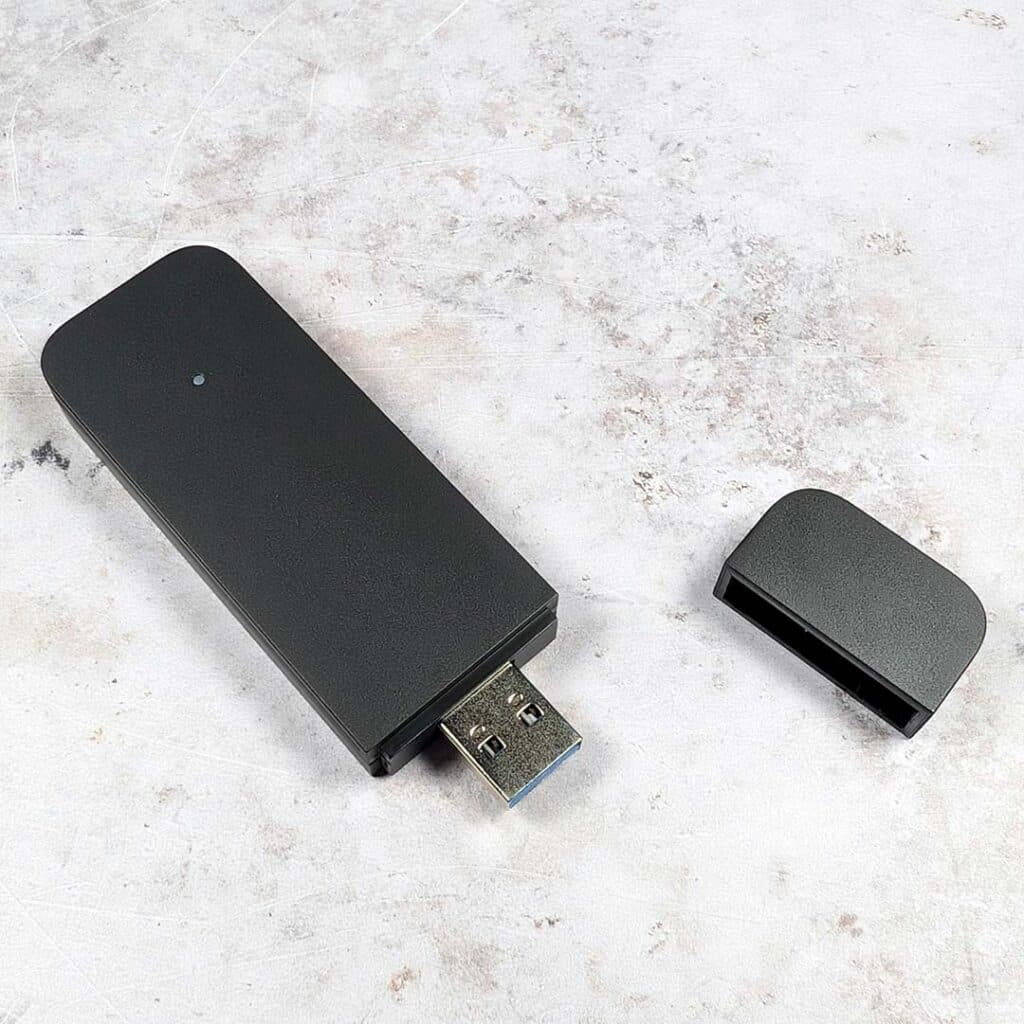
The Steam Frame dongle is a USB wireless adapter that plugs into your gaming PC, not the headset. It creates a dedicated 6GHz connection between the PC and the Steam Frame so PC games, VR and flat-screen, stream with low latency. Valve’s own spec list describes it as a wireless adapter that “provides direct, low-latency link between headset and PC”. “Dongle” is just what most people call it, so the two terms mean the same thing.
You only need it for PC streaming. The Steam Frame also runs games on its own hardware without a PC, so the adapter does nothing for standalone play.
Steam Frame Dongle Wi-Fi 6E and 6GHz: How the Direct Link Works
The headset has two radios. Valve lists the Frame itself as Wi-Fi 7 (2×2) with dual radios, which lets it keep a normal 5GHz Wi-Fi connection and a separate 6GHz streaming link running at the same time. The dongle is the PC end of that second link. In Valve’s words, one radio is dedicated to streaming the audio and visuals while the other connects to your Wi-Fi.
That is why you see searches for a “Steam Frame Wi-Fi 7 dongle”. The headset is Wi-Fi 7, but the adapter in the box is Wi-Fi 6E. Valve also says streaming uses a combination of the adapter and your local Wi-Fi, which it calls Multi-Link, so the two connections back each other up.
Does the Steam Frame Come With a Dongle? Do You Need It?
Yes. Valve lists “Wireless adapter included in the box” in the Steam Frame specs, and both kits ship with it (see the price section of my Steam Frame review for the kits).
Do you need it?
Not strictly, since the headset can stream over Wi-Fi, but Valve recommends the adapter to get “the intended experience”. If you want to stream PC VR, plan on using it. I cover the Wi-Fi-only route below.
Steam Frame Dongle USB Port: Which USB Version Do You Need?
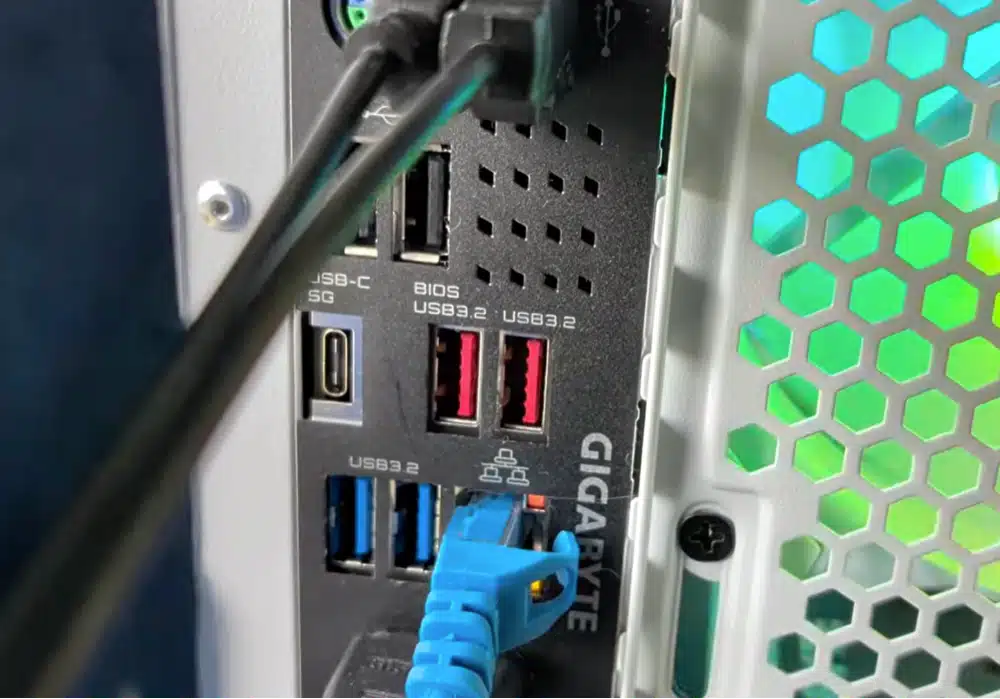
Valve’s support guide keeps the setup simple: plug the adapter into the PC you plan to stream from and walk through the pairing prompts that appear on that PC. It doesn’t list a required USB version. The setup walkthrough that reviewers quote says to plug it in, preferably, to a USB 3 port, so use one if you have a choice.
Steam Frame Dongle USB Version: USB 3 Preferred, USB 2 Works
The Steam Frame dongle adapter was recognized and worked on my USB 2 port too, but I saw lag spikes on one port that disappeared when I moved it back to a USB 3 port. This reviewer saw something similar on his video.
The practical takeaway matches common sense: the adapter is a latency-sensitive wireless link, so give it a clean port.
In my setup, I keep it in a rear-panel USB 3 port on the motherboard and keep my other USB gear off the neighboring ports. I wouldn’t put it on a hub or a front-panel port, because those share bandwidth and cabling with everything else you have plugged in.
Steam Frame Dongle USB-A or USB-C?
Valve’s spec page lists a USB-C 2.0 port on the rear of the headset, used for charging (up to 45W) and data. That is the headset, not the dongle. I didn’t see the adapter’s own connector type in the specs, and mine plugs into a regular USB-A port. Check your PC’s free ports before you buy a Steam Frame, and don’t assume a USB-C-only laptop will work without an adapter.
Front Port vs Back Port: What One Tester Found
Try both the front and rear ports, since they can sit on different controllers. Valve’s troubleshooting advice points the same way. If the pairing prompts don’t appear, Valve says to try reconnecting the adapter to an alternative port, and to disconnect unnecessary USB and Bluetooth peripherals while you troubleshoot.
Steam Frame Dongle Range: How Far Does It Reach?
Valve gives a real number here. The wireless adapter “performs best when it has a clear line of sight to the headset and is within ~20 feet of your Playspace.” For streaming, Valve says to stay within 20 feet of the adapter for the best experience.
Two things follow from that. The adapter works best when it can see the headset, so don’t leave it behind the PC case or inside a cabinet. And 6GHz doesn’t like walls. In my experience, the link feels solid in the same room and gets less forgiving the moment a wall or a doorway sits between the adapter and your playspace.
Because the Frame also keeps its Wi-Fi connection, a weak spot doesn’t always end the session, but you lose the dedicated link that makes streaming smooth.
Steam Frame Dongle USB Extender: Does It Help?
Valve doesn’t publish guidance on USB extension cables, so this part is my advice, not an official rule. A short, good-quality USB 3 extension cable is worth it if your PC’s rear ports are tucked behind a desk or under it. It lets you put the adapter on the desk with a clear view of your playspace, which is the thing Valve says matters most.
- Keep the cable short, a few feet at most. A long passive cable is another place for dropouts.
- Use a USB 3 rated cable, and plug it directly into the PC, not into a hub.
- Point the adapter toward where you actually stand and play.
Steam Frame Dongle Speed, Bandwidth and Latency
Valve doesn’t publish bitrate, bandwidth or latency numbers for the adapter, so I won’t invent any. What Valve does say is that it is a dedicated 6GHz link for both VR and flat-screen streaming, built for low latency, and that it works together with your local network. USB port speed and wireless speed are separate things.
A better port won’t make the wireless link faster. It helps the adapter stay consistent when your PC is busy with other USB devices.
Steam Frame Dongle Not Working: Fixes for Inactive and Won’t Pair
Start with Valve’s own first steps, which fix more than you’d expect:
- Install any updates on the Steam Frame under Steam Settings, then System, then Updates in the VR Dashboard.
- Update the Steam client and SteamVR on the PC you stream from.
- Restart the devices having trouble.
- Disconnect unnecessary USB and Bluetooth peripherals while you troubleshoot.
Is It the Dongle, Your PC or Your Wi-Fi?
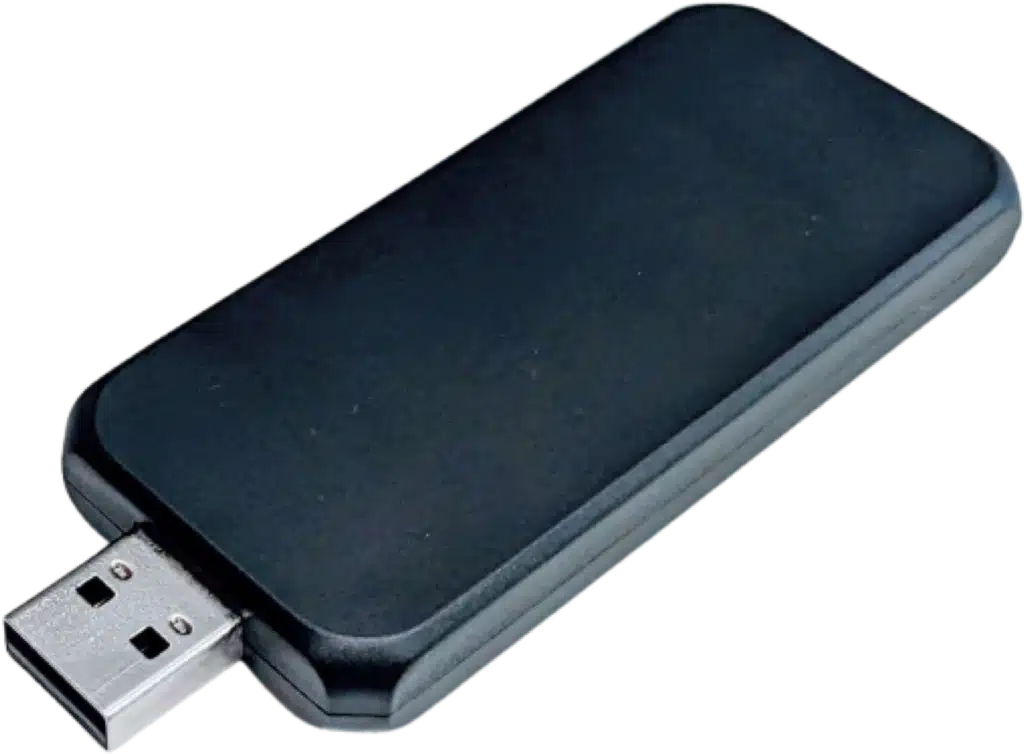
- The dongle: the adapter’s LED never turns solid white, or the pairing prompts never appear.
- Your PC: you’re not on Windows, SteamVR isn’t updated, or a firewall or driver is blocking the connection.
- Your Wi-Fi: the adapter connects but you get hitching or lag. Valve points to its Network and Wi-Fi troubleshooting article as the first stop.
Steam Frame Dongle Inactive: What the Status Means
Valve’s LED reference tells you exactly where the adapter is stuck:
| Adapter LED | What Valve says it means |
|---|---|
| Green, blinking | Steam has not taken control of the wireless adapter. The OS is in control of the LED. |
| White, slow blinking | Steam is attempting to connect to a Steam Frame, no connection has been established yet. |
| White, solid | The Steam Frame is connected to the host. That doesn’t mean streaming has started, only that the connection is available. |
If it sits on green, Steam isn’t using the adapter yet, so the fix is on the PC: update Steam and SteamVR, restart, and try another port. If it sits on slow white, the PC sees it but the headset hasn’t connected, so re-pair it.
When mine got stuck on waiting, unplugging it, moving it to a different rear port and restarting SteamVR sorted it out. On Linux, a very common cause is covered further down.
Steam Frame Wireless Adapter Not Pairing: Reinstall the Driver and Re-Pair
- Plug the adapter into the PC you want to stream from and let SteamVR install the adapter driver if it asks.
- Walk through the pairing prompts that appear on the PC.
- If the prompts don’t appear, move the adapter to a different USB port.
- Pair manually from the headset: Steam Settings, then Remote Play, then Wireless Streaming Adapter.
Remember that full adapter support is Windows only for now. If you’re on another OS, skip to the Linux section.
Steam Frame Dongle Lag and Dropouts: Try Another USB Port
If the link connects but stutters, check the basics in order. Stay within 20 feet and keep a line of sight. Try a different rear USB port. Unplug other USB devices. Then work through Valve’s network article, which also suggests trying a different Wi-Fi band and checking for interference.
Valve’s recent Steam client update for the Frame also fixed rare cases where other network interfaces disrupted wireless dongle connections, according to GamingOnLinux’s write-up, so make sure you’re current.
Steam Frame Dongle on Linux: Valve’s Troubleshooter Script
Valve says full support is Windows only for now, and that a Linux PC needs SteamOS 3.9 or newer, or Linux kernel 7.2 or newer. If you run Linux anyway, Valve published a script called frame-dongle-troubleshoot.sh in its SteamVR-for-Linux repository. I checked it, and it looks for:
- Kernel 7.2 or later, or the rtw89 driver being present.
- Wi-Fi being switched off. Valve notes that disabling Wi-Fi also disables the dongle.
- A regulatory domain that is set properly (not 00 or DFS-UNSET) and includes the 6GHz band. Valve warns against blindly switching your domain to the US, and suggests USB tethering as the workaround.
- Firewall ports: TCP 27036 and 27037, UDP 27031 and 27036, and UDP 10400 and 10401.
A Steam community thread describes the same symptom many people search for: the headset pairs with the adapter but keeps using Wi-Fi, with the adapter stuck on waiting. In that thread, the cause was the Linux regulatory domain not being set for the user’s country.
Steam Frame Error 17 and SteamVR Updates
Error 17 is a VR streaming connection error. According to GamingOnLinux’s summary of Valve’s release notes, you need SteamVR 2.18.2 or later to reduce Error 17 connection issues, and it was on the SteamVR beta branch at the time. Check which SteamVR branch you’re on before you spend an hour on cables.
Steam Frame Without the Dongle: Streaming Over Wi-Fi
Valve’s guide says it recommends using the adapter, and that Wi-Fi alone is the fallback. Mixed News reported that an earlier version of Valve’s guide said Wi-Fi streaming works on its own if you use a 5GHz router plugged directly into your PC, not a PC on Wi-Fi, so that is the setup to aim for.
Think of Wi-Fi as the backup.
My guide to the best Meta Quest routers applies to the Frame too. The same logic applies to wireless streaming apps like Steam Link, which I cover in my Steam Link Meta Quest tutorial.
Steam Frame Dongle for Quest 3: Does It Work?
I found nothing from Valve saying the Steam Frame dongle works with a Quest 3 or any other headset. It is the Steam Frame’s own link, and the Quest 3 has its own Wi-Fi radio. To play PC VR on a Quest 3, use Steam Link, Air Link or Virtual Desktop instead.
If you’re deciding between the two headsets, read my Steam Frame vs Meta Quest 3 comparison.
How to Buy the Steam Frame Dongle
The short answer is that you get the Steam Frame dongle by buying the Steam Frame. Valve lists the wireless adapter as included in the box, and I found no standalone listing for it on Valve’s Steam Frame page. Searches also surface Steam Controller wireless receivers, but those are a different product, so don’t buy one thinking it will work with the headset.
- Price: the Steam Frame starts at $1,059 for the 256GB kit and $1,299 for the 1TB kit, and both include the adapter. Full details are in my Steam Frame review.
- How to get one: Valve uses a reservation system. You sign up for a model, Valve randomizes the list, then emails people in order with a purchase option. Once you get the email, you have 72 hours to complete the purchase. New sign-ups go to the back of the waitlist.
- Where to buy: start with the Steam Frame order page or Valve’s own Steam Frame page.
- Lost or broken adapter: I couldn’t confirm that Valve sells spare adapters. Open a ticket with Steam Support, which is the route Valve’s guide gives for anything it doesn’t cover.
- Before you order: make sure your PC runs Windows, has a free USB port, and that the PC can sit within about 20 feet of where you’ll play.
Steam Frame Dongle FAQ
What Is the Steam Frame Dongle?
The Steam Frame dongle is the USB wireless adapter that ships with the headset. It plugs into your gaming PC and creates a dedicated Wi-Fi 6E (6GHz) link to the Steam Frame for low-latency PC game streaming. Valve calls it the wireless adapter.
Does the Steam Frame Come With a Dongle?
Yes. Valve lists a wireless adapter as included in the box with every Steam Frame.
Can You Use the Steam Frame Without the Dongle?
Yes, for Wi-Fi streaming and standalone games, but Valve recommends using the included adapter with your PC for the intended streaming experience. Mixed News reported that Valve’s guide has said Wi-Fi alone works best with a 5GHz router plugged directly into your PC.
Does the Steam Frame Dongle Need a USB 3 Port?
Valve’s support guide doesn’t list a required USB version. The setup walkthrough that reviewers quote recommends a USB 3 port when you have one, and one reviewer saw it work on USB 2. Use a rear USB 3 port if you can.
How Far Does the Steam Frame Dongle Reach?
Valve says the adapter performs best with a clear line of sight to the headset and within about 20 feet of your playspace.
Why Does My Steam Frame Dongle Say Inactive?
Valve doesn’t use the word inactive, but its LED guide says a blinking green LED means Steam hasn’t taken control of the adapter, and a slow blinking white LED means Steam is trying to connect to a Steam Frame. Update Steam and SteamVR, restart, try another USB port, and re-pair from Steam Settings, Remote Play, Wireless Streaming Adapter.
Does the Steam Frame Dongle Work With Quest 3?
I found nothing from Valve saying it does. The dongle is the Steam Frame’s own link, and a Quest 3 streams PC VR through its own Wi-Fi using Steam Link, Air Link or Virtual Desktop.
Can You Buy a Second Steam Frame Dongle?
I couldn’t find a standalone listing for the wireless adapter. It comes in the box with the Steam Frame. If you lose or break yours, contact Steam Support.
Final Thoughts on the Steam Frame Dongle
The Steam Frame dongle is the reason the headset streams as well as it does, and most problems come down to three things: a clean USB port, a clear line of sight within about 20 feet, and up-to-date Steam and SteamVR software. Start there before you blame the hardware. If you’re still deciding whether to buy, my Steam Frame review covers whether the headset is worth the money.