Astro Bot Rescue Mission on Meta Quest is now possible, and in this guide I’ll show you how to play it on a Quest 3, Quest 3S, Quest 2 or Quest Pro, either on the headset by itself or streamed from a PC. It’s free, and you don’t need a PlayStation VR headset.
Astro Bot Rescue Mission is a 2018 PlayStation VR platformer, and Sony never brought it to any other headset, so the only way to play it on a Quest is a community project called AstroQuest, which runs the PS4 game through an emulator. You need your own copy of the game and a PS5 DualSense controller, and this guide covers everything else.
I tested it on all four headsets. On my Quest 3 I ran it both standalone and through PC VR. On my Quest 3S and Quest Pro I ran it standalone, and the APK also installs and runs on my Quest 2 through the same sideload method. It runs great and feels smooth, like a native Quest game for the most part.
Astro Bot Rescue Mission on Meta Quest at a Glance
| Detail | Answer |
|---|---|
| Project | AstroQuest by bigmak94, built on the shadPS4 PS4 emulator |
| Price | Free (you need your own copy of the game) |
| Methods | Quest standalone (APK) or PC VR streamed to your headset |
| Headsets I tested | Quest 3 (standalone and PC VR), Quest 3S, Quest Pro and Quest 2 (standalone) |
| Controller | PS5 DualSense (Touch controllers work as a fallback on the PC VR build) |
| Game version | European release CUSA12392, version 1.00, from your own copy |
| Install tool | SideQuest or ADB for the standalone APK |
| PC needed? | Only for the PC VR method |
| Version covered | AstroQuest 0.13 |
| License | GPL-2.0-or-later |
Can You Play Astro Bot Rescue Mission on Meta Quest 3?
Yes. Astro Bot Rescue Mission on Meta Quest 3 works in two ways: as a standalone app that runs the emulator on the headset itself, or on a Windows PC that you stream to the headset. Quest 3 is the only headset the AstroQuest project officially lists, so it’s the safest choice if you’re buying a headset for this.
The standalone build needs no PC once it’s installed, which makes it the easiest way to play. The PC VR build runs at a higher frame rate and resolution because your graphics card does the work. The project’s own page is on GitHub, and that’s the only place you should download it.
Is Astro Bot on Meta Quest? Rescue Mission Is a PS VR Game
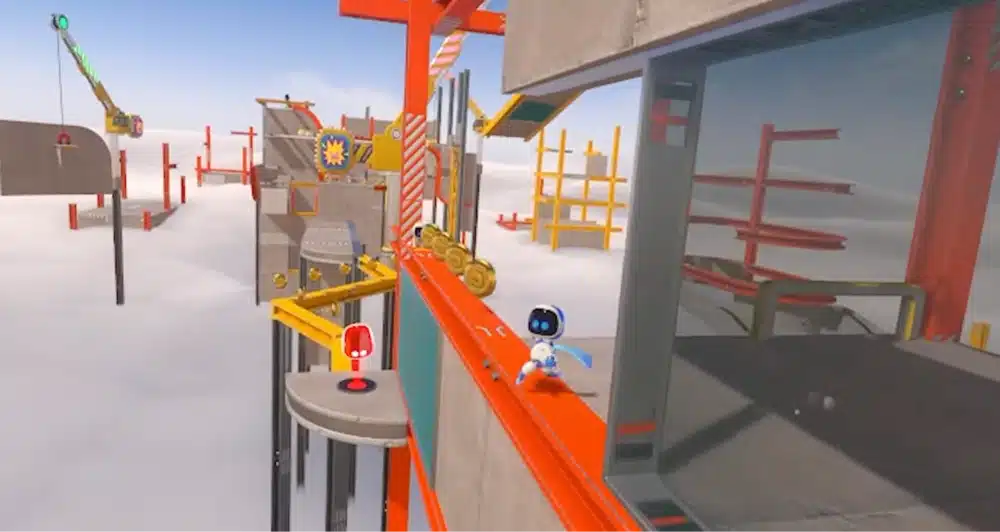
Not officially. Astro Bot Rescue Mission was released for the PS4 and PlayStation VR, and there isn’t any Quest or PC release from Sony. You can see the original listing on the PlayStation Store.
AstroQuest is an unofficial fan project and Sony doesn’t support or endorse it.
Astro Bot vs Astro Bot Rescue Mission: Which One Can You Play on Quest?
Only Rescue Mission. The newer Astro Bot from 2024 is a PS5 platformer that you play on a TV, and it isn’t a VR game. Astro Bot Rescue Mission is the 2018 PS VR game, and it’s the one AstroQuest runs. If you searched “astro bot vr”, this is the game you’re looking for.
Astro Bot Rescue Mission Emulator: What Is AstroQuest?
AstroQuest is a modified version of shadPS4, an open-source PS4 emulator. The project adds what the game needs from a PlayStation VR headset: head tracking, the camera’s view of your controller (which it gets from the Quest’s hand tracking), 3D sound and microphone support.
There are two builds in each release:
- A Quest APK (named Astro VR Host) that runs the emulator on the headset itself.
- A Windows PC package that runs the emulator on your PC and shows the game in your headset.
The project is young and built by one developer, so you can expect rough edges and frequent updates. Check the releases page for the newest version before you start. No game files are included, and the project says so on every release.
Astro Bot Rescue Mission on Quest 3, Quest 3S, Quest 2 and Quest Pro: Compatibility
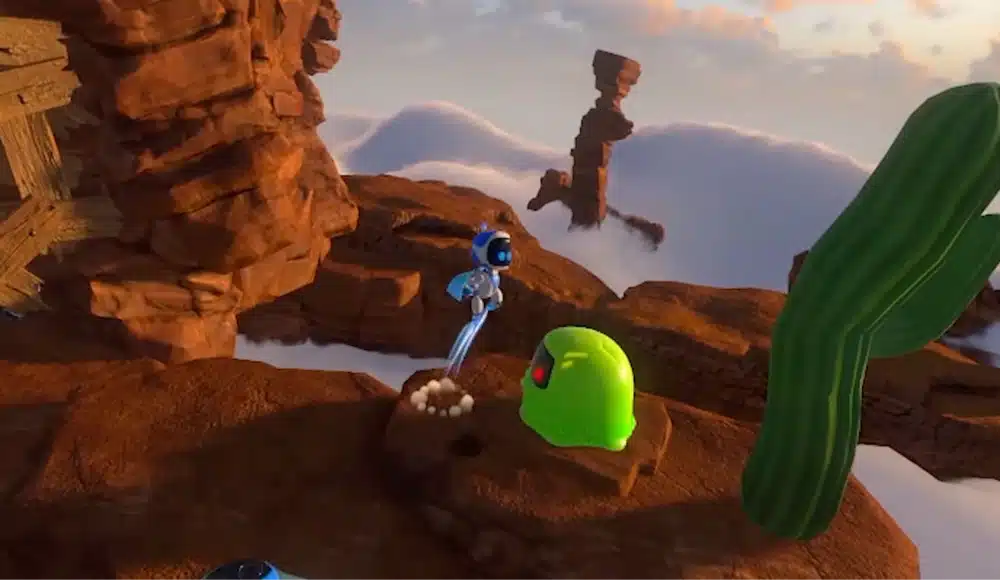
The project officially lists only the Quest 3. The other three results below are from my own testing, so treat them as “works for me” rather than as an official guarantee.
| Headset | Standalone (APK) | PC VR | Status |
|---|---|---|---|
| Meta Quest 3 | Works | Works | Officially supported |
| Meta Quest 3S | Works great | Not tested | Tested by me, not officially listed (the project expects it to work) |
| Meta Quest 2 | Runs | Not tested | Tested by me, not officially listed |
| Meta Quest Pro | Works great | Not tested | Tested by me, not officially listed |
Astro Bot Rescue Mission on Meta Quest 3
This is the headset the project was built and tested on. I played it standalone and over PC VR, and both work well.
Astro Bot Rescue Mission on Meta Quest 3S
The Quest 3S uses the same chip as the Quest 3, and the project says it should work, though nobody had tried it when the README was written. I ran the APK standalone on my Quest 3S and it works great.
Can You Play Astro Bot on Meta Quest 2?
Yes, in my testing. The project doesn’t mention the Quest 2, but the APK installs through the same SideQuest or ADB method and runs on my Quest 2. If you only have a Quest 2, it’s worth trying, since the app is free to install and you can remove it again.
Astro Bot Rescue Mission on Meta Quest Pro
The Quest Pro is discontinued, but if you already own one, it works too. I ran the APK standalone on mine and it works great.
What You Need to Play Astro Bot Rescue Mission on Quest
- A Meta Quest headset with developer mode turned on
- The headset updated to the latest Horizon OS version, which I always recommend before sideloading anything
- A PS5 DualSense controller
- Your own copy of Astro Bot Rescue Mission (European release, version 1.00), about 13 GB of free space on the headset for the standalone method
- A computer with ADB or SideQuest
- For PC VR only: a Windows 10 or 11 PC, a graphics card with Vulkan 1.3 support and 16 GB of RAM or more
Astro Bot Rescue Mission Controller: Why You Need a DualSense
The game expects a PS4 controller, and AstroQuest uses a DualSense to stand in for it. The DualSense gives the game its buttons, sticks, touchpad, motion sensors, rumble and light bar. The project says a DualShock 4 may work too, but nobody has confirmed it. On the PC VR build, your Quest Touch controllers can take over if you don’t have a DualSense.
Game Version: Why You Need Version 1.00
The game has to be the European release (CUSA12392) at version 1.00, copied from your own PS4. Other versions and regions are untested, and the project’s fixes for timing and resolution only apply to this one. Players on version 1.04 reported low resolution and a controller that never appears, and going back to 1.00 fixed it for them.
You need to supply the game yourself, and I won’t link to where to find game files. A package bought from the PlayStation Store is encrypted and can’t be used on its own.
Latest Horizon OS and Developer Mode
Update your headset first. Then turn on developer mode in the Meta Horizon app on your phone, following Meta’s developer mode guide. On Windows, ADB can also need Meta’s ADB driver, which that same page covers. Our guide to sideloading onto Meta Quest has more detail if you’ve never done it.
Standalone or PC VR? Which Astro Bot Rescue Mission Quest Method to Use
| Quest standalone | PC VR | |
|---|---|---|
| Needs a PC | No | Yes |
| Frame rate | 30 fps in levels, 45 fps in lighter scenes, shown at 90 Hz | 60 fps at 120 Hz |
| Picture per eye | 816×870 up to 1440×1536 | 1440×1536 up to 3600×3840 (2880×3072 by default) |
| Setup | APK install and a 13 GB file copy | PC package, Virtual Desktop and a DualSense on the PC |
| Best for | Playing anywhere with one headset | The sharpest picture |
I’d start with standalone. It’s the simpler setup, and it already plays smoothly. Use the PC method if you have a gaming PC and want the highest resolution. Twice the frame rate and a much sharper picture is what you get for needing a PC and a longer setup.
How to Play Astro Bot Rescue Mission on Meta Quest Standalone (No PC)
This method works on the Quest 3, 3S, Pro and, in my testing, the Quest 2. You’ll need a computer for the install, but not to play afterwards.
Step 1: Download the Astro Bot VR APK
Go to the AstroQuest releases page and download the file ending in Quest3.apk, which is AstroQuest-0.13-Quest3.apk for this guide. The name says Quest 3, but it’s the same file I installed on the other headsets. Each release also has a SHA256SUMS.txt file if you want to check your download. Skip any re-uploads on other sites.
Step 2: Install the APK With SideQuest or ADB
Connect your headset to your computer with a USB cable and allow USB debugging when the headset asks. Then either drag the APK onto SideQuest, or run this command:
adb install -r AstroQuest-0.13-Quest3.apkStep 3: Copy the Game to Your Headset
The game folder is named CUSA12392 and contains eboot.bin, sce_sys and sce_module. Copy it to the headset with this command, which takes a few minutes because the folder is about 13 GB:
adb push CUSA12392 /data/local/tmp/astro/games/If your copy of the game is a .pkg file instead of a folder, unpack it on a PC first. The easiest way is the launcher in the PC package from the same release: put your .pkg in its games folder, start it once, and it offers to unpack the game. Then copy the resulting CUSA12392 folder to your headset.
Step 4: Pair the DualSense With Your Headset
Go to Settings, then Bluetooth, and start pairing on the headset. On the DualSense, hold the Create button and the PS button together until the light bar flashes, then pick it from the list.
Step 5: Launch Astro VR Host
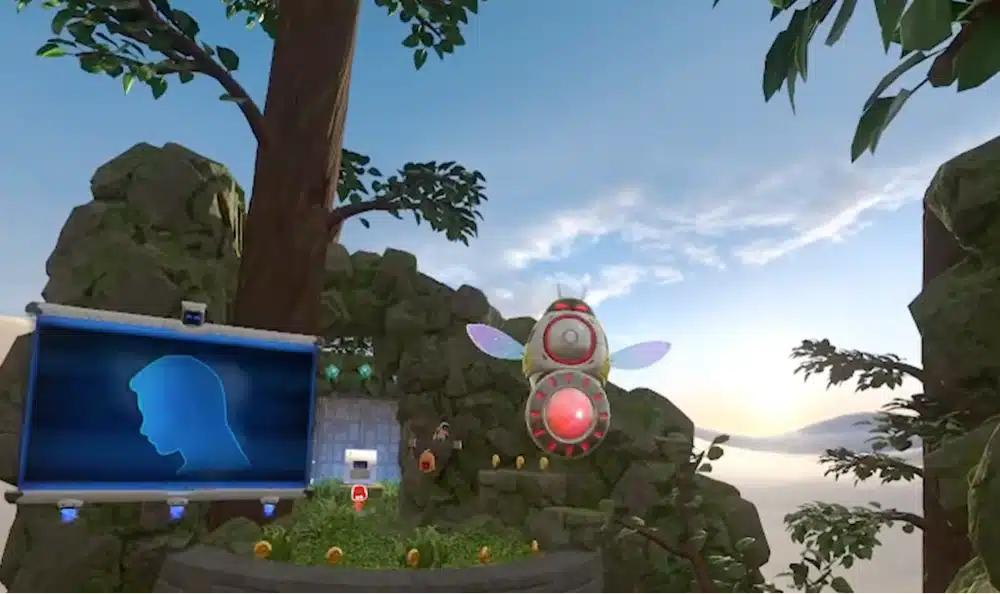
Open your App Library, switch the filter to Unknown Sources and start Astro VR Host. The first launch takes a few seconds longer because the app unpacks the emulator, and it asks for microphone access because the game uses the microphone for blowing at things. Allow it, and the game starts.
How to Play Astro Bot Rescue Mission on PC VR With Virtual Desktop
The PC method runs the emulator on your computer and sends the picture to your Quest. It’s a bit more setup, but you get 60 fps and a much sharper image.
Step 1: Get Your PC Ready
You need Windows 10 or 11, a graphics card with Vulkan 1.3 support and 16 GB of RAM or more, since the emulator asks Windows for about 14 GB. Install the Microsoft Visual C++ Redistributable (x64) if you don’t have it. Not sure your PC can handle it? Check our guide on whether your PC is VR ready.
Step 2: Download and Unzip the PC Package
Download AstroQuest-0.13-PC-VR-Windows.zip from the releases page and unzip it to a short folder path such as C:\Games\AstroQuest. Windows can’t open files with paths longer than 260 characters, and some of the game’s files have long names, so keep the path to the folder that holds games under about 110 characters.
Step 3: Put the Game in the Games Folder
Put the game folder (the one with eboot.bin in it) or the .pkg file anywhere inside the games folder. A .pkg is unpacked the first time you start, which takes about a minute and 13 GB of space.
Step 4: Connect Your Quest to the PC
The project documents Virtual Desktop. Install the Streamer on your PC, choose VDXR as the OpenXR runtime in its options, and set the streaming frame rate to 120 in the headset so the game runs at 60 fps. Our guide to Virtual Desktop on Meta Quest covers the setup.
Quest Link, Air Link and Steam Link only change how your headset reaches the PC, so they work the same way for the game itself. If you use one of them, make sure the matching OpenXR runtime is active (the Meta Horizon Link app or SteamVR) before you start. Our guides to Quest Link, Air Link and Steam Link cover each one.
Step 5: Connect the DualSense to the PC
Plug the DualSense into the PC with a USB cable, or pair it by Bluetooth with the PC, not with the headset. If it’s paired with the headset, the PC build gets no motion sensors or touchpad. With no gamepad connected, your Touch controllers play the game instead.
Step 6: Start Play Astro Bot VR
Connect to your PC, then start Play Astro Bot VR.bat on the desktop you see in the headset. A small window lets you choose the resolution for each eye, the frame rate and the field of view. Press Play, and the headset switches to the game after a few seconds. Turn on hand tracking in the headset and let Virtual Desktop forward tracking data to the PC, so your hands place the DualSense in the game, as they do in the standalone version.
Astro Bot Rescue Mission Quest Controls: DualSense and Hand Tracking
The controls work differently from a normal Quest game. You put the Touch controllers aside and hold the DualSense, and the headset tracks your hands around it. That’s how the game knows where the controller is, so hold it up in front of you where the headset’s cameras can see your hands.
- First screen: hold the DualSense up in front of you, inside the floating outline.
- World map: look at a planet and press X.
- Recenter: hold OPTIONS for a second, or press the PS button, whenever things feel too close, too far or off to one side.
- Touchpad and motion sensors: they work through the DualSense, including the touchpad launch at the end of levels.
- Head-butts: they register, so you can really bump enemies with your headset.
- Blowing: the game listens to your microphone for blowing at things.
- Pausing: taking the headset off pauses the game.
On the PC VR build with Touch controllers, the end-of-level launch is fiddly, because you hold the right thumbstick and push back. The DualSense is much easier.
Astro Bot Rescue Mission Quest Performance: FPS, Resolution and Best Settings
On the standalone build, the game runs at 30 fps in levels and 45 fps in lighter scenes, shown at 90 Hz, and the headset’s own reprojection keeps the picture steady. That sounds low, but in my testing it feels smooth, like a native Quest game for the most part. The picture is softer than the PC build and the original PS4, because the standalone build draws at a lower resolution.
You can change the standalone settings in a text file called vrhost.txt, in the app’s files folder on the headset. These are the options that matter most:
- refresh_rate: the display rate to ask for (72, 80, 90 or 120). The default is 90.
- resolution: the size the game draws at per eye (816, 960, 1200 or 1440). By default the app picks the largest size your headset can hold.
- hands=0: turns off hand tracking, which leaves the controller at a fixed spot in front of you.
A few things help on any headset. Keep your Horizon OS updated, and set up a boundary with plenty of room, because a boundary that keeps lighting up costs the GPU time the game needs. On PC VR, lower the resolution in the launcher window first if you see stutter, and see our guide on how to improve PC VR performance for more.
Astro Bot Rescue Mission Not Working on Meta Quest? Fixes
These are the problems players have actually reported, and how to fix each one.
Wrong Game Version (1.04)
This is the most common problem. If you see low resolution that doesn’t change with your settings, a controller that never appears, or the “Adjust your position” screen that won’t go away, check your game version. Version 1.04 breaks the project’s fixes, and version 1.00 works.
The Controller Doesn’t Show Up
Check that the game is version 1.00 first. Then make sure the Touch controllers are set aside, hand tracking is on, and the DualSense is paired with the right device: the headset for standalone, or the PC for PC VR.
The Game Can’t Be Found or Won’t Start on PC
Keep the folder path short, since Windows can’t open files with a path over 260 characters. Install the Visual C++ Redistributable if the launcher says it’s missing. If it says Windows is short of memory, close other programs, since the emulator asks for about 14 GB.
No Sound on PC After Virtual Desktop Reconnects
Update to release 0.13 or newer. Earlier versions stayed silent when Virtual Desktop took its audio device away and brought it back.
Your Saves Disappeared After Uninstalling
The standalone app keeps its saves in its own folder. Updating with adb install -r keeps them, but uninstalling the app deletes them. Before you uninstall, copy them off the headset with this command:
adb pull /sdcard/Android/data/com.astrobotquest.vrhost/files/data/shadPS4/home/1000/savedataCrashes and Small Graphical Glitches
Early builds crashed now and then, and a few small graphical glitches are known. Update to the newest release, and report anything new on the project’s GitHub issues page.
Astro Bot Rescue Mission on Meta Quest FAQ
Can you play Astro Bot on Meta Quest 2?
Yes, in my testing. The project only lists the Quest 3, but the APK installs through SideQuest or ADB and runs on my Quest 2.
Can you play Astro Bot Rescue Mission on Meta Quest 3S and Quest Pro?
Yes. I ran it standalone on both and it works great. The project only officially lists the Quest 3, so these results are from my own testing.
Is there an Astro Bot Rescue Mission PC port?
Not an official one. AstroQuest includes a Windows PC VR package that runs the PS4 game in an emulator on your PC and streams it to your headset. It uses your own copy of the game.
Do you need a PSVR headset to play Astro Bot Rescue Mission on Quest?
No. Your Quest replaces the PS VR headset, and you use a DualSense in place of the PlayStation controller.
Can you play Astro Bot Rescue Mission with a PS5 controller on Quest?
Yes. A PS5 DualSense is the controller you need, and it works with the buttons, sticks, touchpad, motion sensors and rumble.
Can you use Quest Touch controllers?
On the PC VR build, yes. If no gamepad is connected to the PC, your Touch controllers play the game, though the end-of-level launch is fiddly. On the standalone build, you use the DualSense.
Is Astro Bot Rescue Mission free on Quest?
AstroQuest is free. You need your own copy of the game, which isn’t included.
Is AstroQuest safe?
It’s an open-source project under the GPL, and each release lists SHA-256 checksums. Download it only from the official GitHub page, and skip re-uploads on other sites. It isn’t endorsed by Sony.
Does Astro Bot Rescue Mission work with Air Link, Quest Link or Steam Link?
Yes. They only change how your headset connects to the PC, so the game works the same way. The project documents Virtual Desktop, and with the others you just need the matching OpenXR runtime active.
Will uninstalling the app delete my saves?
Yes, on the standalone build. Copy the savedata folder off the headset with ADB first. Updating the app keeps your saves.
Final Thoughts
Astro Bot Rescue Mission on Meta Quest turns a PS VR exclusive into a game you can play on the headset you already own. The standalone build is the one I’d start with: it needs no PC and plays smoothly.
Get the game version right (1.00), pair your DualSense with the right device, and download only from the official GitHub page. If you enjoy mods like this one, see our guides to the best VR mods, the Titanfall 2 VR mod and the Gran Turismo 2 VR mod, and our list of the best SideQuest VR games.