

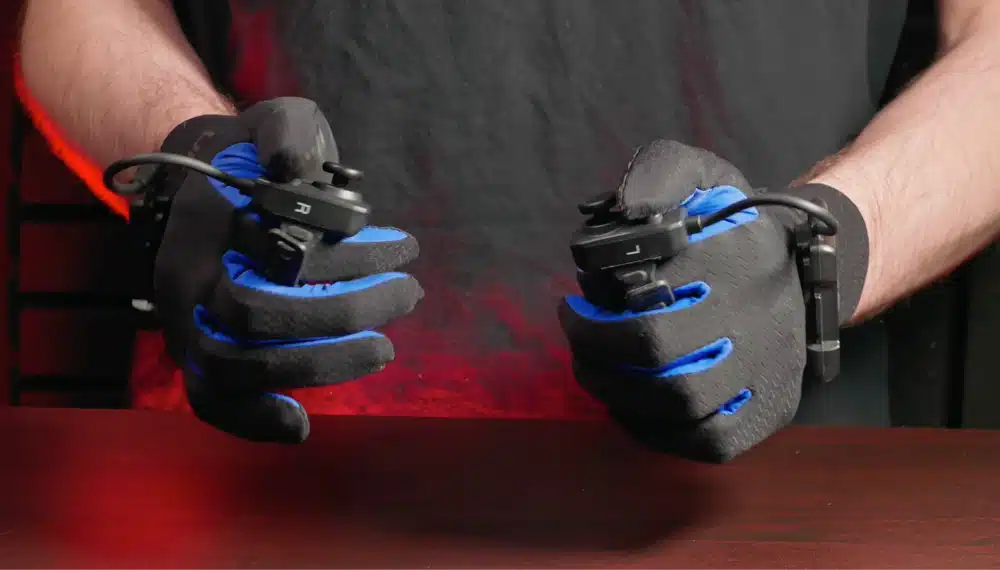
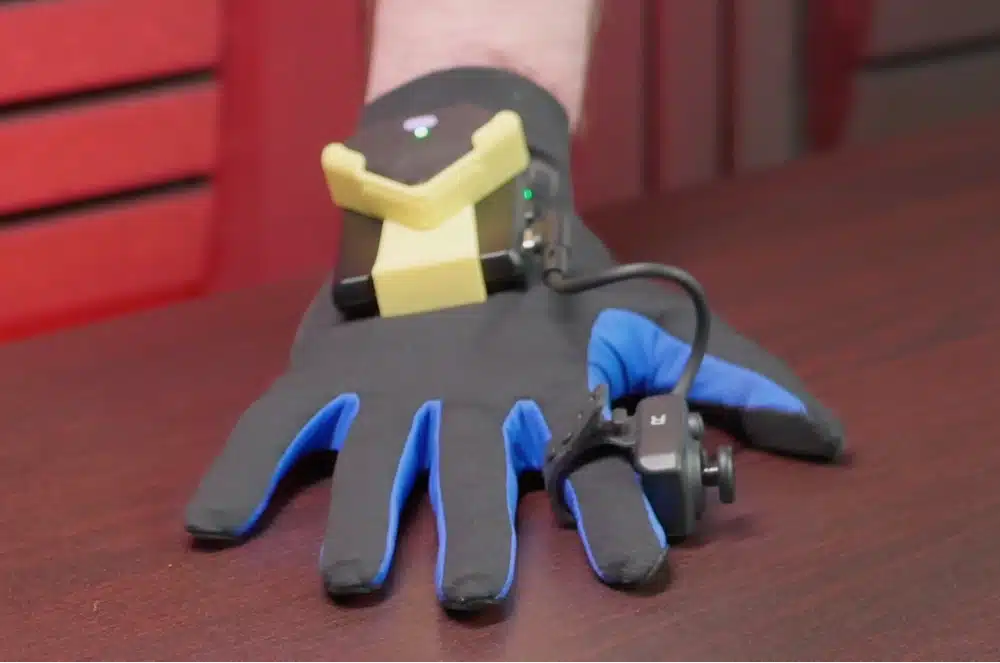
UDCAP gloves are thin, sensor-lined fabric gloves from Udexreal that track every finger on your hand and pass it to SteamVR, mostly so a VRChat avatar can move its fingers the way yours do. This UDCAP gloves review covers the specs, the real price, a full setup walkthrough, the VRChat settings that matter, and the fixes for the problems people actually hit, so you can decide if UDCAP VR gloves are worth the money before you buy.
Most of what ranks for these gloves is press-release coverage and coupon pages. I wanted one place that answers the buying question and the “how do I get these working” question together. So I went through setup start to finish, spent real time in VRChat and a few PC games with them on, and checked what I saw against Udexreal’s own docs and what other reviewers have found.
UDCAP Gloves Review: Quick Verdict
- Best for: PC VR users who spend their time in VRChat or other social VR and want finger tracking that doesn’t need cameras to see their hands.
- Skip them if: you play standalone on a Quest, you mostly play games and want a plain controller, or you don’t want to recalibrate during a session.
- Price: $529 on sale (regular price $699). Use code NICKARVRTIPS for 10% off.
- What you also need: a Windows PC running SteamVR and one tracker or tracked controller per glove. The gloves have no built-in position tracking.
- My take: the finger tracking is the reason to buy and it held up well in my VRChat sessions. The software, the hourly recalibration and the finger-worn controller module are the reasons to hesitate at this price.
If that sounds like your setup, you can see the UDCAP VR gloves on the official store and enter NICKARVRTIPS at checkout for 10% off.
How I Tested the UDCAP VR Gloves
I tested the UDCAP VR gloves the way most buyers will use them: on a Windows PC with a Quest 3 streaming SteamVR over Steam Link, with Quest controllers on the glove mounts and a pair of Vive trackers swapped in for comparison. I built the tests around what the gloves claim to do:
- Setup from the box: charging, driver and firmware, dongles, the SteamVR add-on and calibration, start to finish, to see where a first-timer gets stuck.
- VRChat sessions: social worlds, mirrors, gesture-heavy dance worlds and a lot of world hopping, with finger tracking on and the avatar settings below.
- Everyday controller duty: menus, picking things up and throwing them, grabbing a real drink, and using a keyboard and mouse with the gloves on.
- A game that punishes sloppy input, Half-Life: Alyx, to see how the gesture trigger and grip hold up.
- Long sessions of an hour or more, to see how often the tracking needed a recalibration and how the fabric and modules felt.
I cross-checked what I saw against the maker’s setup documentation and FAQ and against other reviewers, including Skarredghost’s early look and Jacobfov’s VRChat review (Udexreal sent Jacobfov his pair and he has an affiliate code, which he says in the video). Where Udexreal’s own pages disagree with each other, I show both numbers.
UDCAP Gloves Specs: Sensors, Battery Life, Latency and Range
Here are the specs Udexreal lists for the UDCAP VR gloves. These are maker claims, not independent measurements.
| Spec | What Udexreal says | What it means for you |
|---|---|---|
| Sensors | 12 per glove, covering 15 finger joints and 21 joint angles | Each finger is tracked by bend and spread, not just a curl value |
| Resolution | 0.01 degrees | A very fine reading, so in practice fit and calibration decide how good it looks |
| Data rate | 120Hz | Fast enough that lag, if you see it, is more likely wireless or calibration than the sensors |
| Wireless | 2.4G dongle, one per glove | Needs two free USB ports and clean 2.4GHz air |
| Weight | 45g | About the weight of a thin summer glove, so you shouldn’t be fighting it in a long session |
| Thickness | 1.3mm | Thin enough that it shouldn’t bulk up your hand |
| Battery | Up to 15 hours without haptic feedback | A full evening in VRChat on one charge |
| Position tracking | None built in | You mount a tracker or controller on each glove |
| Compatibility | SteamVR on PC only, shows up as Index controllers | Works in any SteamVR game in theory, but not standalone |
| Warranty | 1 year on the hardware module, 6 months on the glove fabric | Fabric wears like clothing, so expect to treat it carefully |
UDCAP Gloves Battery Life
Udexreal quotes up to 15 hours per charge with haptic feedback off. The maker’s FAQ also says weak vibration is a sign the battery is low, which tells me the vibration motors are the first thing to suffer as the charge drops.
The gloves switch themselves off after five minutes in standby, so they won’t drain while sitting on a desk. In my longer evenings I never ran a glove flat, which fits the 15 hour claim for a session that doesn’t lean on haptics.
Udexreal’s Own Numbers Disagree
Two things in Udexreal’s own material don’t line up, and I’d plan around the cautious number:
- Latency and range: the product page says under 10ms and up to 10 meters. The spec list on the main site says 30ms or less and up to 5 meters. Early press coverage repeated the 10ms and 10 meter figures. If your PC is far from where you stand, assume 5 meters.
- Sensor count: early coverage said 11 sensors. The current product page says 12. I used 12.
- Calibration time: the main site says 10 seconds. The setup docs say the first full calibration can take roughly 20 to 40 minutes depending on your hand shape, with a quick recalibration available on a hotkey afterward.
UDCAP VR Gloves Price: Cost, Discount Code and Where to Buy
The UDCAP VR gloves cost $529 on Udexreal’s store, down from a regular price of $699. That is the glove set with its controller modules, dongles and cables. Position trackers are not included, so if you don’t already own Vive trackers, Tundra trackers or a pair of Quest controllers, add that cost on top.
UDCAP Gloves Discount Code: NICKARVRTIPS
Use the code NICKARVRTIPS at checkout for 10% off. You can go straight to the UDCAP store here and paste it in at the cart.
Does Amazon Sell UDCAP VR Gloves?
People search for UDCAP VR gloves on Amazon, but the official source I could verify is Udexreal’s own store, and that is where the warranty, firmware support and the current price live. I’d buy there. One reviewer also warned about lookalike sites advertising these gloves at around 70% off that have nothing to do with the real brand, so be careful with any store you don’t recognize.
UDCAP VR Gloves Used
Used and resold pairs do show up on marketplaces. Two things make me cautious: the warranty is tied to the original purchase, and the glove fabric is covered for only six months. If you go this route, ask for the glove size, what tracker adapter it came with, and whether the firmware has been updated.
UDCAP VR Gloves Shipping Time
Udexreal says orders ship within 14 days, with an estimated 13 to 15 business days for delivery after the carrier picks the package up. Import taxes are covered for the USA, Europe and Japan, and other regions may owe duties. Military addresses (APO, FPO, DPO) aren’t supported.
Add the two stages together and a month or more from order to doorstep is realistic, so don’t order these the week before an event. The product page was showing the gloves as sold out when I checked, so confirm stock first.
UDCAP Gloves Size
The gloves come in S, M, L, XL and XXL, and you pick the tracker adapter you need (Basic, Tundra, UTK or Controller) when you order. Because fit decides how well the sensors follow your fingers, check the size guide on the store page against your own hand before you order.
What Is in the UDCAP VR Gloves Box?
According to the store listing, the box contains:
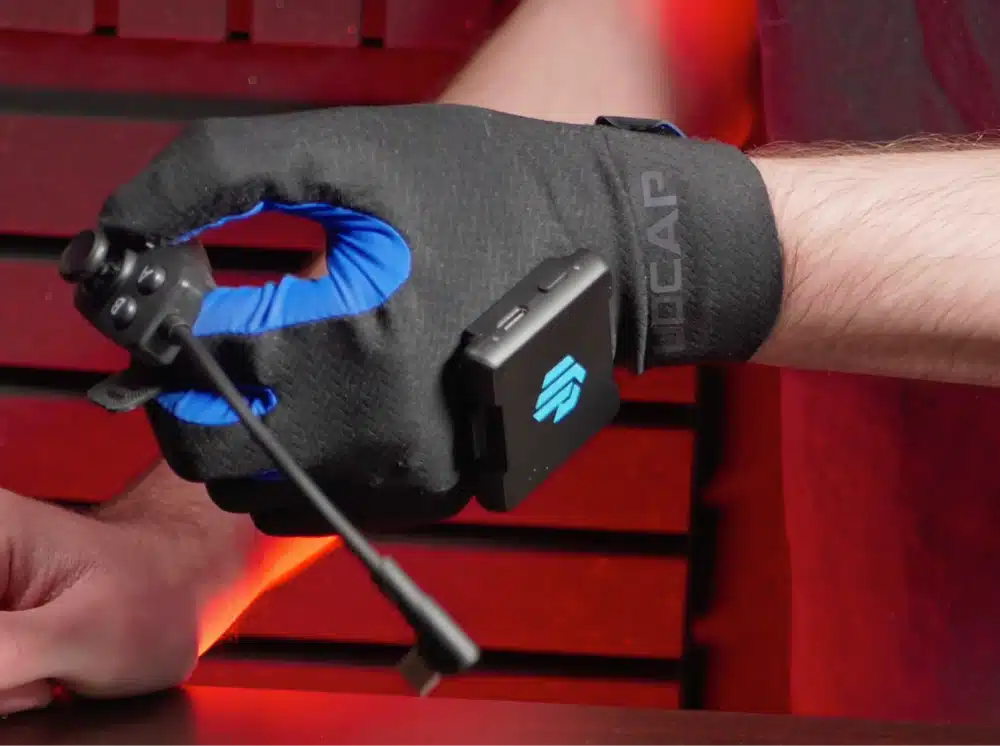
- 2 gloves and 2 control modules (the joystick and button module worn on the index finger)
- 2 tracker adapters
- 2 dongles and 2 dongle cradles
- 2 liner gloves and 2 strap bands
- 2 USB cables, 2 charging cables and 2 Type-C cables
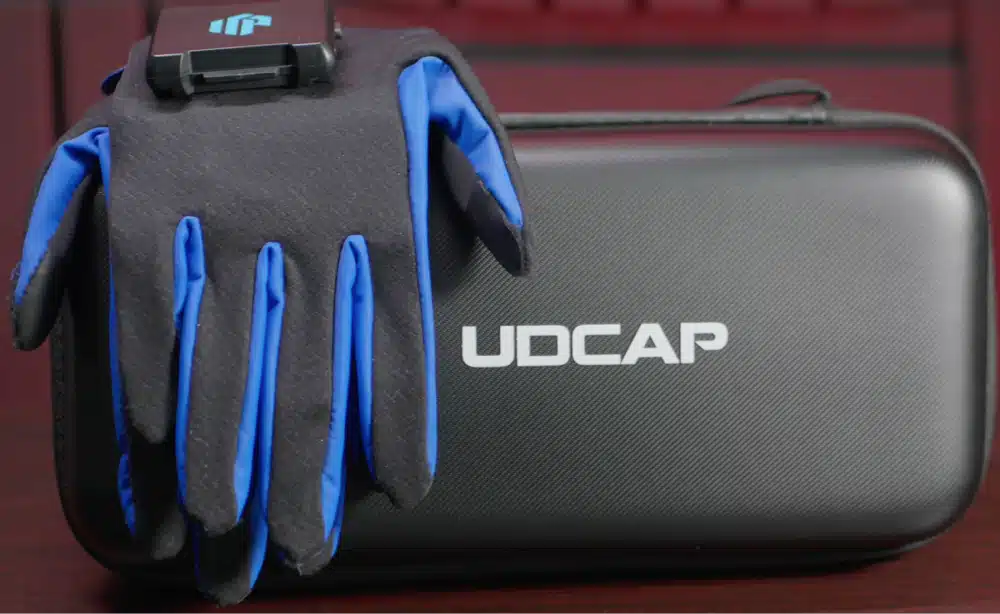
- A travel case, a quick start guide and a safety guide
Two things bugged me about the box. The gloves charge reliably only with the supplied cables and not with most modern USB-C cables I tried, which is odd in this day and age, and at this price I’d rather get one dongle than two. The maker’s charging page backs up the cable point: it says to use the official cable and never exceed 5V.
How to Set Up UDCAP Gloves
This is the order that worked best for me, and it follows Udexreal’s setup docs. The glove is a PC accessory, so everything runs through SteamVR.
Step 1: Charge the Gloves and Learn the Lights
Charge each glove with the supplied cable. Hold the power button for 2 seconds to turn it on and 3 seconds to turn it off. A breathing green power light means charging and a steady green light means full. The status light is blue and breathing when waiting, blue and flashing while connecting, steady green when connected, and steady red when the battery is low.
Step 2: Put the Gloves On and Fit the Joystick Module
- Open the Velcro, slide your whole hand in from the bottom, and pull the sides of the glove to seat it.
- Press between your fingers so each finger sits properly, then close the wrist Velcro so it is snug but not tight.
- Plug the joystick module’s cable into the Type-C port on the inner side of the glove and strap the module to your index finger.
- Check the cable orientation: the UDCAP logo should face up on the left hand and down on the right, and both logos should point the same way. If your joystick later reads inverted, this is the cause.
Step 3: Mount a Tracker or Controller on Each Glove
The gloves track fingers only, so each one needs something that tracks position. The mount you pick depends on your setup, and I cover each option in the tracker section below.
Step 4: Install the UDCAP Driver
Download the UDCAP driver from the official software page and run the installer. After it finishes, the USB receiver installer pops up. Install it the first time. If you already have it, close the window. Reinstalling shows a failure message but doesn’t break anything.
Step 5: Plug In the Dongles
Plug in both dongles and power the gloves on. A turquoise glove icon in the UDCAP software means the glove connected. If it says not connected, use the pairing option in the software’s firmware update page.
Keep the receiver at least 60 cm away from the PC case with an extension cable, put the left and right gloves on different channels, and use a powered USB hub if you use a hub at all.
Step 6: Enable the Add-On in SteamVR
Start the UDCAP software, then start Steam and SteamVR with the same privileges as the UDCAP software, because mismatched permissions are a common reason the plugin fails to load.
In SteamVR, go to Settings, then Startup/Shutdown, then Manage Add-ons, and make sure the UDCAP plugin is enabled.
Step 7: Calibrate the Gloves
The docs describe two routes. Quick calibration starts when you press the glove’s power button for one second or hit F1, and you follow voice prompts. Action calibration walks you through three poses: lightly make a fist, close your five fingers together, then spread them.
The docs warn that your first calibration can take roughly 20 to 40 minutes depending on your hand and how you move, and that recalibrating about every hour is normal. The calibration isn’t saved between sessions, so plan to do it every time you put the gloves on. My first full calibration ran toward the long end of that range, and once I knew the three poses the quick F1 recalibrations were painless.
UDCAP Driver and Firmware Update
Update both the software and the glove firmware before you do anything else. The latest driver release listed in the docs is 0.1.8.6 with glove firmware V0.1.2, and the release notes call the firmware a strongly recommended bug-fix update: it fixes gloves freezing and SteamVR control switching to the gloves when they weren’t connected.
To update, plug the data cable into the Type-C port on the little-finger side of the glove (the wrong port means the software won’t see the glove), click update on each hand, and wait for the glove to restart. After a firmware update you may need to pair the glove again. If an update fails, the FAQ says to use a stable connection with your VPN off and delete the cached .bin files in the software folder.
UDCAP Gloves Quest 3 Setup (Steam Link, Virtual Desktop and Pico)
The gloves only work with SteamVR, so a Quest 3 has to be streaming PC VR. Udexreal’s page says the headset must be streaming SteamVR, and lists Quest, Vive, Valve, Pimax, Pico and Bigscreen headsets. The maker’s Quest guide, which uses a Quest 3, goes like this:
- Start the UDCAP software.
- Start Steam and SteamVR with the same privileges as the UDCAP software.
- Check the UDCAP add-on is enabled under Manage Add-ons.
- Launch Steam Link on the headset and connect to SteamVR.
- In the UDCAP software, open Spatial Position, pick the Quest tracking plan and save it.
- If the glove icon in SteamVR stays grey, click Connect to SteamVR in the software menu. On driver 0.1.6.0 and earlier you instead run udcap_overlay.exe with the same permission level as Steam and SteamVR.
- When the glove icon lights up in SteamVR, it is connected.
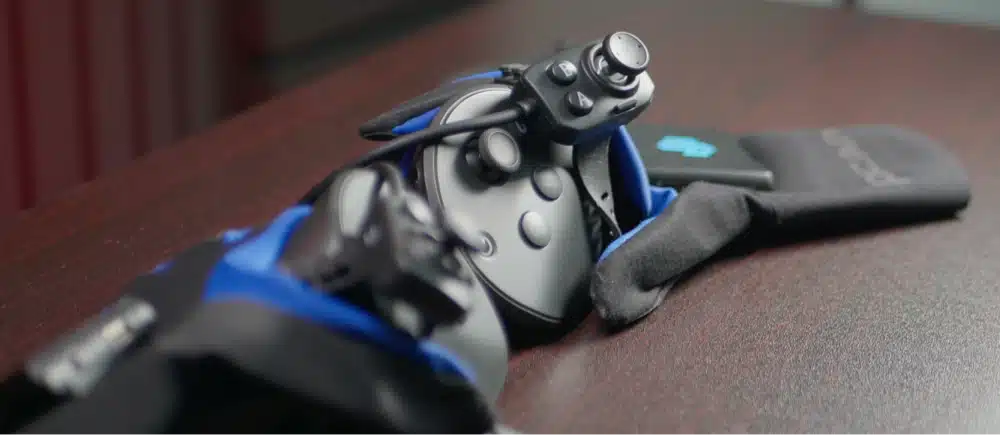
On a Quest the gloves take the place of the Quest controllers for input, and the position comes from a Quest controller mounted on the back of each glove, which I explain in the tracker section. The documented path is Steam Link, and that is what I used. Udexreal has no Virtual Desktop page. Virtual Desktop also streams SteamVR, so I’d expect it to work, but get everything working over Steam Link first and only then experiment. Pico has its own guide in the docs.
If you are still deciding on a headset for PC VR, our guide to the best VR headsets covers the options, and the Meta Quest hand tracking guide explains what you get from the headset’s cameras alone.
UDCAP Tracker Options: Vive, Tundra, Ultimate, Quest Controllers and SlimeVR
The gloves have no built-in positional tracking, so this is the choice that affects how stable your hands feel. Udexreal makes dedicated adapters for these options, and there is a 3D print file in the docs for other mounts.
Vive Tracker 2.0 and 3.0
The Vive mount is injection molded. You screw the adapter to the bottom of the tracker with the standard 1/4 inch screw and clip the tracker onto the glove’s data box. The grooves on the adapter differ in width so you can’t fit it backwards.
Tundra Tracker
You swap the Tundra’s base for the UDCAP Tundra adapter and line the oval mark up with the Tundra’s Type-C charging port. For Tundra, the FAQ says to remove all SteamVR USB devices under Developer, then Legacy Settings, and restart the PC if the glove icon stays grey.
Vive Ultimate Tracker
The Ultimate adapter installs like the official base, with the raised oval mark lined up with the extension port on the bottom of the tracker. This pairs well with a Quest or Pico headset because the Ultimate tracker doesn’t need base stations.
Quest Controllers
You open the adapter, seat the Quest controller with the trigger down, tighten the screws and strap the controller handle behind the wrist. This is the cheapest option if you already own a Quest, but it was the worst for stability in my testing. The controllers are heavy and stick out, so your virtual hands wobble when you wave or gesture.
SlimeVR Trackers
The docs have a SlimeVR guide too. You need four SlimeVR trackers just for the arms (both hands and both upper arms), and the docs warn that the UDCAP receiver and SlimeVR trackers both use CH340 chips, so you should unplug the UDCAP receiver while pairing SlimeVR trackers. If you are building out a full-body setup anyway, our full body tracking VR guide covers the options.
The ranking I landed on: Vive trackers were a steady middle, Quest controllers were the wobbliest, and the lighter and lower the mount, the more my hands felt like they stayed put. Jacobfov reports the same order and found a FluxPose tracker closest to wearing nothing on the glove. It matches the physics: the heavier and taller the mount, the more it moves on the back of your hand.
UDCAP Gloves VRChat Setup and Tracking
VRChat Settings for UDCAP Gloves
- In VRChat, go to Settings, then Controls, and turn on Avatar Use Finger Tracking.
- Go to Settings, then Avatar, then General Avatar Settings, and turn off Avatar Gestures. Udexreal recommends leaving this off because turning it on can cause lag or odd animations on some avatars, though turning it off can stop certain model-specific interactions until you adjust the avatar in Unity.
- If your arms can’t fully extend, open the full settings menu, go to Tracking and IK, and adjust the Arm vs Height Ratio.
By default the left A button mutes you, the right A button jumps, both B buttons open the function wheel, the left stick moves you and the right stick turns you. If you want a custom avatar to try these on, see our guide to VRChat custom avatars.
UDCAP Hand Setting for Natural-Looking Fingers
The driver has a Hand Setting page (beta) that adjusts how your avatar’s fingers bend and spread. Each finger has two adjustment points with a pitch balance and, for the first point, yaw min, max and balance values. Udexreal gives a starting recommendation of thumb pitch balance at 90% for faster thumb response, index finger yaw min 5 and max 35, and a yaw offset of minus 5 on the middle finger. Treat these as a starting point because avatars set their own bend limits.
How Good Is UDCAP Finger Tracking in VRChat?
The finger tracking is the reason to own these.
Compared with Index controllers you get curl and spread, so avatars wave, point and flash a peace sign convincingly. Quest hand tracking is a touch more precise on fine finger poses, but it only works while the headset can see your hands. The gloves keep tracking behind your back, under a desk or while you hold a cup, which is the whole appeal.
The catch is drift.
The tracking fades over a session, and I ended up recalibrating somewhere between every half hour and every hour. That lines up with Udexreal’s docs calling an hourly recalibration normal, and with Jacobfov needing one after 15 minutes at the worst end. If you are the kind of person who wants to put gloves on and forget them, this will annoy you. If you are happy to hit F1 between world changes, it is manageable.
UDCAP Gloves Comfort, Washing and Warranty
The glove fabric is the best part of the hardware. At 45g and 1.3mm thick, it disappears on your hand after the first few minutes, and I only noticed it when I reached for something. It does run warm: the synthetic material felt warm and humid in a longer session, the same complaint Skarredghost raised against the breathability claim. The controller modules are the weak spot. The rubbery strap is hard to size and hard to adjust one-handed, and because the module isn’t attached to the glove, it falls off when you take the glove off, so you re-fit it every session.
You can wash the gloves, but carefully. The docs say to remove the electronics first, hand wash at about 25 degrees Celsius, don’t soak, don’t wring or twist, don’t use a washing machine or dryer, and let them air dry out of direct sunlight.
On warranty, Udexreal’s product page lists a one-year replacement warranty on the hardware module and six months on the glove body. Its separate warranty page is written around authorized dealers in mainland China, so before you buy from outside China, email [email protected] and ask in writing what covers your order.
UDCAP Gloves Not Connecting to SteamVR: Fixes
These come from Udexreal’s FAQ unless I say otherwise. If none of them work, the FAQ says to email [email protected] with your logs.
UDCAP Gloves Missing From SteamVR
Enable the UDCAP add-on under Settings, Startup/Shutdown, Manage Add-ons. If it is still missing after a restart, delete the previously moved UDCAP file from SteamVR’s plugin folder. Make sure Steam, SteamVR and the UDCAP software all run at the same permission level.
UDCAP Glove Icon Is Grey in SteamVR
On a Quest or Pico, use Connect to SteamVR in the software menu, or run udcap_overlay.exe on older drivers. With Lighthouse trackers, set each tracker to held in hand and assign it to left or right. With Tundra trackers, remove the SteamVR USB devices under Developer, Legacy Settings and restart your PC.
UDCAP Gloves Won’t Connect to the Receiver
If the status light keeps flashing blue, use the pairing option on the software’s firmware update page. If only one receiver shows up, pair it again. Frequent failures when switching channels usually mean low signal, so move the glove close to the receiver and switch only when the signal indicator is green.
UDCAP Blue Screen (BSOD) or System Crash
The FAQ says Windows Update can replace the CH340/CH341 driver with an incompatible version, which is the likely cause of the crash. Run the Udcap Driver Tool, click Reinstall the driver, and exit. That installs and locks the older driver. Jacobfov hit this and had no idea what caused it. The software should warn you, so if you’ve just had a large Windows update and your PC starts crashing with the dongle plugged in, check this first.
UDCAP Gloves Lag or Stutter
Switch to a less crowded channel and give each glove a different one. Keep the receiver at least 60 cm from the PC case with an extension cable, avoid unpowered USB hubs, and cut down nearby 2.4GHz Wi-Fi traffic. The software shows frame rate and signal strength on its home page, and over 100 FPS is the normal range.
UDCAP Joystick Drift or Inverted Stick
Recalibrate under Joystick Calibration in the software. If pushing the stick left also pushes it up or down because your finger is bent, go to SteamVR Settings, Controllers, Edit Thumbstick Settings, wear the glove in your normal posture, hold the trigger to enter calibration and push the stick up at least five times with steady force. An inverted stick means the joystick cable is installed the wrong way.
No Vibration in VRChat
If the driver vibrates but VRChat doesn’t, turn on vibration in VRChat’s accessibility menu (the other player needs it on too), update the software and firmware, and make sure Steam and the driver run at matching permission levels. Weak vibration usually means a low battery.
Other Controllers Keep Taking Over
In the UDCAP settings, set Controller Priority to High. If SteamVR crashes, disable third-party plugins one at a time, because the FAQ names htc_rr and smooth tracking as known conflicts.
Are UDCAP Gloves Good? Pros and Cons
UDCAP Gloves Pros
- Finger tracking that works without the headset’s cameras seeing your hands.
- Very light and thin fabric at 45g and 1.3mm.
- Curl and spread tracking, which Index controllers can’t match.
- Works with Quest, Pico, Vive and other headsets as long as they stream SteamVR.
- Detailed public docs, a real FAQ and a Discord for support.
- Software testing pages let you check inputs without putting on the headset (per Jacobfov).
UDCAP Gloves Cons
- $529 before you buy trackers, and the gloves are useless without them.
- PC and SteamVR only. No standalone Quest use.
- Calibration isn’t saved, takes a while the first time, and may need repeating about hourly.
- The finger-worn module is awkward to fit and adjust, and gesture-based trigger and grip are easy to trigger by accident.
- Heavier tracker mounts (especially Quest controllers) make hands wobble.
- A Windows driver conflict can cause blue screens until you apply the fix.
- Basic rumble haptics on the index finger only, not full haptic gloves.
- Udexreal’s own pages disagree on latency, range and calibration time, and the warranty terms are unclear outside China.
UDCAP Gloves vs Index Controllers vs Quest Hand Tracking
The closest alternatives to UDCAP VR gloves are the tracking you may already own: Valve Index controllers or your Quest’s built-in hand tracking. Here is how they compare for VRChat, based on my sessions and Udexreal’s specs.
| UDCAP gloves | Valve Index controllers | Quest hand tracking | |
|---|---|---|---|
| Finger tracking | Curl and spread from sensors in the glove | Basic finger curl | Camera-based, a bit more precise |
| Needs your hands visible | No | No | Yes |
| Controller inputs | Joystick, A/B and system button on a module, plus gesture trigger and grip | Full controllers | None, pinch and gestures only |
| Extra hardware | A tracker or controller per glove, PC and SteamVR | Base stations or other SteamVR tracking | None |
| Upkeep | Recalibrate roughly hourly | Little | Little |
| Cost | $529 (before trackers) | A used pair is the cheaper route | Free with the headset |
My own habit after testing: for games I still reach for regular controllers, because they’re easier and most of them emulate finger poses well enough now. Jacobfov lands in the same place. For VRChat, though, I’d take these gloves over gambling on used Index controllers if good finger tracking is the point. If you want haptic feedback in your hands rather than finger tracking, that is a different product, which we covered in our TactGlove haptic VR gloves guide.
Are UDCAP VR Gloves Worth It?
Here’s where I land after my sessions and cross-checking Udexreal’s docs against other reviewers. UDCAP VR gloves are worth it for a fairly specific person: someone on PC VR who lives in VRChat or similar social worlds, already owns a tracker or two or a Quest controller, and cares about expressive hands enough to accept a calibration routine. For that person, $529 is a lot but it buys finger tracking that doesn’t depend on the headset seeing your hands.
They’re not worth it if you mostly play games, because I still reached for regular controllers whenever I wanted to play a game. They’re not worth it if you play standalone on a Quest, because they need SteamVR. And if your frustration is a new gadget that needs babysitting, the hourly recalibration and the software rough edges will be the whole experience.
If you do want them, the official store is the place to buy. Use this link and enter code NICKARVRTIPS for 10% off.
UDCAP Gloves FAQ
Are UDCAP gloves good?
They are good at one thing, finger tracking for PC VR, and in my VRChat sessions the tracking beat Index controllers, though it was a little less precise than Quest hand tracking. The downsides are the price, the need for external trackers, and recalibrating about every hour.
Do UDCAP gloves work with Quest 3?
Yes, but only when the Quest 3 is streaming SteamVR from a PC, for example through Steam Link. They don’t work in standalone mode, and each glove needs a tracker or a Quest controller mounted on it for position.
Do UDCAP gloves work without trackers?
No. The gloves track fingers only and have no built-in spatial tracking, so each glove needs a Vive Tracker, Tundra Tracker, Vive Ultimate Tracker, SlimeVR setup or a Quest controller.
How much are UDCAP VR gloves?
The UDCAP VR gloves cost $529 on Udexreal’s store, down from a regular price of $699. The code NICKARVRTIPS takes 10% off. Trackers are not included.
Is there a UDCAP discount code?
Yes. Use NICKARVRTIPS at checkout for 10% off the UDCAP VR gloves on the official Udexreal store.
How long does the UDCAP battery last?
Udexreal quotes up to 15 hours per charge with haptic feedback off. Weak vibration is the first sign the battery is low, and the gloves switch off on their own after five minutes in standby.
Why are my UDCAP gloves not connecting to SteamVR?
The usual causes are the UDCAP add-on being disabled in SteamVR, Steam and the UDCAP software running at different permission levels, or the glove needing to be paired again. Check Manage Add-ons in SteamVR first, then use the pairing option in the software.
Do UDCAP gloves work with Virtual Desktop?
Udexreal says the headset must stream SteamVR, which Virtual Desktop can do, but its docs only show Steam Link for Quest. Get the gloves working through Steam Link first, then test Virtual Desktop.
What is the UDCAP Data Glove?
The UDCAP Data Glove is a separate Udexreal product aimed at robotics, simulation and research, and it costs far more than the VR gloves. The UDCAP VR gloves reviewed here are the consumer model for SteamVR and VRChat.
Can you wash UDCAP gloves?
Yes, but remove the electronics first, hand wash at about 25 degrees Celsius, don’t wring or soak them, and air dry them away from direct sunlight. Never use a washing machine or dryer.