
In this guide, I’ll teach you about lossless scaling on Steam Deck and show you how to double your framerate when you play good games on the Deck handheld! This means that you can play some AAA quality games on the Steam Deck handheld.
Pretty neat, huh?
Keep reading!
Related: Best Steam Deck games
What is Lossless Scaling?
Lossless Scaling is a utility that helps games feel smoother on the Steam Deck by increasing perceived framerate without forcing the device to actually render extra frames.
At first glance, it sounds almost too good to be true, but after seeing it in action on my Steam Deck, it’s clear why so many people are excited about it, making it a real game-changer.
Frame Generation
Lossless Scaling does two main things. The first is lossless scaling frame generation. Instead of a game rendering every single frame, Lossless Scaling creates interpolated frames between real ones, making motion appear much smoother. I found it interesting that Lossless Scaling works at the system level and doesn’t require individual game support.
Scaling and Upscaling
The second key feature is scaling and upscaling. Games can be rendered at a lower resolution to boost performance, then scaled back up to the display’s native resolution to preserve sharpness. This is where Lossless Scaling originally got its name, and it remains an important part of why it works so well on the Steam Deck.
One thing you should know is that Lossless Scaling wasn’t originally designed for SteamOS. It started as a Windows application, but thanks to community tools like lsfg-vk and Decky Loader plugins, its frame-generation features can now be used on Linux-based systems like the Steam Deck without installing Windows.
Summary
In short, this means a game running at 30 or 40 FPS can feel closer to 60 FPS or higher. While those extra frames aren’t truly rendered by the game engine, the visual smoothness can be quite dramatic.
What makes Lossless Scaling especially interesting on the Steam Deck is its flexibility. It can improve performance in demanding AAA single-player modern games, smoother gameplay in emulators, and even help older titles feel more modern by adding additional frames, all without requiring developers to add special support.
What Do You Need to Activate Lossless Scaling?
First, you’ll need to install Lossless Scaling itself. This is a paid app available directly on Steam. You can do this inside of Gaming Mode or by entering Desktop Mode, whichever you prefer.
On Steam Deck running SteamOS, the frame generation feature comes when you install lsfg-vk implementation, which recreates Lossless Scaling’s frame interpolation in a way that works on Linux. This is what makes the whole setup possible without installing Windows.
Next, you’ll want to install Decky Loader. Decky Loader acts as an install plugin system for SteamOS and allows Lossless Scaling to be enabled and controlled directly from the Steam Deck’s Quick Access menu. Installing Decky is straightforward and widely used for other performance tools.
You’ll also want a compatible game setup. Lossless Scaling works best with games that can run in windowed or borderless full-screen mode rather than exclusive full-screen mode. Most modern PC games support this, but it’s something to double-check if frame generation doesn’t seem to activate.
A stable base framerate is another key requirement. Lossless Scaling doesn’t magically fix poor performance and only builds on what’s already there. From my experience, games that can maintain 30–45 FPS consistently tend to benefit the most, since the consistent frame rate smooths things out.
Finally, you need to make sure the Steam Deck’s performance settings are set up correctly. This usually means disabling system-level FPS caps, setting a consistent refresh rate (often 60Hz), and avoiding overlapping frame limiters that could interfere with frame generation.
If Lossless Scaling doesn’t seem to be working, try uninstalling the Decky Plugin and LSFG-VK, then reinstalling them. Ensuring you have the correct version of each component is crucial for compatibility and performance.
How to Activate Lossless Scaling on Steam Deck
Activating Lossless Scaling on the Steam Deck is fairly simple once everything is installed:
- After launching a game, make sure it’s running in windowed or borderless fullscreen mode, since exclusive fullscreen can prevent frame generation from working properly.
- Next, open the Quick Access menu on the Steam Deck and navigate to the Decky Loader section where the Lossless Scaling plugin is installed. From there, enable Frame Generation while the game is running. Once you enable this feature, Lossless Scaling begins interpolating frames immediately.
One thing to watch for is your base framerate. If the game is holding a steady 30 or 40 FPS, you should instantly notice smoother motion, especially during movement. If the framerate is unstable, it’s better to lower in-game settings before enabling Lossless Scaling.
After activation, no restart is required, and the changes apply in real time. If the game looks smoother without added visual artifacts, then Lossless Scaling is working.
Recommended Settings for Lossless Scaling
Once Lossless Scaling is installed and active, the settings you choose make a huge difference. For best results, try to hit a stable FPS target (ideally around 35-40 FPS) before enabling the tool. This helps ensure smoother frame generation and gameplay consistency.
Frame Generation
This is the most important setting and should be enabled almost always. Lossless Scaling Frame Generation helps insert extra frames between real ones, giving the appearance of much higher FPS. For best results, the game should already be running at a stable base framerate, ideally 30 or 40 FPS. If the base FPS is unstable, the generated frames can amplify stutter rather than smooth it out.
Flow Scale
Flow Scale controls how aggressively Lossless Scaling blends and interpolates frames. A lower value keeps visuals sharper and reduces ghosting, while a higher value can make motion smoother but may introduce artifacts.
Recommended Flow Scale:
- 0.4–0.6 is recommended for most games as this range strikes a good balance between smooth motion and image clarity.
Performance Mode
Enabling Performance Mode on the Steam Deck is essential in this process for your gaming experience. This reduces the overhead of frame generation and helps maintain consistent performance, especially on handheld hardware.
Enabling this setting generally results in:
- Lower latency
- Lower input lag
- More stable frame pacing
- Fewer frame drops during busy scenes
Scaling Type
If you’re also using Lossless Scaling for resolution scaling, choose a sharper, low-latency scaling method rather than something overly aggressive. The Steam Deck’s 800p screen hides minor scaling artifacts well, so clarity usually matters more.
If the game already looks good at native resolution, scaling can be left disabled, and frame generation can be used on its own.
VSync
VSync should typically be disabled in-game. Lossless Scaling handles frame pacing better when it isn’t fighting another sync method. If tearing becomes noticeable, SteamOS-level VSync or a refresh rate lock can be used instead.
Steam Deck Performance Settings
To avoid conflicts:
- Disable the Steam Deck’s FPS limiter.
- Set the display to 60Hz
- Avoid using multiple frame caps at once
Real World Game Results With Lossless Scaling
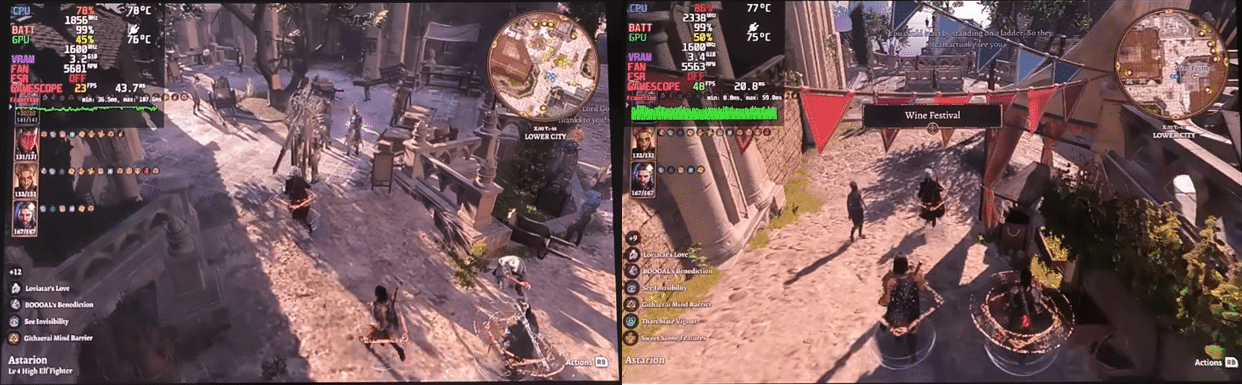
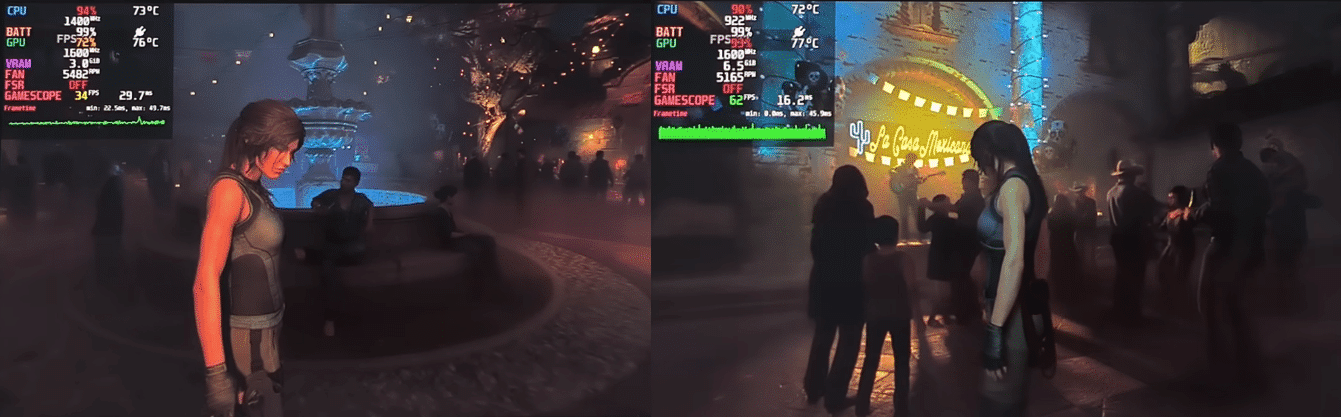
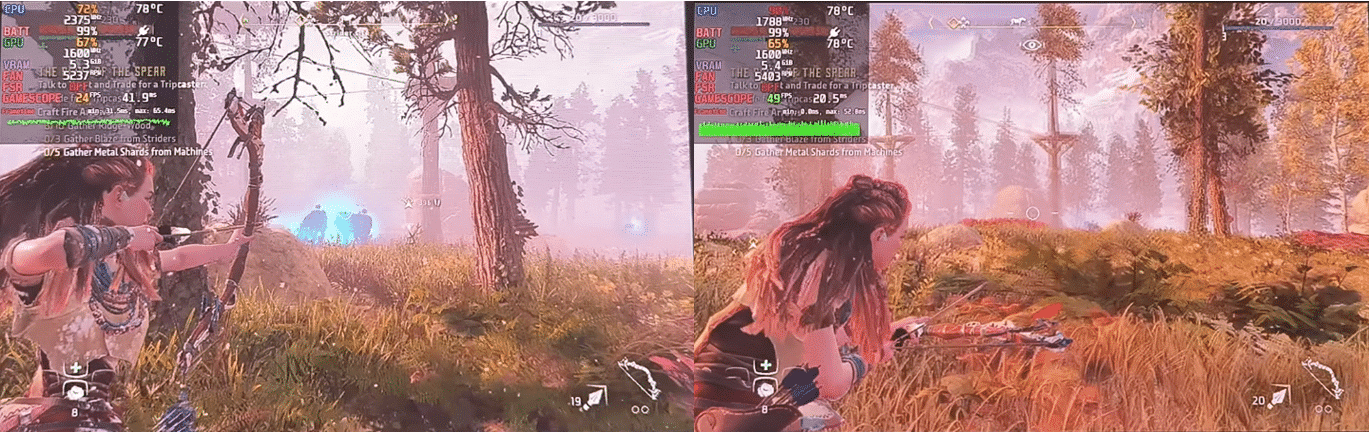
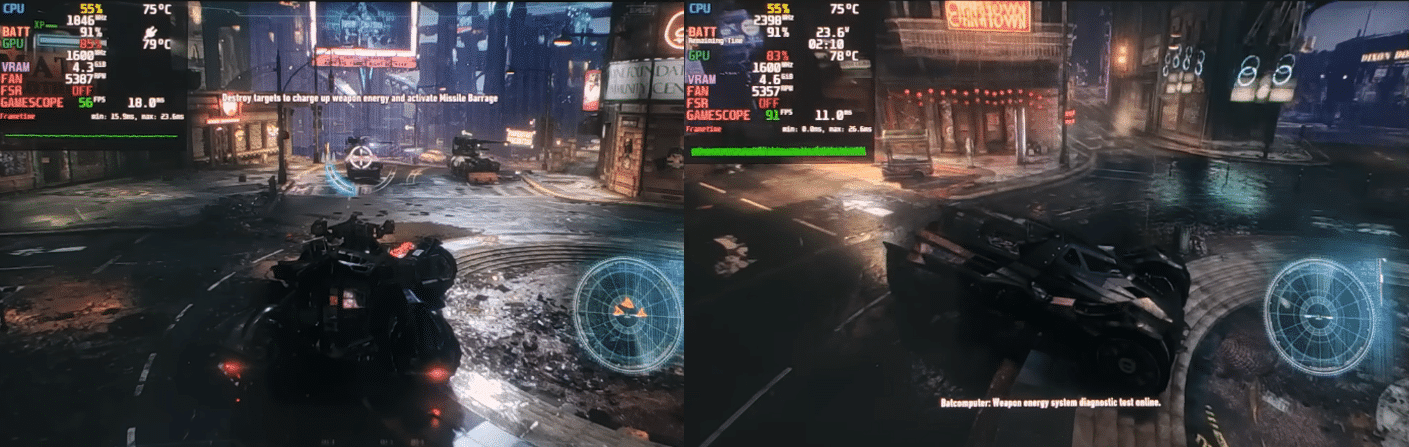
Check out some of the before and after pictures with lossless scaling frame generation below!
Baldur’s Gate 3
Shadow of the Tomb Raider
Horizon Zero Dawn
Batman: Arkham Knight
When You Shouldn’t Activate Lossless Scaling
Lossless Scaling isn’t necessarily a magic fix, and there are situations where it’s better left disabled. The biggest one is when a game can’t maintain a stable base framerate. If performance is constantly jumping between values, frame generation can actually make stutter more noticeable instead of smoothing it out.
Fast-paced competitive games are another case where Lossless Scaling may not be ideal. Because it generates interpolated frames, it can introduce a small amount of input latency, which matters more in shooters, fighting games, or rhythm games where timing is critical.
You also shouldn’t use Lossless Scaling if a game already runs smoothly at native 60 FPS or higher on the Steam Deck. In those cases, the visual benefit is minimal, and you’re better off avoiding the extra processing altogether.
Finally, games that rely heavily on exclusive full-screen may not behave well with frame generation enabled. If you notice visual artifacts, ghosting, or inconsistent frame pacing, it’s usually a sign that Lossless Scaling isn’t a good fit for that title.